
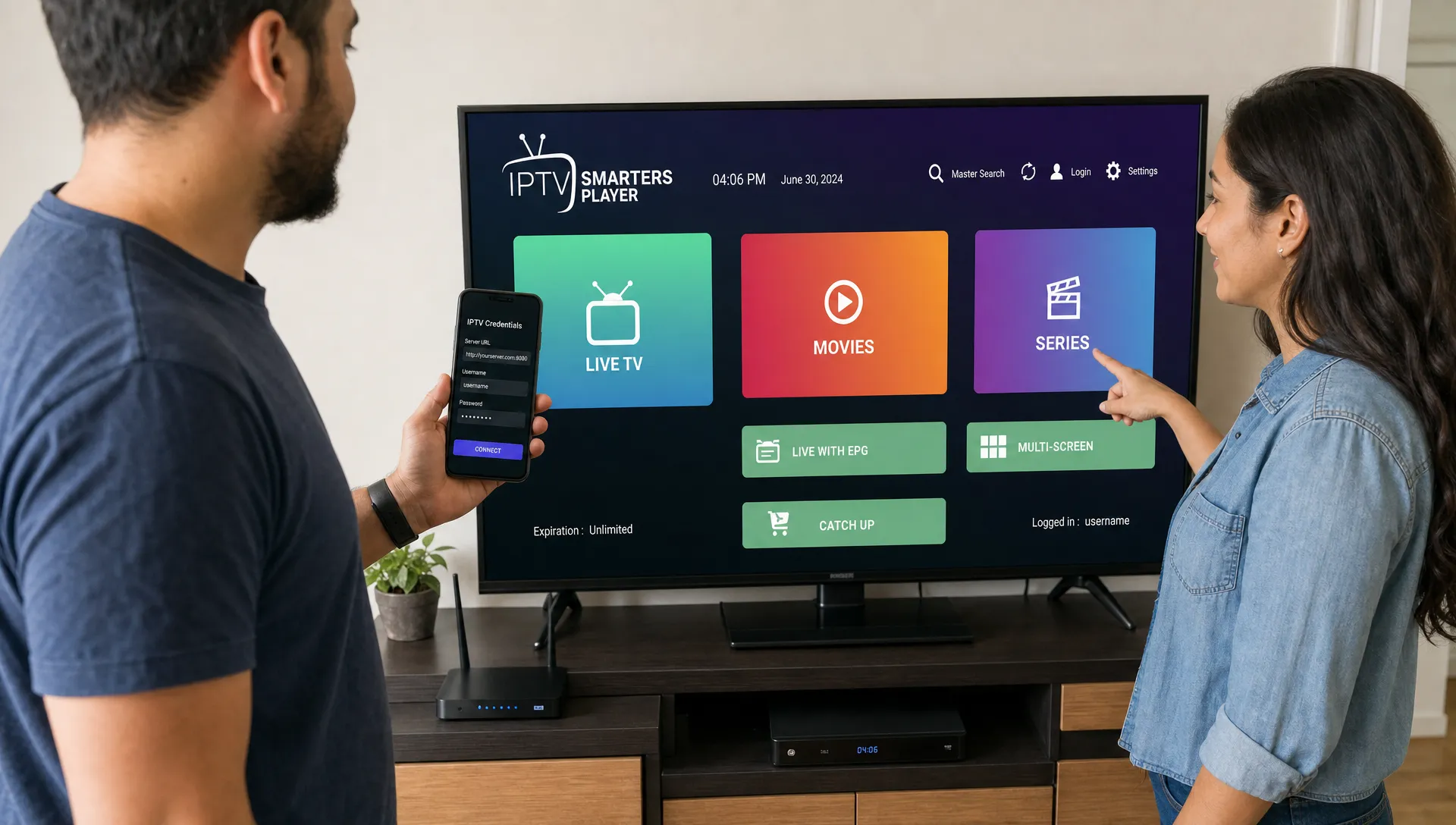
Setting up IPTV Smarters Player on a Smart TV is usually straightforward once you understand what the app does, what login details you need and which installation path fits your TV. The app is an IPTV player, not a TV provider, so it needs an active IPTV subscription or a legal playlist before it can show live channels, movies, series or an electronic program guide.
This guide focuses on Smart TVs, especially Samsung, LG, Android TV and Google TV models. You will learn how to install the app when it is available in your TV’s app store, how to log in with common IPTV credentials, which settings help with 4K streaming and what to do if the app does not appear on your device.
Before You Start: What You Need
Before installing anything, confirm that your IPTV service supports Smart TV playback and provides the correct login format. Some services give you an Xtream Codes login, usually a username, password and server URL. Others provide an M3U playlist link and sometimes a separate EPG link for the TV guide.
IPTV Smarters Player works best when your provider gives clean, complete credentials and your TV has a stable internet connection. For 4K streams, Wi-Fi can work, but Ethernet is often more reliable if your router is close enough.
| Requirement | Why it matters |
|---|---|
| Compatible Smart TV | App availability depends on your TV brand, operating system, model year and region. |
| Active IPTV subscription | The player does not include channels by itself. |
| Login details | You need Xtream Codes, M3U URL or another supported playlist format from your provider. |
| Stable internet | HD and 4K streams need consistent bandwidth, not just a fast speed test result. |
| TV remote or companion remote app | Entering long URLs is easier with a phone-based remote or copied credentials. |
If you are still comparing services, it helps to understand what separates a stable provider from a risky one. The guide on how to choose a reliable IPTV subscription covers content access, device support, streaming quality and renewal terms in more detail.
How to Install IPTV Smarters Player on a Smart TV
The exact installation steps depend on your TV platform. In 2026, app availability can still vary by country, TV model and store policy, so search your TV’s official app store first. Avoid random downloads from unknown websites, especially on devices that do not officially support app sideloading.
Step 1: Check Your Smart TV Platform
Start by identifying your TV operating system. Samsung TVs usually run Tizen, LG TVs use webOS and many other brands use Android TV or Google TV. Sony, TCL, Hisense, Philips and other manufacturers may use different systems depending on the model.
On most TVs, you can find this information under Settings, About, Device Preferences or Support. Knowing the platform matters because IPTV Smarters Player may be available directly in one store but not another. If your TV uses Android TV or Google TV, you will usually have the most flexible app options through Google Play.
Step 2: Search the Official App Store
On a Samsung Smart TV, press the Home button, open Apps, use the search icon and look for IPTV Smarters or IPTV Smarters Pro. On an LG Smart TV, open the LG Content Store, go to search and enter the app name. On Android TV or Google TV, open Google Play and search from there.
If you see IPTV Smarters Player listed, open the app page and choose Install. After installation, launch it from your apps row or home screen. If you do not see the app, do not assume your subscription is incompatible. It may simply mean the app is not available for your TV model or region.
Step 3: Open the App and Choose a Login Method
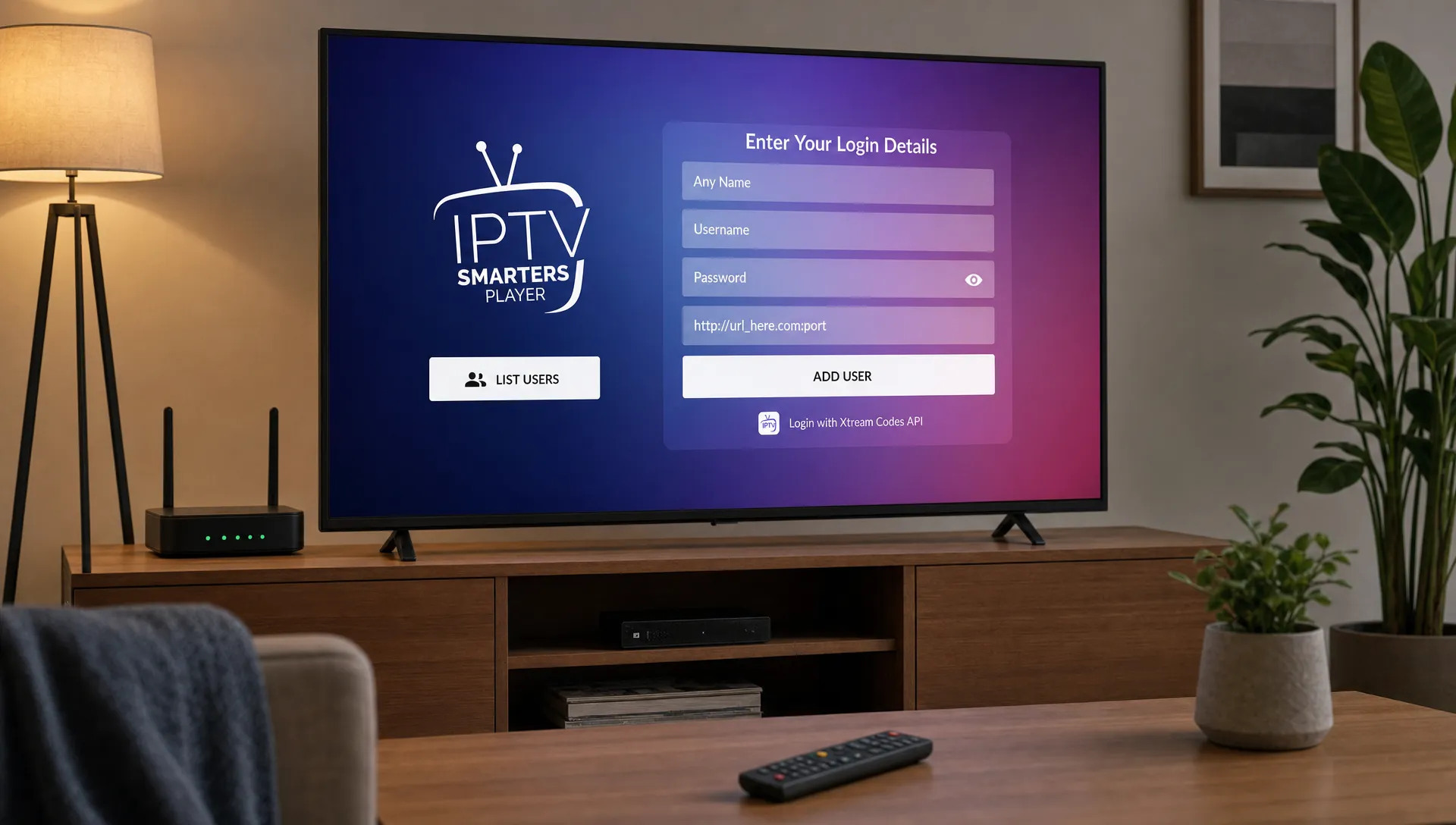
When the app launches, you may see different sign-in options. The names vary by app version, but the most common choices are “Login with Xtream Codes API” and “Load Your Playlist or File/URL.” Xtream Codes is usually easier on a TV remote because it separates your details into three fields instead of one long link.
Enter the profile name first. This can be anything you recognize, such as “Home IPTV” or the name of your provider. Then enter the username, password and server URL exactly as your IPTV provider supplied them. Extra spaces, missing slashes or incorrect capitalization can prevent login.
Step 4: Wait for Channels, VOD and EPG to Load
After login, the app may need a few minutes to load live TV categories, video on demand sections and the EPG. A large IPTV subscription can include thousands of channels and a big VOD library, so the first sync may take longer than future launches.
If the app asks to download live TV, movies, series or guide data, allow it to complete before testing streams. Closing the app during the first load can cause missing categories or an incomplete guide.
If the App Is Not Available on Your Smart TV
If IPTV Smarters Player does not appear in your TV’s official store, the cleanest workaround is to use an external streaming device. A Fire TV Stick, Android TV box, Chromecast with Google TV or similar device can often provide better app support and faster navigation than the built-in Smart TV operating system.
This approach also protects you from unreliable sideloading methods on Samsung Tizen or LG webOS, where installing unsupported apps can be difficult or unsafe. If you prefer Amazon’s device, the beginner guide on setting up IPTV on Firestick walks through the broader Firestick setup process.
External devices are also useful when your TV is older. Even if the screen still looks excellent, the processor, memory and app store may be outdated. A dedicated streaming device can make menus faster, reduce app crashes and simplify future updates.
Add Your IPTV Subscription the Right Way
The most common setup mistake is treating the player and the subscription as the same thing. IPTV Smarters Player is only the software interface. Your channels, movies, sports and guide data come from the IPTV service or playlist you add to it.
If your provider gives you Xtream Codes details, use that method first. It usually supports live TV, VOD, series and EPG more neatly than a plain M3U playlist. If you receive an M3U URL, choose the playlist option and paste the full link exactly as provided. When available, add the EPG URL too, since that is what fills the program guide.
For households using more than one screen, check whether your subscription allows simultaneous connections. Installing the app on two TVs is not the same as being allowed to stream on two TVs at the same time. The guide to using IPTV on multiple devices explains the difference between app installation and active connection limits.
Recommended Settings for Smooth 4K Streaming
Once you can log in and play channels, spend a few minutes optimizing the TV. IPTV Smarters Player performance depends on the app, your provider’s servers, your home network and the stream quality you select.
For 4K, wired Ethernet is usually the best option. If you use Wi-Fi, connect to a strong 5 GHz or 6 GHz network when your router and TV support it. The Netflix help center recommends at least 15 Mbps for Ultra HD streaming, but live IPTV can benefit from more headroom, especially when other people in the home are gaming, working or streaming at the same time.
| Setting or habit | Recommended approach |
|---|---|
| Internet connection | Use Ethernet when possible, or strong 5 GHz Wi-Fi near the router. |
| App cache | Clear cache if menus become slow or categories stop loading. |
| Stream quality | Test HD before 4K if buffering appears during peak hours. |
| Background apps | Close unused TV apps to free memory on older Smart TVs. |
| Router placement | Keep the router away from thick walls, cabinets and signal interference. |
If your provider offers multiple versions of a channel, test the HD and 4K versions separately. A 4K stream that buffers constantly is less enjoyable than a stable HD stream, especially for live sports.
Troubleshooting IPTV Smarters Player on Smart TV
Most setup problems are caused by incorrect credentials, app availability, network instability or provider-side issues. Work through the basics before changing devices or reinstalling everything.
| Problem | Likely cause | What to try |
|---|---|---|
| Login failed | Wrong username, password or server URL | Re-enter details carefully and remove extra spaces. |
| Channels load but will not play | Server issue, expired plan or unsupported stream format | Test another category and contact your IPTV provider. |
| EPG is empty | Missing or outdated guide URL | Refresh EPG data or ask your provider for the correct guide link. |
| App freezes | Low TV memory or outdated app version | Restart the TV, update the app and clear cache if available. |
| 4K buffers | Weak Wi-Fi, congestion or limited bandwidth | Use Ethernet, reduce other network usage or test an HD stream. |
If IPTV Smarters Player opens but only some channels fail, the app is probably not the main problem. A single broken channel or category usually points to the IPTV source, not the TV. If nothing plays at all, test your credentials on another supported device or ask your provider to confirm your subscription status.
Login Details Do Not Work
Check whether the server URL includes the correct protocol, such as http or https, and whether it ends with the exact format your provider supplied. Smart TV keyboards sometimes add spaces after words, so move the cursor to the end of each field and delete anything extra.
If you copied credentials from an email or chat message, look for similar-looking characters. A lowercase “l,” uppercase “I” and number “1” can be easy to mix up on a TV screen.
The App Keeps Buffering
Buffering can come from the provider, your internet connection or the Smart TV itself. Restart your router, restart the TV and test another streaming app to see if the issue affects all video playback. If other apps also struggle, focus on the home network first.
If only IPTV buffers, test different channel categories. Sports channels during major events can be more demanding than standard movie or news channels. A reliable IPTV service should provide stable servers, but no app can fix a poor source feed.
Safety and Legal Use Matter
Use IPTV players only with subscriptions and playlists you are authorized to access. The app store listing, player interface or playlist format does not automatically prove that a channel source is legitimate. Choose providers that are transparent about their service, support and terms.
Avoid entering IPTV credentials into unknown websites or unofficial “checker” tools. Your playlist can expose account details, so treat it like a password. If you sell, share or post those details publicly, your account may stop working or be used by someone else.
For families, review parental control options inside the app and your Smart TV settings. IPTV libraries can include live channels, movies and series across many categories, so a shared living room TV should be configured for the people who actually use it.
When BuyIPTVfor4K Fits This Setup
If you want a subscription to use with IPTV Smarters Player, BuyIPTVfor4K offers IPTV plans for USA and UK viewers with live channels, movies, sports content and streaming quality from SD through 4K. The service highlights broad device compatibility, anti-freezing technology, 99.9% server uptime, 24/7 customer support and free installation help.
That support can be useful if you are setting up a Smart TV for the first time and are not sure whether to use Xtream Codes, M3U or another login method. You can review available options on the BuyIPTVfor4K website and confirm that your TV, internet connection and preferred device are a good match before you start.
Frequently Asked Questions
Is IPTV Smarters Player free on Smart TV? The app may be free to install on some platforms, but it does not include channels by itself. You still need an IPTV subscription or a legal playlist from a provider.
Can I install IPTV Smarters Player on Samsung Smart TV? You can install it if it appears in the Samsung app store for your TV model and region. If it is not listed, consider using a compatible external streaming device instead of unsafe sideloading methods.
Can I install IPTV Smarters Player on LG Smart TV? Open the LG Content Store and search for the app. Availability can vary by country, model and webOS version, so an external Android TV or Fire TV device may be easier if the app is missing.
What login details do I need? Most users need either Xtream Codes details, which include a username, password and server URL, or an M3U playlist URL. Some providers also give a separate EPG URL for the program guide.
Why does my IPTV work on my phone but not on my Smart TV? The TV app may not support the same format, the credentials may have been entered incorrectly or your subscription may limit simultaneous connections. Test one device at a time and ask your provider to confirm supported apps.
Do I need a VPN for IPTV on a Smart TV? A VPN is not required for every setup. If you use one, choose a reputable provider and remember that a VPN cannot make unauthorized content legal or fix a poor IPTV source.
Get Your Smart TV Ready for IPTV
A smooth setup comes down to three things: a compatible TV or streaming device, correct subscription credentials and a stable internet connection. Once those are in place, IPTV Smarters Player can be a convenient way to organize live TV, VOD, sports and guide data on the big screen.
If you want help choosing a plan and setting it up on your device, visit BuyIPTVfor4K to explore IPTV subscriptions with 4K streaming, broad device support and installation assistance.
7 Replies to “How to Set Up IPTV Smarters Player on a Smart TV”