
Install Smart IPTV or a compatible player like TiVimate or IPTV Smarters, add your M3U playlist or activate through the app’s MAC or My List page, then refresh the app to load your channels. Samsung and LG owners typically use the TV’s app store, while Fire TV and some Android TV boxes need sideloading. Services such as BuyIPTVfor4K provide subscriptions you can activate this way, though unauthorized retransmission of copyrighted broadcasts carries legal risk.
TL;DR:
- Check your exact TV model, production year, and Fire TV OS version first, because older app support varies and newer builds may block sideloading.
- Smart IPTV links a device’s MAC address to the playlist, while other players may accept an M3U file, URL, or account credentials.
- If channels do not load, test the playlist in VLC or a phone browser; failure there points to an expired or invalid link.
- Test both a live channel and a video on demand title after activation, and check channel specific buffering on another device.
- Unauthorized retransmission of copyrighted broadcasts can constitute infringement under U.S. law, so use playlists and subscriptions that are properly licensed.
Table of Contents
- Which devices and prerequisites do you need before you start?
- Step-by-step install on Samsung, LG, Android TV, and Fire TV
- How do you add a playlist and activate the service?
- Sideloading and device limitations you should know about
- Troubleshooting common setup and playback problems
- Why hands-on support changes the setup experience
- BuyIPTVfor4K: get set up with the 1 Year+Free 3 Months plan
- FAQ
- Sources
Which devices and prerequisites do you need before you start?
Before you touch any app, confirm your device can actually run it. Smart IPTV and most IPTV clients work on Samsung and LG smart TVs, Android TV and Google TV boxes, Amazon Fire TV and Firestick models, and most Android phones or tablets. Each platform has its own installation path, so knowing your exact model matters more than it might seem.
Check your TV’s model number in the settings menu, usually under “About” or “Device Info.” For Samsung and LG, note the production year since older Tizen or webOS versions sometimes lack app store support for third-party IPTV clients. For Fire TV, check the exact Fire TV OS version, since newer builds restrict sideloading more aggressively than older ones.
Network readiness matters just as much as the device itself. A wired Ethernet connection gives the most stable playback, especially for 4K content, but a solid Wi-Fi connection usually works fine for HD streams. Make sure your TV’s firmware is current, since outdated software can block app installations or cause playback errors.
You’ll also need your device’s MAC address for activation on Smart IPTV and similar apps:
- Samsung TVs: find it under Settings, then General, then Network, then Network Status.
- LG TVs: check Settings, then Connection, then Wi-Fi Connection, then Advanced Wi-Fi Settings.
- Android TV and Fire TV: look under Settings, then Device (or My Fire TV), then About, then Network.
- Fire TV alternative: Settings, then My Fire TV, then About, then Network.
The MAC address ties your device to your subscription on the provider’s server, which is how Smart IPTV style activation confirms you’re an authorized user rather than requiring a login every time.
Step-by-step install on Samsung, LG, Android TV, and Fire TV
The exact install process depends on your device, but the order of operations stays the same across all of them: prepare your playlist or subscription details first, install the app second, grab your MAC or activation token third, then add the playlist last.
On Samsung smart TVs:
- Open the Samsung Smart Hub and search the app store for “Smart IPTV.”
- Install the app, which usually runs a short free trial before requiring activation.
- Open the app and note the MAC address displayed on the home screen.
- Send that MAC address to your IPTV provider or enter it on the SIPTV activation portal along with your playlist URL.
- Restart the app once activation confirms.
On LG smart TVs:
- Open the LG Content Store and search for “Smart IPTV” or a compatible player.
- Install and launch the app.
- Copy the MAC address shown on the app’s main screen.
- Submit that MAC through your provider’s activation page, pairing it with your M3U playlist URL.
- Reopen the app to confirm the channel list populated.
On Android TV and Google TV:
Most Android TV boxes and Google TV devices can install TiVimate, IPTV Smarters, or Smart IPTV directly from the Google Play Store. If your preferred app isn’t listed in your region’s store, you can sideload the APK file instead, which means downloading the installer package and installing it manually rather than through the store. Enable “Install unknown apps” for your file manager or browser under Settings, then Apps, before sideloading.
On Fire TV and Firestick:
Fire TV doesn’t carry most IPTV apps in its native app store, so sideloading is standard here:
- Go to Settings, then My Fire TV, then Developer Options, and turn on “Apps from Unknown Sources.”
- Install the Downloader app from the Amazon App Store.
- Open Downloader, enter the direct APK URL for TiVimate, IPTV Smarters, or your chosen player, and install it.
- Launch the app, retrieve the MAC address or activation code from its settings menu.
- Add your playlist or complete MAC-based activation through your provider.
Newer Fire TV OS builds sometimes limit or block this process entirely, so check your exact device compatibility before assuming sideloading will work the same way it did on an older unit.
On mobile and tablets:
Installing the IPTV app on your phone first is a smart move before touching your TV. Grab the app from the Play Store (or sideload it on Android), test your playlist URL there, and confirm channels load before repeating the process on your television. This catches playlist errors early without wasting time on the TV setup.
Pro Tip: Write down your MAC address and playlist URL in your phone’s notes app before you start. Switching between TV menus and provider activation pages is much faster when you’re not retyping long strings of numbers from memory.
For a closer look at setting up a specific player, our guide on IPTV Smarters on a smart TV walks through that app’s particular menus.
How do you add a playlist and activate the service?
Once the app is installed, you’ll add your content through one of three methods, depending on what your provider gives you: a direct M3U playlist URL, an uploaded M3U file, or login credentials tied to a provider account.
- M3U URL: paste the full link your provider sent you into the app’s “Add Playlist” or “Add Portal” field, usually found in Settings or Playlists.
- M3U file: if you received a downloaded file instead of a link, use the app’s file upload option and select it from local storage or a USB drive.
- Credentials-based: some apps like IPTV Smarters ask for a username, password, and server URL instead of a playlist link, entered on a dedicated login screen.
Smart IPTV uses a slightly different flow built around MAC activation rather than manual playlist entry. After installing the app, you’ll see your device’s MAC address on the home screen. Send that MAC to your subscription provider, or enter it yourself on the provider’s “My List” activation page along with the M3U URL they issued you. The provider’s server then links that MAC permanently to your playlist, so the app loads your channels automatically every time you open it, with no login required.
To verify everything worked, close and reopen the app, then check that the channel list populated with categories and logos rather than showing a blank screen. Test one live channel and one video-on-demand title if your service includes VOD, since playlist errors sometimes affect only one content type. Activation through MAC-based systems typically takes effect within a few minutes, though some providers note it can take longer during high-traffic periods.
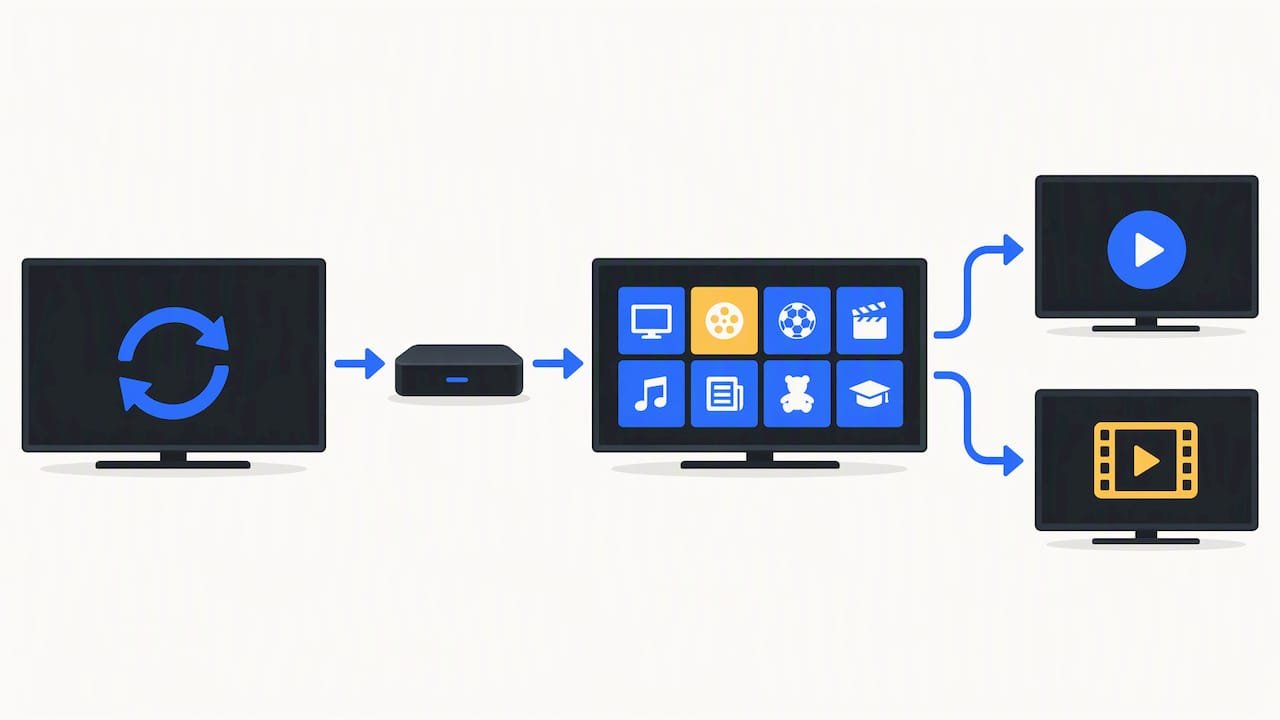
If you’re setting this up on a smart TV for the first time, our beginner’s guide to IPTV on smart TVs covers the basic prerequisites in more depth.
Sideloading and device limitations you should know about
Sideloading is the standard route for installing IPTV apps on Fire TV and some Android devices that don’t carry those apps in their default store. The process itself is straightforward:
- Enable Developer Options on your device, usually under Settings, then My Fire TV or About, then tap the build number repeatedly if needed.
- Turn on “Apps from Unknown Sources” or “Install Unknown Apps” for Downloader or your browser.
- Install Downloader from the Amazon App Store or Google Play Store.
- Enter the APK’s direct download URL in Downloader and run the installer.
- Grant any permissions the app requests, such as storage access, before first launch.
Here’s the part that catches people off guard: newer Fire TV OS versions can restrict or fully block third-party app installs, even when you follow every step correctly. This happens because Amazon has tightened sideloading permissions on certain proprietary OS builds, so a process that worked perfectly on a Fire TV Stick from a few years ago may not work on a current model. Checking your specific device and firmware version before you start saves a lot of frustration.
Only download APK files from sources you recognize and trust, since sideloaded apps bypass the review process that app stores normally provide. Once your setup is working the way you want, you can turn Developer Options back off if you’d rather not leave that door open, and keep your device’s firmware updated to avoid compatibility issues down the line.
Pro Tip: If Downloader fails to install an APK on a newer Fire TV model, try an alternative sideloading app from the Amazon App Store before assuming the file itself is broken.
Troubleshooting common setup and playback problems
Most IPTV problems trace back to one of four areas: network speed, playlist formatting, app configuration, or server-side issues. Working through them in order usually isolates the cause quickly.
- Check your network speed first. Standard definition streams generally need a stable connection with headroom above typical minimums, HD needs more, and 4K content needs considerably more bandwidth and a wired connection whenever possible. Restart your router, and if your network supports Quality of Service settings, prioritize your streaming device over other traffic.
- Validate your playlist separately from the app. Open your M3U URL in VLC Media Player or paste it into a browser on your phone to confirm it loads channels. A playlist that fails outside the IPTV app points to a dead or expired link rather than a problem with your TV setup.
- Update or reset the app itself. Clear the app’s cache and data through your device’s app settings, or uninstall and reinstall it entirely. If MAC-based activation isn’t holding, re-enter the MAC address through your provider’s activation page and confirm it matches exactly what’s shown in the app.
- Test playback issues channel by channel. If one channel buffers constantly but others play fine, the issue is likely on the provider’s server for that specific stream rather than your setup. Try lowering stream quality in the app’s settings, and test the same playlist on a second device to rule out a hardware-specific problem.
One legal note worth knowing: retransmitting copyrighted broadcast programming over the internet without authorization from the rights holders can constitute copyright infringement under U.S. law, and infringement liability applies regardless of intent since it’s a strict liability offense. Federal court rulings have found that operating the servers and content delivery infrastructure behind unauthorized retransmission can itself amount to direct infringement. Sticking with authorized playlists and subscriptions from legitimate providers avoids this risk entirely.
For a broader refresher on how the technology works before you troubleshoot further, see our explainer on what IPTV is.
Why hands-on support changes the setup experience
Walking through every device’s quirks above shows how many small decisions go into a working setup: the right app, the right activation method, the right sideloading workaround for your specific Fire TV model. We built our subscription to help new customers get started.
When someone signs up with us, our team provides step-by-step installation support. Our support is also available to help with activation issues.
The steps covered above, from locating your MAC address to adding a playlist URL, may help you get set up with our service. Our support team can help with setup questions.
— AHMED
BuyIPTVfor4K: get set up with the 1 Year+Free 3 Months plan
If you’d rather skip hunting for playlist links and troubleshooting activation errors on your own, our 1 Year+Free 3 Months plan comes with setup help built in from the moment you subscribe.
- Access live channels and video-on-demand titles in 4K, HD, and FHD.
- Follow the activation steps for your subscription.
- Get help from our support team with installation and activation questions.
If a full year feels like more than you need right now, we also offer 3-month and 6-month subscriptions, each with the same setup support and device compatibility. Our team is ready to walk you through activation on your channels list. Visit our setup page to get started.
FAQ
Is IPTV legal in the USA?
IPTV is a method of delivering television over the internet. What determines its legality is whether the content being streamed is properly licensed, and retransmitting copyrighted broadcasts without authorization can constitute infringement under U.S. copyright law.
How do I activate my IPTV?
Most IPTV apps activate either through a direct M3U playlist URL you enter in the app’s settings, or through a MAC address based system where you submit your device’s MAC to your provider’s activation page. Once activated, the channel list typically populates within a few minutes after you refresh the app.
Is Smart IPTV free?
Smart IPTV offers a free trial period after installation, but it requires a one-time activation fee for continued use beyond that trial on most devices. The playlist content itself still depends on a separate subscription from an IPTV provider.
What do I need to set up IPTV?
You need a compatible app like Smart IPTV, TiVimate, or IPTV Smarters installed on your device, a playlist URL or MAC-based subscription from a provider, and a stable internet connection, with a wired connection recommended for HD or 4K streams. You’ll also need your device’s MAC address handy if your chosen app uses MAC-based activation.