

Paste the M3U URL, or load the local .m3u file, into the playlist field of a supported IPTV player such as IPTV Smarters Pro, TiviMate, Kodi, or VLC, and the channel list loads automatically. If the URL is valid and your connection is stable, playback starts within seconds. The rest of this guide covers the file format, exact app steps, and fixes when something stalls.
TL;DR:
- A hosted M3U URL can refresh when the provider changes channels, while a downloaded file stays unchanged until you reload it.
- In Kodi, add the separate XMLTV URL and check that playlist tvg-id values match guide entries; tvg-name can serve as a fallback.
- Open one channel’s stream URL directly in VLC before troubleshooting another app; successful playback points to an app setup issue, not a broken stream.
- If a playlist will not download, test its link in a browser or VLC, try HTTPS, and ask the provider whether it has expired.
- Use a public community playlist to test your app and network first, but expect streams to be geographically restricted or inconsistently available.
Table of Contents
- What is an M3U playlist and how do its tags work?
- How do you load an M3U playlist into popular players?
- Why won’t my playlist load, play, or show a guide?
- Where can you find test playlists and how do local files work?
- How BuyIPTVfor4K subscribers get a working M3U set up fast
- The simplest reliable way to set up an M3U playlist
- Get a tested M3U URL and guided setup with BuyIPTVfor4K
- FAQ
- Sources
- Essential official docs and community playlist links
What is an M3U playlist and how do its tags work?
An M3U playlist is a plain text file. It opens with #EXTM3U and lists channels using #EXTINF lines, each followed by a stream URL. A typical entry includes tags like tvg-id, tvg-name, tvg-logo, and group-title, which tell your player how to match a channel to its guide data, display name, logo, and category. The tvg-chno tag sets a fixed channel number when your app supports manual numbering.
M3U and M3U8 are the same format in practice. The “8” simply signals UTF-8 encoding, common with streams that include non-English channel names. A hosted M3U URL updates automatically when the provider refreshes it, while a downloaded .m3u file stays fixed until you reload it. Some services use Xtream Codes style links instead, which bundle a username, password, and server address into one API URL rather than a flat playlist. Both approaches end up feeding the same channel list into your player, just through different request formats.
How do you load an M3U playlist into popular players?
Each app uses a slightly different menu path, but the core step is identical everywhere: paste the playlist URL or point the app at a local file.
- IPTV Smarters Pro: open the app, choose “Login with M3U URL,” enter a playlist name, paste the URL into the “M3U URL” field, and tap “Add User.” The app downloads the list and builds the channel grid automatically.
- TiviMate: go to Settings, select “Playlists,” tap “Add Playlist,” choose “M3U Playlist,” then pick either “File or URL” for a hosted link or “Local file” for a .m3u saved on your device. TiviMate also lets you add a separate EPG/XMLTV URL under its own playlist settings.
- Kodi: install the PVR IPTV Simple Client, then go to Add-ons, My add-ons, PVR Clients, select the IPTV Simple Client, and open Configure. Under the General tab, set the M3U Play List URL (or Local Path if you downloaded the file), and under the EPG Settings tab, add the XMLTV URL if your provider supplies one.
- VLC: open Media, then “Open Network Stream,” paste the playlist URL directly, and press Play. VLC reads the M3U and lets you click through channels in the Playlist panel, which makes it the fastest way to confirm a single stream works before touching another app.
Most players include a refresh or “update playlist” button, usually in the playlist settings menu, that re-downloads the M3U so new or renamed channels show up without reinstalling anything. Login credential fields appear only when a provider uses Xtream-style access instead of a flat M3U link, in which case you enter a server address, username, and password rather than a playlist URL.
If a channel list loads but nothing plays, isolate the problem first. Copy one stream URL from the M3U file and open it directly in VLC through Open Network Stream. According to VLC’s Media Resource Locator documentation, the player supports multiple access schemes including http://, https://, udp://, and rtp://, so testing the raw URL tells you whether the stream itself works or whether the issue sits in the app you added it to.
Why won’t my playlist load, play, or show a guide?
Most M3U problems fall into one of three buckets: the playlist link, the stream itself, or the EPG mapping.
- Playlist won’t load: paste the URL into a browser or VLC to confirm it downloads; if it fails, try the HTTPS version of the link, since HTTP links sometimes get blocked on networks or in apps that expect secure connections, and otherwise confirm with your provider that the link hasn’t expired.
- Channels show but won’t play: test one stream URL directly in VLC to rule out an app bug, and consider that the issue could be server downtime or regional blocking on that specific channel.
- No EPG or wrong guide data: check whether the playlist’s
tvg-idmatches the display name in your XMLTV source, since Kodi’s IPTV Simple Client documentation notes that mapping can fall back totvg-namewhentvg-idis missing, and add the separate XMLTV URL in your player’s EPG settings if it isn’t already set. - Buffering or stuttering: run a speed test, restart your router, and switch to a wired ethernet connection or a lower bitrate stream if your Wi-Fi signal is weak.
Pro Tip: Always test with a known public playlist like iptv-org’s index.m3u first. If that plays cleanly but your subscription link doesn’t, the problem is almost certainly on the provider side, not your app or device.
Where can you find test playlists and how do local files work?
The iptv-org project on GitHub maintains a main index.m3u plus category and country-specific playlists built from publicly available streams. Pasting one of these into VLC or TiviMate gives you a reliable way to confirm your app and network setup work before relying on a paid subscription link.
Loading a local file works the same way across most apps: save the .m3u to your device or a USB drive, then choose “local file” or “local path” instead of a URL in the playlist settings. Public playlists can include geo-blocked or inconsistently available streams, so treat them as a testing tool rather than a daily viewing source.
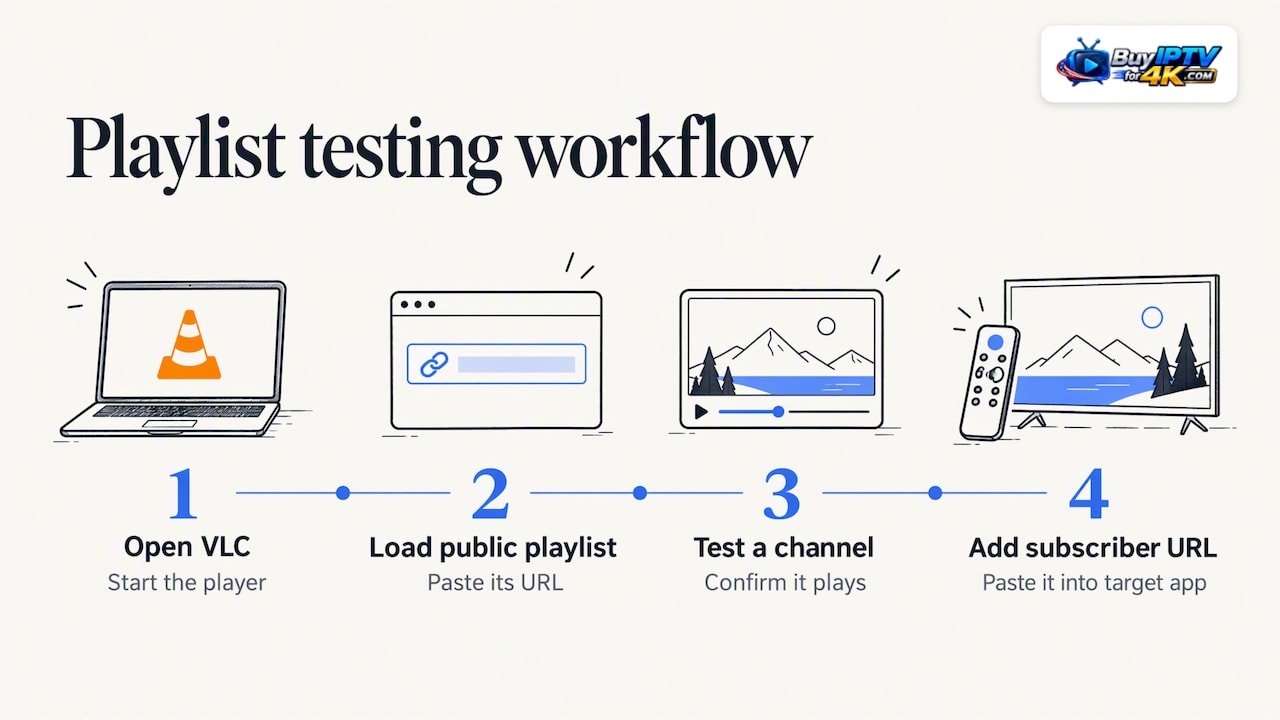
A practical workflow looks like this: open VLC, load a public playlist URL, confirm a channel plays, then take that same confidence and paste your actual subscriber M3U URL into your target app, whether that’s TiviMate, Smarters, or Kodi.
How BuyIPTVfor4K subscribers get a working M3U set up fast
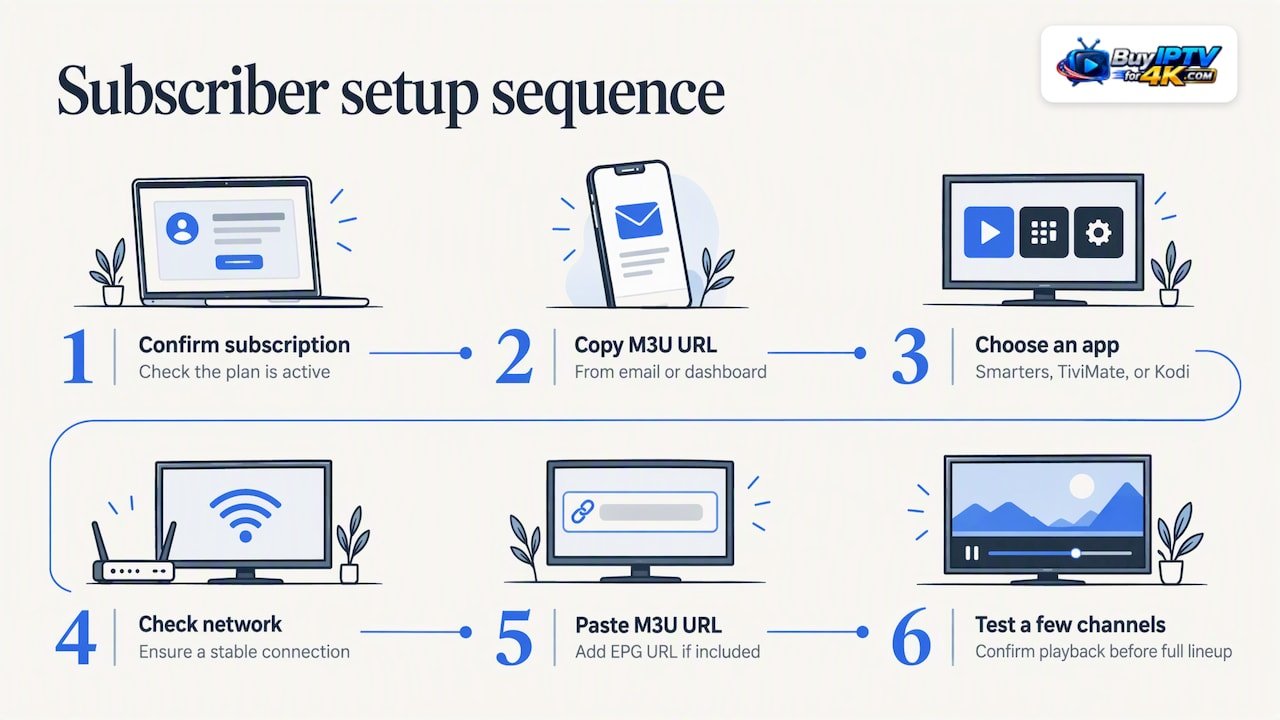
Once your BuyIPTVfor4K account is active, setup follows the same pattern covered above, with a few things to confirm first: your subscription is active, you’ve copied the M3U URL from your account email or dashboard, you’ve picked an app, and your device is on a stable network connection. If your plan includes a separate EPG URL, add it in your player’s EPG settings alongside the playlist.
Paste the M3U URL into IPTV Smarters, TiviMate, or Kodi’s IPTV Simple Client exactly as described earlier, then confirm playback on a few channels before relying on the full lineup. Our setup guide walks through each app step by step, and our channel list shows what’s available once you’re connected. Our service is built around fast, stable servers designed to reduce freezing, and our support team is available 24/7 if a playlist doesn’t behave as expected. For subscribers who want the longest runway without re-entering setup details every few months, the 1 Year+Free 3 Months plan is worth a look.
The simplest reliable way to set up an M3U playlist
The least frustrating path is always the same: confirm the stream works in VLC first, then move to whatever app you actually plan to watch on. Skipping that first check is the most common reason people blame an app when the real issue is the link itself.
Before contacting any support team, have a few things ready: one sample stream URL, your device model, the app name and version, and the exact error message you saw. That short list turns a back and forth troubleshooting session into a one-message fix.
— AHMED
Get a tested M3U URL and guided setup with BuyIPTVfor4K
Skipping the trial and error of hunting for working playlists is the real advantage of a paid subscription. We give you a ready M3U URL built on fast servers, backed by a catalog built for people who want sports, movies, and live channels without constant buffering.
- Access to a wide channel and video-on-demand catalog that’s updated regularly at no added cost.
- Servers built to minimize freezing during live sports and peak viewing hours.
- 24/7 support if a playlist or app setting needs troubleshooting.
- Step-by-step guided setup for IPTV Smarters, TiviMate, Kodi, and VLC.
Our 1 Year+Free 3 Months plan gives you the longest runway before renewal, while shorter options are available on our plans page if you want to start smaller. Pick a plan, get your M3U URL by email, and follow our setup guide to be watching within minutes.
FAQ
What is an IPTV service?
An IPTV service delivers live TV channels and on-demand video over an internet connection instead of satellite or cable lines. Streams are typically accessed through an M3U playlist or an Xtream-style login that a player app reads to build the channel list.
How do I set up IPTV for free?
You can test IPTV playback for free using public, community-run playlists such as iptv-org’s index.m3u, loaded into VLC or another supported player. These free playlists are useful for confirming your app and network work correctly, though availability and quality vary since they rely on publicly accessible streams.
What is M3U on IPTV?
M3U is the plain text playlist format that lists channel names and their stream URLs using #EXTM3U and #EXTINF tags. IPTV apps read this file to build the visible channel grid, and some players also use tags like tvg-id and group-title to organize channels and match them to an EPG.
How do I create an M3U file?
You can create an M3U file in any plain text editor by starting the file with #EXTM3U, then adding one #EXTINF line per channel followed by its stream URL on the next line. Save the file with a .m3u extension, and most players, including VLC and Kodi’s IPTV Simple Client, will read it once loaded as a local file or hosted URL.
Sources
- Add-on:PVR IPTV Simple Client — Official Kodi Wiki
- iptv-org/iptv — GitHub
- Media resource locator — VideoLAN wiki
Essential official docs and community playlist links
A few sources cover everything in this guide in more depth. The Kodi PVR IPTV Simple Client wiki documents the full M3U tag set and setup screens in detail. VLC’s Media Resource Locator page explains every access scheme the player supports, from standard HTTP links to UDP and RTP streams. The iptv-org GitHub repository hosts the test playlists referenced throughout this guide. For subscribers ready to move from testing to daily viewing, our setup page and 1 Year+Free 3 Months product page cover the subscriber side of the process.