
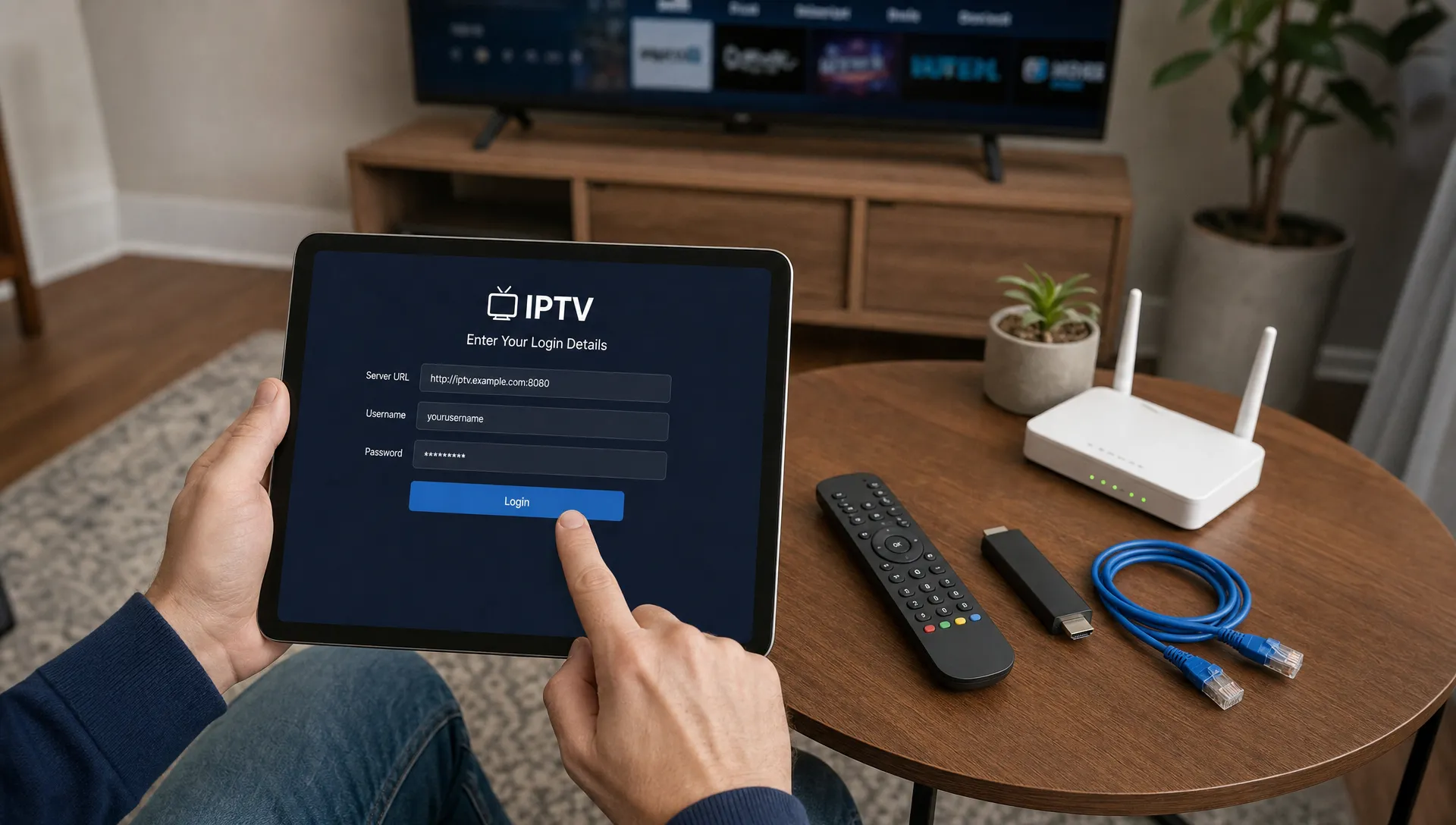
If you are planning an iptv installation on a Smart TV, Firestick, Apple TV, Android TV box or another streaming device, a few choices made before you log in will decide whether the experience feels smooth or frustrating. The app you choose matters, but so do your Wi-Fi signal, account format, device storage and the way you organize channels after activation.
This guide focuses on practical setup tips rather than repeating a single app walkthrough. You will learn how to check compatibility, prepare your network, enter playlist details correctly, reduce buffering and avoid the mistakes that make first-time installs harder than they need to be. It is written for viewers who want live channels, sports, movies and 4K streams to work reliably on the screens they already own.
Start Every IPTV Installation With a Compatibility Check
Compatibility is the quiet part of a reliable setup. Before downloading anything, confirm that your device can run a trusted IPTV player, connect to your internet at enough speed and accept the login format your provider gives you.
Most IPTV services use one of a few common access methods: Xtream Codes, an M3U playlist URL, an EPG URL or a portal address for certain boxes. A good provider should tell you which one applies to your account and which apps are recommended for your device.
| Device type | What to confirm | Setup note |
|---|---|---|
| Samsung or LG Smart TV | App availability in the TV app store | Some older TV models have fewer IPTV app choices |
| Fire TV Stick or Android TV | Storage, app permissions and OS updates | Keep enough free space for cache and app updates |
| Apple TV | tvOS app support | Use apps available through the App Store |
| Roku | Approved channel support | Roku can be restrictive, so confirm support before buying |
| MAG or similar IPTV box | Portal URL format | Check that your provider supports the box model |
A careful IPTV installation starts with these basics because the app can only perform as well as the device, account format and network allow.
Choose the Right Setup Path for Smart TVs
Smart TVs are convenient because they avoid extra hardware, extra cables and another remote. They are also less flexible than streaming sticks, especially when the TV is older or has limited app store support.
On Smart TVs, IPTV installation is usually easiest when the app is available through the TV's official store. Search for the app name recommended by your provider, install it from the official marketplace and avoid files or links from unknown websites. If the app asks for a device ID or MAC address, copy it exactly and send it only through your provider's official support channel.
For Samsung and LG TVs, make sure the TV firmware is current before installing the app. A firmware update can fix playback issues, app crashes and missing audio codecs. If your TV has very little storage left, remove unused apps first because IPTV apps often need room for playlists, logos, EPG data and cache.
If your main screen is a Samsung or LG model, this detailed walkthrough for setting up IPTV Smarters Player on a Smart TV can help once you are ready for app-specific steps.
Prepare Streaming Devices Before You Log In
Streaming devices are often the better choice when a Smart TV is old, slow or unsupported. Fire TV Stick, Android TV, Google TV and Apple TV devices usually receive more frequent app updates than many TV operating systems.
Before logging in, connect the device to the strongest available network, update the system software and restart it. Then install only the IPTV player you actually need. Too many background apps can use storage, memory and bandwidth, which makes buffering more likely during sports or 4K movies.
For Firestick users, the basics are simple: use your Amazon account, connect to reliable Wi-Fi, install a trusted app and enter your provider credentials carefully. If you need a beginner-friendly device walkthrough, use this guide on how to set up IPTV on Firestick before adjusting advanced app settings.
Android TV boxes vary widely in quality. A certified Google TV or Android TV device is usually safer than an unknown low-cost box because app compatibility, updates and remote navigation tend to be better.
Get the Network Ready for Stable 4K Streaming
For 4K streams, IPTV installation is not complete until the network has been tested from the same room and time of day where you plan to watch. A speed test beside the router is useful, but it does not always reflect what your TV or streaming stick receives behind a wall.
Use Ethernet when possible. A wired connection is especially helpful for 4K sports, long movie sessions and homes where several people stream at the same time. If Ethernet is not practical, use 5 GHz Wi-Fi for devices near the router and 2.4 GHz only when you need better range through walls.
| Streaming goal | Practical connection target per active stream | Why it matters |
|---|---|---|
| SD viewing | 5 to 10 Mbps | Enough for basic live channels |
| HD viewing | 15 to 25 Mbps | Helps reduce buffering on busy networks |
| 4K viewing | 30 to 50 Mbps | Gives more headroom for high-bitrate streams |
| Multiple screens | Add capacity for each stream | Prevents one device from slowing another |
The same home network might be handling live sports, smart cameras, game downloads and online shopping from sports retailers such as Fabbrica Ski Sises, so test performance when the house is actually busy, not only when everything is quiet.
Enter Playlist and Login Details Carefully
During IPTV installation, most login problems come from small typing mistakes. Usernames, passwords, server URLs and M3U links are often case-sensitive. If you are typing with a TV remote, one wrong character can produce an invalid account message, empty channel list or failed playlist load.
Use copy and paste when the app allows it. On Firestick and Android TV, a phone-based remote app can make long URLs easier to enter. If your provider sends separate live TV, VOD and EPG links, keep them organized so you do not paste the EPG URL into the playlist field.
After the first login, give the app time to load the full channel list. Large subscriptions can include thousands of channels and VOD titles, so the first sync may take longer than a normal app launch. If the app freezes during the first import, restart the device and try again before changing credentials.
Time zone settings also matter. If the EPG is off by a few hours, check the TV or device clock, then look for an EPG offset setting inside the app. For a deeper look at program guides, favorites and catch-up features, this IPTV guide to EPGs, favorites and catch-up TV explains how to make the interface easier to use after activation.
Optimize Settings After the First Successful Login
The first successful login is not the end of setup. It is the point where you can make the viewing experience cleaner, faster and easier for everyone in the house.
Start by organizing favorites. Add the channels you actually watch, such as local stations, sports networks, kids content, movie channels and news. This saves time and reduces the need to scroll through huge channel categories. If your app supports parental controls, set them before handing the remote to children.
A Firestick IPTV installation may also benefit from restarting the stick after the first channel import. This clears temporary load pressure and helps the app reopen with the playlist already cached. On Smart TVs, closing the app fully and reopening it can have a similar effect.
Check video player settings if you see black screens, audio delay or channels that open slowly. Some apps let you switch between native, hardware and external players. The best choice depends on the device, so change one setting at a time and test the same channel before making another adjustment.
Avoid the Common Mistakes That Cause Buffering
The fastest IPTV installation is not always the best one. Rushing through setup can leave you with a working login but a poor daily experience. The most common problems are easy to avoid if you check them early.
- Installing unknown apps from random download links instead of official stores or trusted sources
- Using weak Wi-Fi for 4K streams when Ethernet or a better router position is available
- Leaving device storage nearly full, which limits cache and app performance
- Sharing one account across more screens than the subscription allows
- Ignoring firmware updates on the TV, streaming stick or router
- Entering playlist details manually when copy and paste would prevent errors
If buffering starts after days of smooth streaming, do not assume the subscription is broken. Restart the router, restart the device, test another app on the same device and try the same IPTV account on a different screen. These checks show whether the problem is account-related, device-related or network-related.
For households with several viewers, connection limits matter as much as speed. If you want to understand the difference between installing apps on many devices and streaming on several devices at once, read this guide to IPTV on multiple devices.
Keep Your Setup Safe and Legitimate
A smooth setup should also be a safe one. Use IPTV apps from official app stores when possible, protect your account details and choose providers that clearly explain device support, plan limits and help options.
Avoid offers that rely on suspicious downloads, unclear payment methods or pressure to bypass normal device protections. Sideloading can be useful on some devices, but only when you understand the source and the risk. If an app asks for permissions that do not make sense for streaming, do not approve them automatically.
When an IPTV installation involves several household devices, use a password manager or a secure note to store credentials. Do not send account details through public chats or social media comments. If support is needed, contact the provider through its official website or support channel.
It also helps to name devices clearly inside apps that support device management. Labels such as Living Room Firestick or Bedroom TV make it easier to troubleshoot, especially when you replace hardware or reach a connection limit.
Troubleshoot Before You Reinstall Everything
Reinstalling the app should be one of the last steps, not the first. Many problems can be fixed faster without deleting the app or losing favorites.
If live channels load but VOD does not, refresh the playlist and check whether the app has separate VOD settings. If the EPG is blank, reload the guide, confirm the EPG URL and check the time zone. If only 4K channels buffer, test an HD version of the same channel to see whether bandwidth is the issue.
When an IPTV installation works on a phone but fails on a TV, compare the network and app version. The phone may be using mobile data, a newer app or a stronger Wi-Fi signal. Move the TV device closer to the router for a test, even if you do not plan to keep it there. A temporary move can reveal whether distance is the real problem.
If all channels fail at once, check for service announcements, account expiration, incorrect credentials or router issues. Restarting the modem and router can help, but wait a few minutes after rebooting before testing again.
Frequently Asked Questions
Can I install IPTV directly on a Samsung or LG Smart TV? Yes, if your TV supports a compatible IPTV player through its app store. Older models may have fewer app choices, so confirm compatibility before choosing a subscription.
Is Ethernet better than Wi-Fi for IPTV? Ethernet is usually more stable, especially for 4K streaming and live sports. Good Wi-Fi can work well, but distance from the router, walls and other connected devices can affect performance.
Why does IPTV work on my phone but not my TV? The phone may have a newer app, stronger signal or different network connection. Compare app versions, login details and Wi-Fi strength before reinstalling the TV app.
How long does an IPTV installation take? A basic IPTV installation can take 10 to 20 minutes when the app is available and credentials are ready. It can take longer if the device needs updates, the playlist is large or the network needs troubleshooting.
Do I need a different setup for 4K IPTV? The login process is usually the same, but 4K needs more bandwidth, better device performance and a stable connection. Use Ethernet where possible and close background apps on streaming sticks.
Can I use one IPTV subscription on several devices? You can often install the app on more than one device, but simultaneous streaming depends on your plan. Check the connection limit before using the account across multiple screens.
Get a Smoother Setup With BuyIPTVfor4K
If you want fewer setup headaches, choose a service that matches your devices and gives you help when you need it. BuyIPTVfor4K offers IPTV subscriptions with live channels, movies and sports in SD through 4K quality, with broad device compatibility, fast servers, anti-freezing technology and free installation help.
The best viewing experience comes from pairing the right subscription with the right setup habits. Check compatibility first, use a stable connection, enter account details carefully and organize your app after activation. Do that once and your Smart TV or streaming device will be much easier to enjoy every day.