
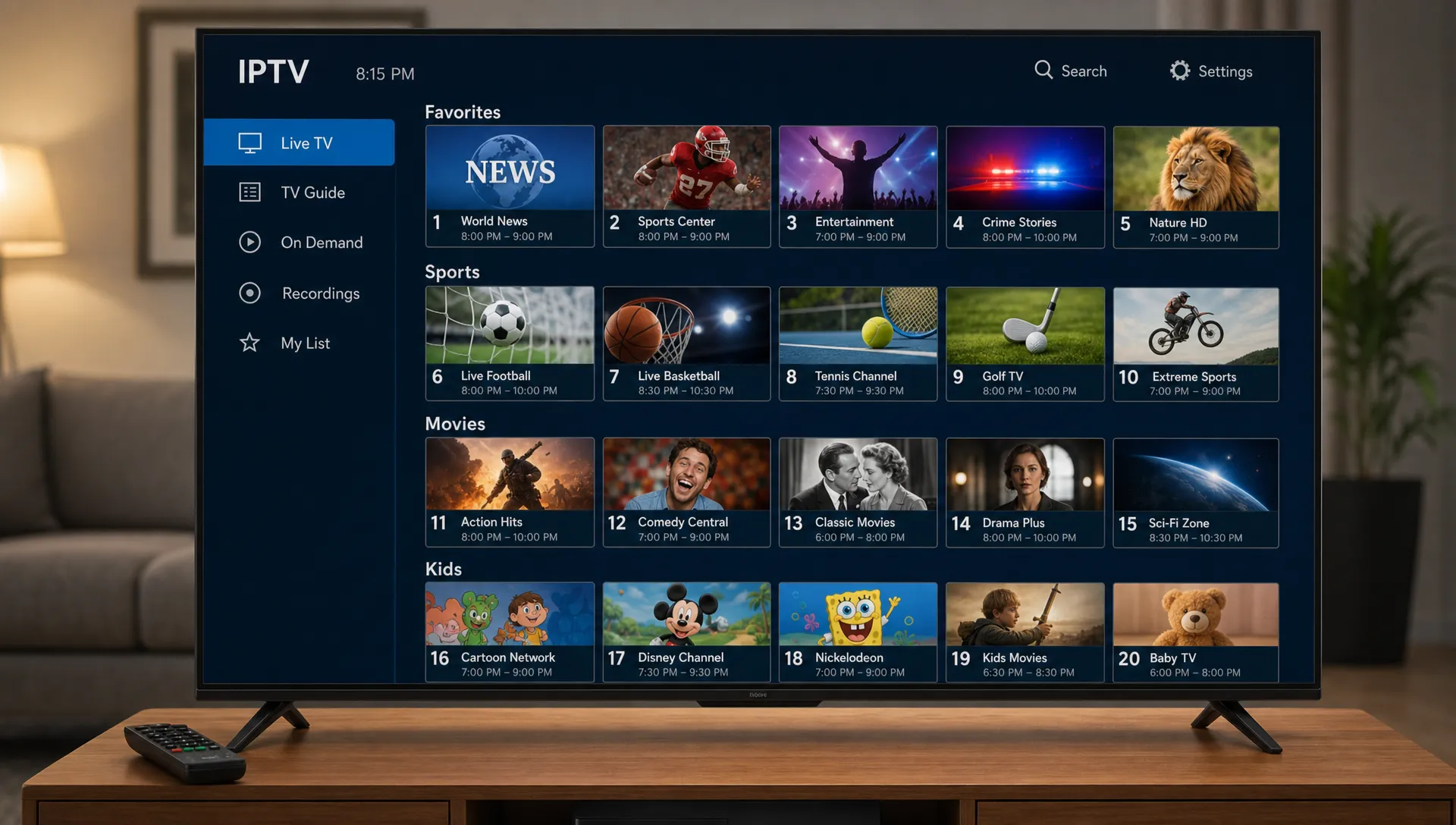
A long channel list can be a strength or a headache, depending on how it is arranged. When your IPTV channels are grouped clearly, favorites are easy to reach and your guide data is clean, you spend less time scrolling and more time watching. The goal is not to make your app look perfect. It is to build a simple viewing system that matches how your household actually watches TV.
Why organization matters for IPTV Channels
Most viewers start by searching for a specific live event, a familiar local station or a movie category. If every country, genre and duplicate feed sits in one endless list, even a large subscription feels harder to use than it should. Organization shortens that path.
A better layout also reduces frustration when switching between devices. The same service may look different on a Smart TV, Fire TV Stick, Android box, phone or tablet because each player handles groups, EPG data and favorites differently. Once you understand the basic structure, you can make each device feel familiar without rebuilding everything from scratch.
The fastest setup usually combines four things: a favorites list, clean groups, a working electronic program guide and a small maintenance routine.
Start with a quick viewing audit
Before moving anything, look at how you already watch. Open your app and write down the channels, genres and features you use most often during a normal week. A household that watches football, local news and children’s shows needs a different layout from someone who mainly uses international stations and VOD.
This step prevents over-organizing. You do not need every category polished on day one. You need your most-used IPTV channels to appear first, with lower-priority groups kept out of the way.
| Viewing habit | Best organization choice | Why it helps |
|---|---|---|
| Daily local news | Add local stations to Favorites | Keeps morning and evening routines fast |
| Sports on weekends | Create a Sports group or favorites subset | Reduces searching before live games |
| Kids watching after school | Use a Kids group and parental controls if available | Makes navigation safer and simpler |
| Movie nights | Separate live movie channels from VOD | Avoids mixing scheduled TV with on-demand content |
| International viewing | Group by country or language | Makes large global lists easier to scan |
If you are still choosing a provider, organization is easier when the service has stable guide data, clear channel categories and device support. A first-time buyer can use this IPTV subscription checklist to understand what to evaluate before committing.
Build a favorites-first layout
Favorites are the simplest way to speed up viewing because they cut through every group and category. Instead of scrolling through thousands of live stations, you create a short personal list of the channels that deserve prime placement.
Start with 20 to 40 favorites, not hundreds. Add the stations you watch every week, then include a few backup feeds for sports or news if your app shows multiple quality options. If the list grows too large, it becomes another version of the main directory.
A practical order is usually better than alphabetical order. Put everyday channels first, then sports, then family or movie channels. For shared TVs, place household favorites ahead of personal niche channels. The best arrangement is the one that gets a remote control user to the right stream in the fewest clicks.
Most IPTV player apps let you add, remove or reorder favorites from a channel menu. In some apps, you can long-press the OK button on the remote, open a context menu and mark a channel as a favorite. In others, you manage favorites through settings or playlist options.
Group IPTV channels by real use, not just genre
Default groups are helpful, but they are rarely perfect for every home. You may see broad sections like USA, UK, Sports, Movies, News, Kids, Documentary and 24/7. Those labels are a good start, but the fastest layout comes from matching groups to real viewing moments.
For example, a “Game Day” group can be more useful than a generic sports folder if your household watches the same leagues each week. A “Weeknight TV” group can combine local news, a few entertainment stations and movie channels that people use after work.
If your app supports hiding categories, remove or collapse groups you never use. Do not delete playlist data unless you know how to restore it. Hiding unused categories is safer because it cleans the interface without changing the subscription itself.
Good grouping also helps when there are duplicate feeds. Many services include SD, HD, FHD and 4K options for the same station or event. Keep the best-performing version in Favorites, then leave backups in their original category so you can switch if needed.
Fix the EPG before blaming the channel list
The electronic program guide, often called EPG, is what turns a raw channel list into a familiar TV experience. When guide data is missing or mismatched, the app may show blank rows, wrong programs or incorrect start times. That makes even well-arranged IPTV channels feel messy.
Check the EPG settings inside your player. Make sure the correct EPG source is loaded, the time zone matches your location and the app has refreshed guide data recently. Some apps let you update the guide manually, clear guide cache or assign guide data to a channel that did not match automatically.
A clean EPG makes browsing faster because you can search by show, not just by station name. It also helps with live sports, where timing matters and event names may change close to kickoff.
If you use IPTV Smarters on a television, the setup process can affect how login details, playlists and guide data appear. This guide to setting up IPTV Smarters Player on a Smart TV can help if you are configuring the app for the first time.
Match your layout to each device
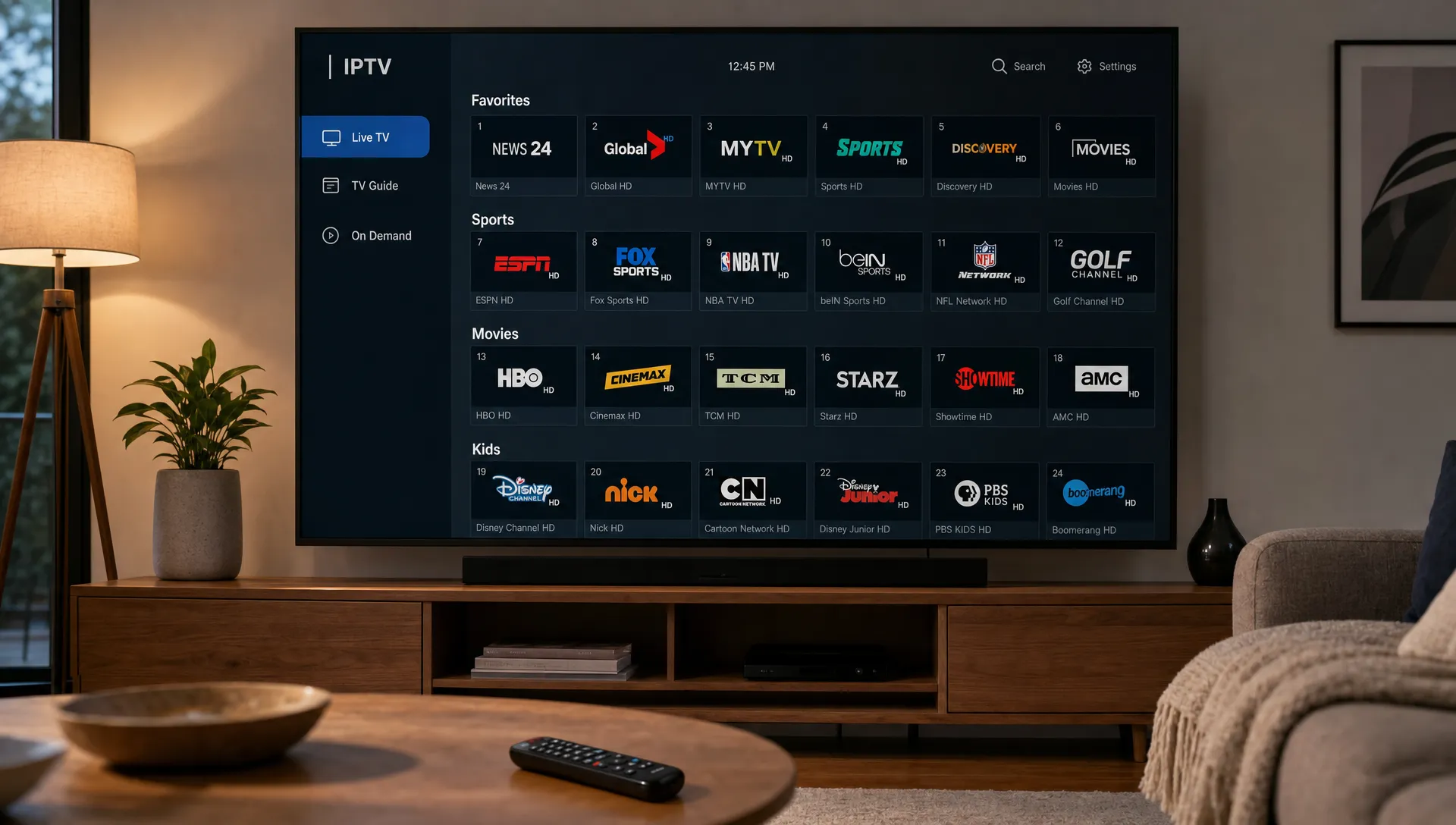
A TV in the living room needs a different layout from a phone. On a large screen, a visual guide and remote-friendly favorites list matter most. On a phone, search, recent channels and compact categories may be faster. On a tablet, VOD browsing may be more important than live channel surfing.
Set up your main TV first because that is where slow scrolling is most annoying. Then copy the same logic to secondary devices. You may not be able to sync every favorite across every app, but you can keep the same order and naming system.
Well-organized IPTV channels are especially useful in homes with several screens. If one person watches sports on a Fire TV Stick and another watches movies on a Smart TV, consistent groups prevent everyone from asking where things went. For households using several screens, it also helps to understand how IPTV on multiple devices works before assuming every installation can stream at the same time.
Use naming rules for faster search
Search is only fast when names are predictable. If your list has multiple versions of a station, create a rule for how you identify the one you prefer. For example, you might choose the HD version unless 4K is available and stable on your connection.
Many apps do not let subscribers rename every channel from the server-side playlist, but you can still use favorites, groups and viewing notes to build consistency. If you manage a local M3U playlist yourself, you may be able to edit display names, group titles and logo references before loading it into your player.
Keep names readable. A channel label packed with country codes, resolution tags and backup numbers may be useful for troubleshooting, but it slows down everyday browsing. Use simple markers only where they help, such as “4K,” “HD,” “Backup” or “Kids.”
Create a monthly cleanup routine
Channel organization is not a one-time task. Sports feeds change, seasonal events appear, VOD categories expand and apps update their interfaces. A quick monthly review keeps the setup fast without turning it into a project.
Use this simple maintenance table as a guide:
| Task | Suggested frequency | What to check |
|---|---|---|
| Refresh EPG | Weekly or when guide data looks wrong | Missing schedules, wrong time zone and blank rows |
| Review Favorites | Monthly | Channels no longer watched, duplicates and better-quality feeds |
| Hide unused groups | Monthly | Categories nobody opens |
| Test key sports or event channels | Before major events | Playback quality and backup options |
| Update the player app | When stable updates are available | Bug fixes, guide improvements and compatibility |
When you watch IPTV channels across several devices, choose one device as the “master” layout. Keep a note of your favorite categories and top channels so you can rebuild the same structure quickly after an app reinstall or device change.
Do not confuse organization with performance fixes
A clean guide helps you find streams faster, but it will not solve every playback issue. If a channel freezes, buffers or drops quality, the cause may be Wi-Fi strength, internet speed, router settings, device storage, server load or the selected stream quality.
That said, organization can make troubleshooting easier. When your favorites include one main feed and one backup feed, you can switch quickly during a live event. When your groups are clear, you can tell whether a problem affects one category, one device or the whole service.
For persistent freezing or stuttering, network tuning may matter more than channel sorting. This guide on QoS moves IPTV subscribers can use to reduce buffering explains router-level steps that may help prioritize streaming traffic in a busy home.
Common mistakes that slow viewers down
The most common mistake is trying to organize everything at once. Large IPTV lineups can include live TV, VOD, sports events, regional feeds and specialty categories. If you attempt to perfect the full library, you will likely give up before the useful part is done.
Another mistake is making Favorites too broad. A favorites list should feel like a shortcut, not a warehouse. If you have to scroll for a long time inside Favorites, split it into smaller groups or remove channels that are rarely used.
Avoid relying only on search. Search is helpful when you know the exact name, but it is slower for casual browsing, live events and channels with inconsistent labels. A good structure gives you several ways to find something: Favorites for daily viewing, groups for browsing and EPG for scheduled programs.
Frequently Asked Questions
What is the fastest way to organize IPTV channels? Start with Favorites. Add only the channels you watch every week, arrange them by viewing priority and keep backups outside the main favorites list unless you use them often.
Should I organize by country or by category? Use whichever matches your viewing habits. If you watch mostly USA or UK stations, country groups can be faster. If you jump between sports, movies, kids and news, category groups are usually better.
Why is my IPTV guide showing the wrong programs? The EPG source may not be updated, the time zone may be wrong or the app may have matched guide data to the wrong channel. Refresh the guide, check time settings and clear the EPG cache if your app supports it.
Can I sync my favorites across all devices? Sometimes, but it depends on the IPTV player and account setup. If automatic syncing is not available, keep a short written list of your preferred groups and top channels so each device can be arranged the same way.
Do better-organized IPTV channels improve streaming quality? Organization does not increase bandwidth or server performance, but it helps you find stable feeds and backups faster. For buffering, also check Wi-Fi, router settings, device performance and stream resolution.
Make your IPTV setup easier to use
A good IPTV setup should feel quick from the moment you open the app. Start with Favorites, clean up the guide, group channels around real viewing habits and review the layout once a month. Those small steps can make a large subscription feel simple.
BuyIPTVfor4K offers IPTV subscriptions with live channels, VOD, sports, SD through 4K streaming, broad device compatibility and setup support for USA and UK viewers. If you want a lineup that is easier to enjoy on your preferred screen, you can explore the service at BuyIPTVfor4K.
3 Replies to “How to Organize IPTV Channels for Faster Viewing”