
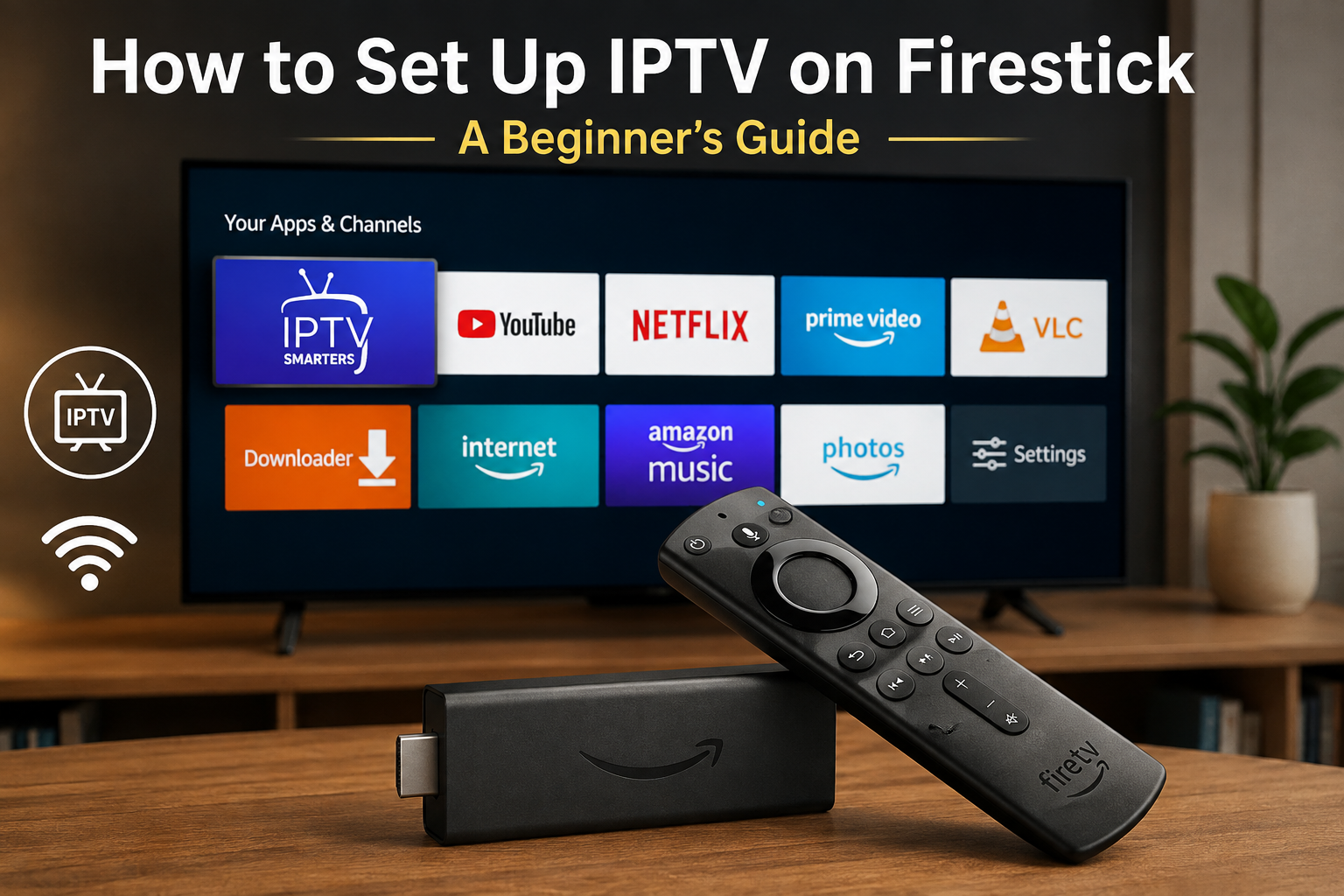
Amazon Fire TV devices are a popular way to bring internet-based entertainment to your television. With a compatible Fire TV Stick, a suitable internet connection, and an authorized streaming application, viewers can access a variety of digital entertainment services from one device.
For users interested in IPTV, the setup process depends on the specific service and application being used. This guide focuses on setting up legitimate and authorized IPTV services on Firestick and explains the main things beginners should know.
What Do You Need to Set Up IPTV on Firestick?
Before starting, make sure you have:
- An Amazon Fire TV Stick or compatible Fire TV device
- A television with an available HDMI port
- A stable internet connection
- An Amazon account
- A legitimate IPTV service
- An authorized application compatible with your Fire TV device
Amazon explains that Fire TV supports compatible applications through its Amazon Appstore and that application compatibility can vary by device. (developer.amazon.com)
Step 1: Connect Your Firestick to Your TV
Connect the Fire TV Stick to an available HDMI port on your television.
Then connect the Fire TV Stick to its power source and switch your television to the correct HDMI input.
The Fire TV setup interface should appear on the screen.
Follow the instructions displayed by Amazon to connect the device and complete the initial setup.
Step 2: Connect Firestick to the Internet
A stable internet connection is essential for streaming.
During the setup process, select your home Wi-Fi network and enter your password.
For the best experience, position your router where your Fire TV device can receive a strong signal.
If your Wi-Fi connection is weak, you may experience buffering or reduced streaming quality even if your broadband plan offers good speeds.
For more information about internet requirements, see our Internet Speed for IPTV guide.
Step 3: Choose a Legitimate IPTV Service
Before installing an application, make sure the IPTV service you intend to use is legitimate and authorized to distribute the content it offers.
Do not choose a service based only on:
- Number of advertised channels
- Very low prices
- Unverified claims
- Anonymous websites
Instead, look for clear information about the company, content rights, pricing, subscription terms, privacy policy, and customer support.
You can visit BuyIPTVfor4K.com to learn more about the service and its available information.
Step 4: Check Application Compatibility
The next step is to find out which application your IPTV provider supports.
Some services may have an official application, while others may provide compatibility information for third-party players.
Always use applications from legitimate and authorized sources.
Amazon Fire TV uses the Amazon Appstore for applications on the platform. (developer.amazon.com)
Before installing anything, check:
- Application name
- Developer
- Compatibility
- Privacy information
- Required permissions
- Service requirements
Avoid downloading unknown or modified application files from untrusted websites.
Step 5: Install the Authorized Application
If your service provides an application through an official source, search for the application using your Fire TV interface.
Select the correct application and follow the on-screen installation instructions.
Once installation is complete, the application should appear among your installed applications.
Amazon provides documentation for managing installed Fire TV applications through the device settings. (developer.amazon.com)
Step 6: Sign In to Your Account
Open the authorized application and follow the provider’s official instructions.
Depending on the service, you may need:
- Email address
- Username
- Password
- Activation code
- Subscription information
Only enter your login details into the official application or website associated with your service.
Step 7: Explore the Available Content
After signing in, the application may display different categories depending on the service.
These can include:
- Live television
- Movies
- Series
- News
- Sports
- On-demand content
The available programming depends on the specific provider and the rights it holds.
Step 8: Test Your Connection
After completing the setup, play some authorized content and check the overall performance.
Pay attention to:
- Picture quality
- Buffering
- Audio synchronization
- Connection stability
- Application responsiveness
If playback is smooth, your basic setup is complete.
What Internet Speed Do You Need?
Your required internet speed depends on the quality of the content and the number of devices using your connection.
HD video generally requires less bandwidth than 4K video.
If several people are using the same network for streaming, gaming, video calls, or large downloads, your household may require additional bandwidth.
Our IPTV USA guide provides additional information about IPTV, internet requirements, devices, and choosing a service.
How to Reduce Buffering on Firestick
If your Firestick keeps buffering, there are several things you can check.
Improve Your Wi-Fi Signal
Move your router closer to the Fire TV device when possible and avoid placing it behind large objects or inside enclosed spaces.
Restart Your Router
A restart can sometimes resolve temporary network problems.
Restart Your Firestick
Restarting the Fire TV device can also help with temporary application or system issues.
Reduce Other Network Activity
Large downloads, cloud backups, gaming, and multiple video streams can consume available bandwidth.
Consider a Wired Connection
Depending on your Fire TV setup and compatible accessories, Ethernet may provide a more consistent connection than weak Wi-Fi.
How to Improve Firestick Streaming Quality
Streaming quality depends on more than internet speed.
Your experience can also be affected by:
- Wi-Fi signal
- Router performance
- Fire TV model
- Application performance
- Video resolution
- Streaming service infrastructure
A stable network and compatible device can make a noticeable difference.
Can Firestick Stream 4K IPTV?
Some Fire TV devices support 4K Ultra HD, but the exact capabilities depend on the model.
Amazon provides information about Fire TV device capabilities and supported resolutions. (developer.amazon.com)
For 4K streaming, you need:
- A compatible 4K Fire TV device
- A 4K television
- 4K-compatible content
- A suitable application
- Adequate network performance
Having a 4K television alone does not guarantee that every stream will be delivered in native 4K.
IPTV on Firestick vs Smart TV
Both Firestick and Smart TVs can provide access to internet-based entertainment.
The main difference is that Fire TV is a separate streaming platform that connects to your television, while a Smart TV has its operating system built directly into the television.
A Fire TV Stick can be useful if you want to add a dedicated streaming platform to an existing television.
If you want to compare IPTV with other forms of television, read our IPTV vs Traditional TV guide.
Common Firestick Setup Problems
The Application Is Not Available
An application may not support your particular Fire TV model or region.
Check the provider’s official compatibility information.
The Video Keeps Buffering
Check your Wi-Fi signal, internet speed, router, and other devices using the network.
The Application Crashes
Restart Fire TV and check whether an update is available.
Login Does Not Work
Verify your account information and contact the legitimate service provider if the problem continues.
Video Quality Is Poor
Check whether your device, television, application, and subscription support the resolution you are trying to watch.
Why Use Authorized Applications?
Using applications from legitimate sources can reduce the risk of installing modified or potentially unsafe software.
Amazon maintains an application ecosystem for Fire TV and publishes requirements for developers and applications. (developer.amazon.com)
For consumers, checking the source and legitimacy of an application should be part of the setup process.
Is IPTV Legal?
IPTV is a technology for delivering television and multimedia content through IP-based networks.
The legality of a particular service depends on how it operates and whether it has the appropriate rights to distribute the content it offers.
When choosing an IPTV provider, check for clear information about:
- Content authorization
- Company information
- Subscription terms
- Privacy policy
- Refund policy
- Customer support
Avoid assuming that every service using the IPTV label operates in the same way.
Final Thoughts
Setting up IPTV on Firestick can be straightforward when you use a compatible device, a stable internet connection, and an authorized IPTV application and service.
Start by connecting your Firestick, completing the Amazon setup process, connecting to Wi-Fi, and checking which official application your chosen service supports.
Before subscribing, take the time to review the provider’s pricing, device compatibility, privacy policy, subscription terms, and content authorization.
For more information about IPTV and streaming technology, visit BuyIPTVfor4K.com and explore the other guides available on the blog.
15 Replies to “How to Set Up IPTV on Firestick: A Beginner’s Guide”