
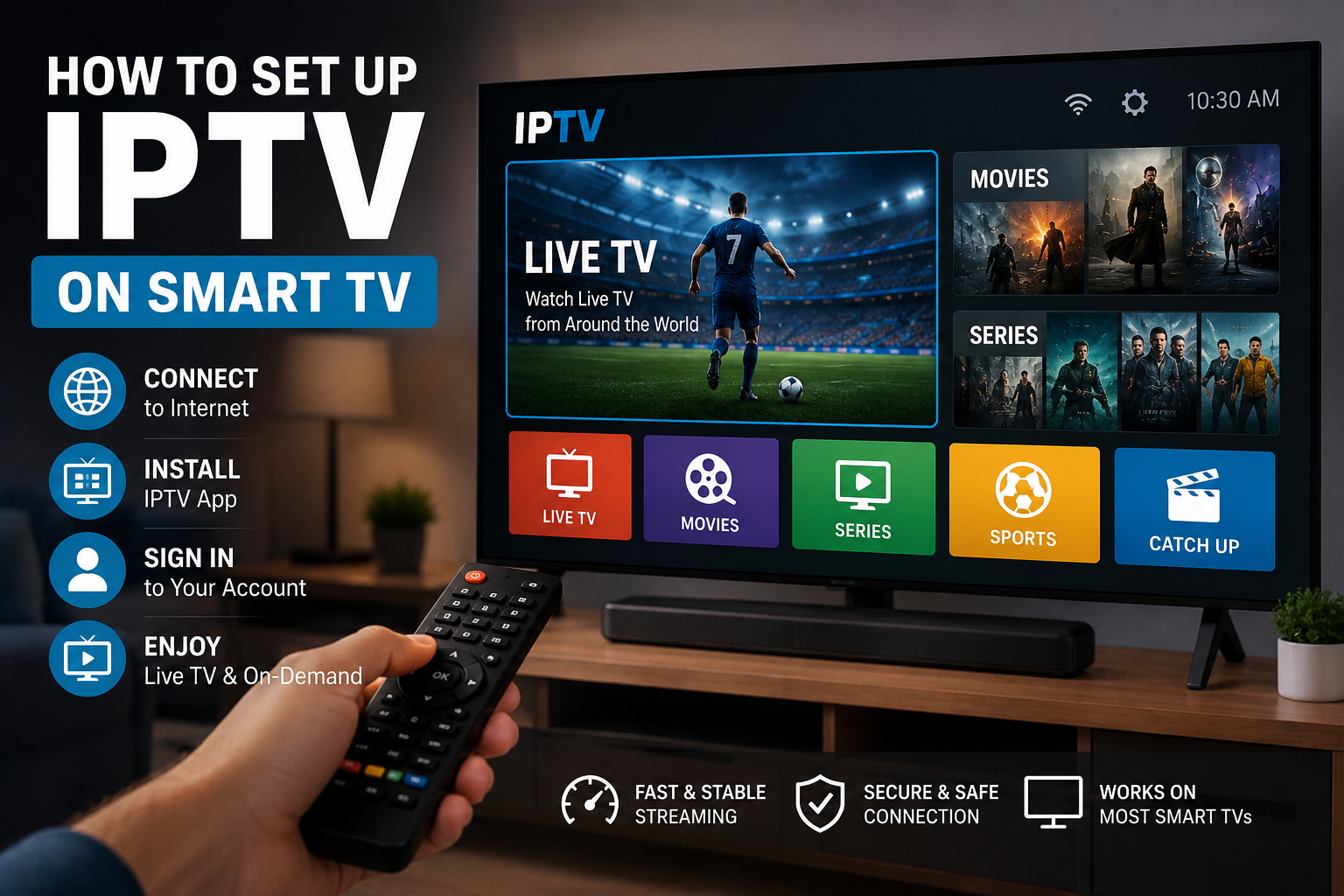
Smart TVs have become one of the easiest ways to access internet-based entertainment from a television. Instead of relying on a separate streaming device, many modern televisions can connect directly to the internet and run compatible applications.
For viewers interested in IPTV, the setup process depends on the television’s operating system, the application being used, and the particular IPTV service.
This guide explains how to prepare a Smart TV for a legitimate and authorized IPTV service, what you need before getting started, and how to troubleshoot common streaming problems.
What Do You Need to Set Up IPTV on a Smart TV?
Before starting, make sure you have:
- A compatible Smart TV
- A stable internet connection
- An Amazon, Google, Samsung, LG, or other relevant account if required by your TV platform
- A legitimate IPTV service
- A compatible and authorized application
- Your subscription or account details
The exact requirements can vary between television manufacturers and applications.
Step 1: Connect Your Smart TV to the Internet
The first step is connecting your television to your home network.
Most Smart TVs provide two common options:
Wi-Fi
Wi-Fi is the easiest option for most households because it does not require an Ethernet cable between the television and router.
However, the quality of your wireless connection can depend on:
- Distance from the router
- Walls and obstacles
- Wireless interference
- Router performance
- Number of connected devices
Ethernet
If your television supports Ethernet, you can connect it directly to your router.
A wired connection can provide a more consistent connection when Wi-Fi coverage is weak.
Step 2: Check Your TV’s Operating System
Before choosing an application, identify the operating system used by your Smart TV.
Different manufacturers and platforms can have different application stores and compatibility requirements.
For example, Smart TV platforms can include Samsung, LG, Google TV, Android TV, and other systems.
An application available on one platform may not necessarily be available on another.
Step 3: Choose a Legitimate IPTV Application
The application you use should come from an official or authorized source whenever possible.
Before installing an application, check:
- The developer
- Application name
- Compatibility
- Privacy information
- Required permissions
- Service requirements
Avoid downloading unknown modified applications from websites you do not trust.
The application itself may simply be a player or interface and may not provide television content. The source and authorization of the content are separate considerations.
Step 4: Install the Application
Open the official application store available on your Smart TV.
Search for the compatible application recommended by your legitimate IPTV provider.
Select the application and follow the installation instructions displayed on the television.
Once installation is complete, the application should appear among your installed applications.
The exact menu names and installation process can differ between Smart TV platforms.
Step 5: Sign In to Your IPTV Service
Open the authorized application and follow the provider’s official instructions.
Depending on the service, you may need:
- Email address
- Username
- Password
- Activation code
- Subscription information
Only enter your credentials into the official application or website associated with your service.
If you are researching IPTV services and want to learn more about what to consider before subscribing, you can visit BuyIPTVfor4K.com.
Step 6: Check Your Available Content
Once you have signed in, the application may display different categories depending on the service.
These can include:
- Live television
- Movies
- Series
- News
- Sports
- On-demand content
The exact programming depends on the service and the rights it has to distribute its content.
Step 7: Test the Streaming Quality
After completing the setup, play some authorized content and check the performance.
Look for:
- Stable playback
- Good picture quality
- Proper audio synchronization
- Fast menu response
- Minimal buffering
If everything works correctly, your basic setup is complete.
What Internet Speed Do You Need?
Your internet requirements depend on video quality and how many devices are using your connection.
HD streaming generally requires less bandwidth than 4K streaming.
If several people are simultaneously streaming, gaming, downloading files, or making video calls, your household may need additional bandwidth.
For more information, read our IPTV USA guide.
How to Reduce IPTV Buffering on Smart TV
Buffering can have several possible causes.
Improve Your Wi-Fi
If your TV is far from the router, try improving the router’s position or reducing obstacles between the two devices.
Use Ethernet
If possible, test your Smart TV with a wired Ethernet connection.
If buffering disappears, your Wi-Fi connection may have been contributing to the problem.
Reduce Other Network Activity
Pause large downloads and reduce unnecessary streaming on other devices while testing your connection.
Restart Your Router
A router restart can sometimes resolve temporary connectivity issues.
Restart Your Smart TV
Restarting the television can also clear temporary application or system problems.
How to Get Better 4K Streaming
A 4K television alone does not guarantee 4K streaming.
A proper 4K experience requires several components to work together:
- 4K-compatible content
- A 4K-capable television
- Compatible application
- Suitable hardware
- Adequate network performance
If any part of the setup does not support 4K, the final video may be delivered at a lower resolution.
IPTV on Samsung Smart TV
Samsung Smart TVs use their own software environment and application ecosystem.
If you want to use an IPTV application, check whether the application is currently available for your particular Samsung TV model and region.
Always follow the application’s official installation instructions.
IPTV on LG Smart TV
LG Smart TVs also use their own platform and application ecosystem.
Compatibility can vary according to the television model, operating-system version, region, and application.
Check the official application information before subscribing to a service.
IPTV on Android TV and Google TV
Android TV and Google TV devices provide access to compatible applications through their respective ecosystems.
The exact installation process can vary between devices.
Always use legitimate applications and follow the instructions provided by the application developer or authorized service provider.
Do You Need a Firestick for IPTV?
No, not necessarily.
If your Smart TV supports the application required by your legitimate IPTV service, you may be able to use the television directly.
A separate streaming device can still be useful if:
- Your TV does not support the required application.
- Your TV’s operating system is outdated.
- You prefer another platform.
- You want additional streaming features.
If you use a Fire TV device, our IPTV Firestick Setup Guide provides additional information.
Common Smart TV IPTV Problems
The Application Is Not Available
The application may not support your television model or region.
Check the official compatibility information.
The Video Keeps Buffering
Check your Wi-Fi, internet connection, router, and other devices using the network.
The Application Crashes
Restart the television and check whether an application or system update is available.
Login Problems
Verify your account details and contact the legitimate provider if the issue continues.
Poor Picture Quality
Check the available resolution and make sure your television, application, content, and network support the quality you are trying to watch.
Is IPTV Legal?
IPTV is a technology used to deliver television and multimedia content through IP-based networks.
The legality of a particular service depends on how it operates and whether it has the appropriate rights to distribute the content it provides.
When choosing a service, look for clear information about:
- Content authorization
- Company information
- Subscription terms
- Privacy policy
- Refund policy
- Customer support
Do not assume that every service using the IPTV label operates in the same way.
Smart TV IPTV vs Traditional TV
Traditional television can rely on terrestrial broadcasting, cable, or satellite infrastructure, while IPTV uses IP-based networks.
Modern Smart TVs can combine both approaches, allowing viewers to access traditional television alongside internet-based applications.
For a detailed comparison, read our IPTV vs Traditional TV guide.
Final Thoughts
Setting up IPTV on a Smart TV can be relatively simple when you have a compatible television, stable internet connection, legitimate service, and authorized application.
Start by connecting your television to the internet, checking its operating system, installing a compatible application from an official source, and following the provider’s instructions.
Before subscribing, compare device compatibility, streaming quality, subscription terms, privacy information, customer support, and content authorization.
For more information about IPTV technology and streaming options in the USA, visit BuyIPTVfor4K.com and explore the other guides on the blog.
17 Replies to “How to Set Up IPTV on Smart TV: A Beginner’s Guide”