
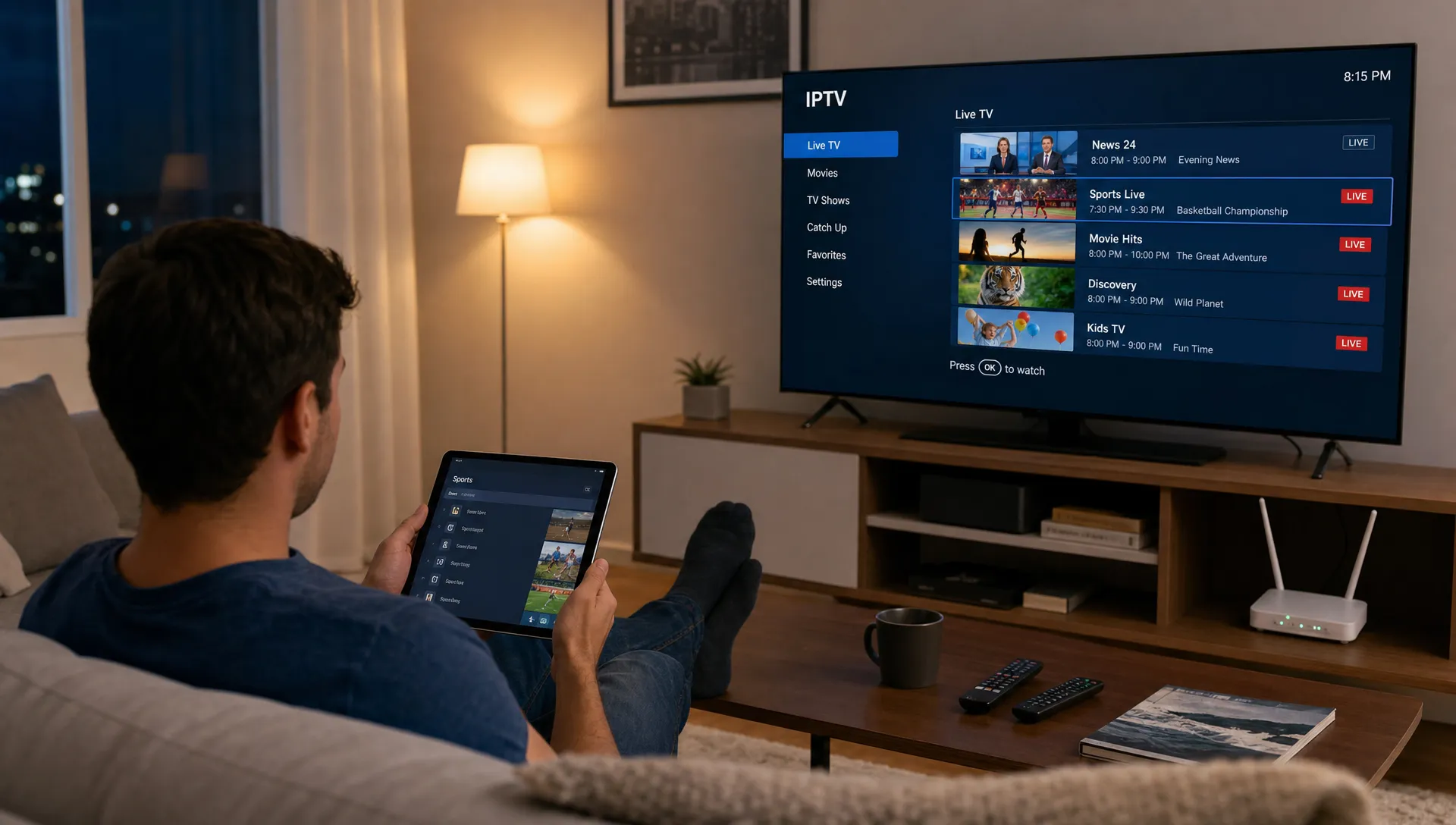
Using a firestick with iptv can be a simple way to watch live channels, movies, sports and on-demand content on the TV you already use. The difference between a frustrating setup and a smooth one usually comes down to three things: a legitimate subscription, a trustworthy app and a home network that can keep up with HD or 4K streams.
Firestick is the common name many viewers use for Amazon Fire TV Stick devices. IPTV simply means television delivered over the internet, but the safety of your setup depends on whether the service has the right to distribute the content it offers. This guide focuses on secure, authorized use, practical performance settings and habits that reduce buffering without pushing you toward risky shortcuts.
How to use a firestick with iptv safely
Start with the service before you think about apps. A Fire TV Stick can run many IPTV players, but a clean app cannot make an unreliable or unauthorized subscription safe. Look for clear device support, responsive customer service, secure payment options, transparent plan details and content access that makes sense for your region.
The goal when running a firestick with iptv is simple: keep the player, subscription and network predictable. Random APK files, shared logins and mystery playlists create the most trouble because they add security risk and make streaming performance harder to diagnose.
| Common risk | Safer choice | Why it matters |
|---|---|---|
| Unknown APK from a file-sharing site | Official app store download or provider-vetted source | Reduces malware and fake app risk |
| Subscription with no support contact | Provider with setup help and real support | Gives you help when channels, EPG or login details fail |
| Free playlist from a forum | Authorized paid subscription | Lowers legal, privacy and reliability concerns |
| Too many app permissions | Player that asks only for what it needs | Limits unnecessary access to your device |
Choose the right IPTV app and subscription
A firestick with iptv works best when your subscription credentials are entered into a maintained player that supports common login formats such as M3U playlists or Xtream Codes, if your provider supplies them. The app should receive updates, fit your Fire TV model and allow basic features like favorites, EPG support and player selection.
If you need a step-by-step installation walkthrough, the beginner’s guide to setting up IPTV on Firestick covers the setup flow in more detail. For this article, the bigger point is safety: do not rush through permissions, do not reuse your main email password and do not enter credentials into apps you have not verified.
A quick safety checklist before logging in
Before you add your IPTV account to any player, take a minute to check the basics. This is especially useful if you are helping a family member set up a living room device and want fewer support calls later.
- Use a unique password for the IPTV account when possible.
- Download apps from the Amazon Appstore unless your provider gives a trusted source.
- Keep your Fire TV Stick software updated.
- Avoid public playlists that promise premium channels for free.
- Test the service during the hours you normally watch, especially for sports.
For first-time streamers comparing plans, this IPTV subscription checklist is a useful way to review device compatibility, channel needs and support before paying.
Tune your Fire TV Stick for smoother playback
Smooth playback on a firestick with iptv depends less on one magic setting and more on consistent bandwidth, low Wi-Fi interference and a device that is not overloaded. A stream can buffer even when your internet plan looks fast on paper if your Fire TV Stick is far from the router or connected to a crowded 2.4 GHz band.
As a practical rule, SD needs much less bandwidth than HD, and 4K needs a stronger, steadier connection. The FCC broadband speed guide is a helpful reference for understanding how different online activities use bandwidth, but streaming quality also depends on congestion, router quality and the provider’s servers.
| Playback goal | Practical connection advice | Extra tip |
|---|---|---|
| SD streaming | Stable basic broadband | Good for slower networks or older TVs |
| HD streaming | Strong Wi-Fi signal or wired adapter | Use 5 GHz Wi-Fi when close to the router |
| 4K streaming | Fast, stable connection with low congestion | Reduce other heavy downloads during viewing |
| Live sports | Prioritize stability over peak speed | Test before the event starts |
Improve the network first
If your Fire TV Stick is behind the TV, inside a cabinet or far from the router, signal quality can drop. Try moving the router higher, using the HDMI extender that came with the device or switching to the 5 GHz Wi-Fi network if the router is nearby. If your setup allows it, an Ethernet adapter can make live channels more stable than Wi-Fi.
A VPN can add privacy in some situations, but it can also slow streams if the server is distant or overloaded. Use one only where it is legal and appropriate, and do not treat it as a way to bypass licensing or regional restrictions.
Clean up the Fire TV Stick
Fire TV Sticks have limited storage and memory. When too many apps are installed, IPTV players can stutter, crash or take longer to load channel lists. Remove apps you do not use, clear the cache for heavy apps and restart the device after major changes.
Set the display resolution to Auto unless you have a specific reason to force 4K. Auto settings let the Fire TV Stick and TV negotiate the best output, which can prevent compatibility issues on older displays.
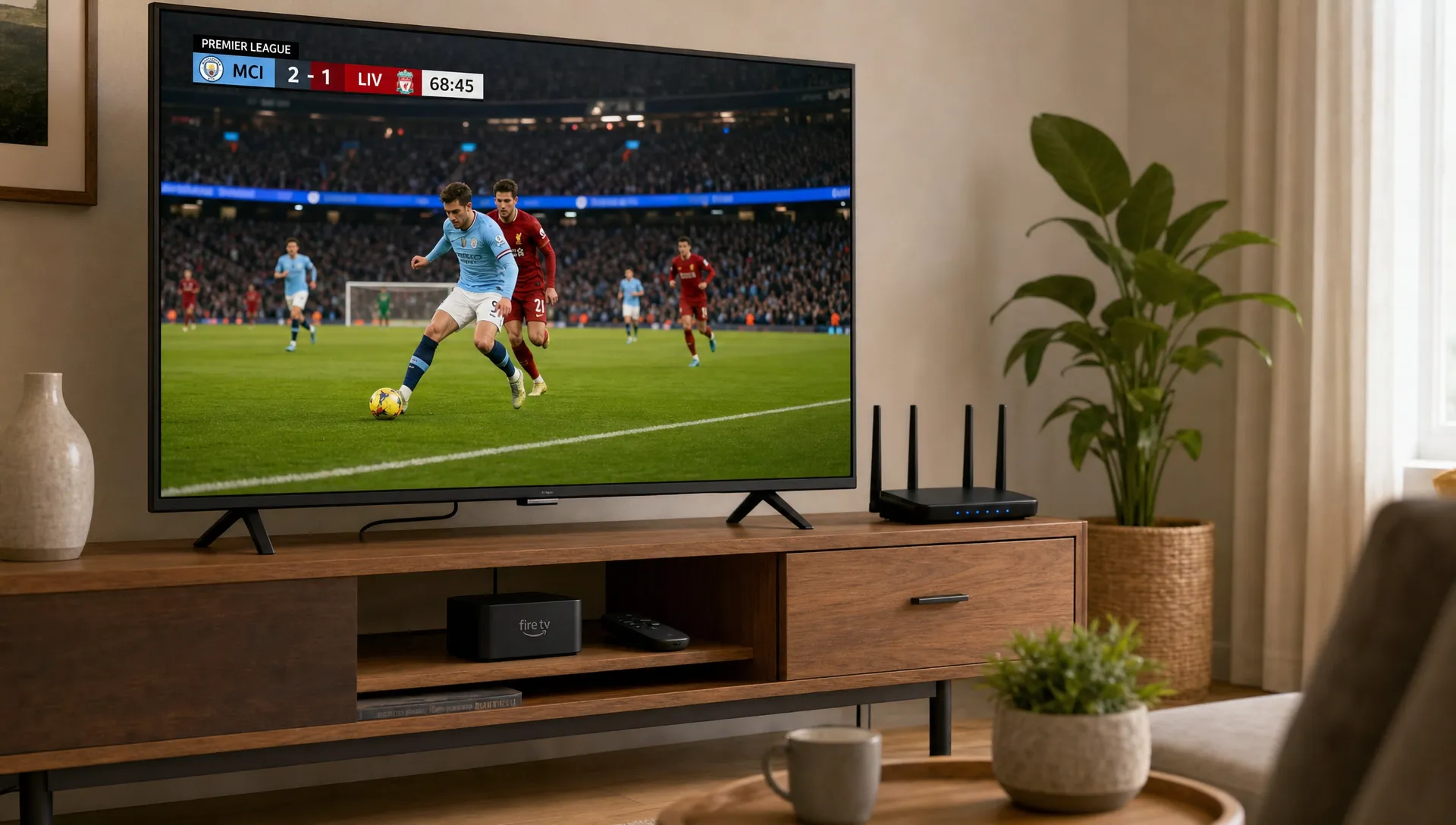
Protect your privacy and account access
When you use a firestick with iptv, your device stores app logins, viewing apps and sometimes playlist details. Treat it like any other connected device in your home. Lock down the Amazon account tied to the Fire TV Stick, use a strong Wi-Fi password and avoid sharing IPTV credentials in group chats or public messages.
Also pay attention to app permissions. An IPTV player may need storage access to read a playlist or cache data, but it should not ask for unrelated permissions without a clear reason. If an app behaves strangely, shows excessive pop-ups or redirects you to unrelated services, uninstall it and choose a cleaner option.
Parental controls are worth enabling if children use the same Fire TV Stick. IPTV subscriptions can include large live and VOD libraries, so account-level controls, app PINs and profile habits help keep the device appropriate for the household.
Troubleshoot buffering without risky shortcuts
Buffering on a firestick with iptv usually comes from one of four places: the internet connection, the Wi-Fi signal, the app or the provider’s server. Changing random settings can make things worse, so troubleshoot in a simple order.
| Symptom | Likely cause | Practical fix |
|---|---|---|
| All apps buffer | Home internet or Wi-Fi issue | Restart router, test speed near the TV, reduce other traffic |
| Only one IPTV app buffers | App cache or player issue | Clear cache, update app, try another supported player option |
| One channel buffers | Source or server issue | Test another channel, then contact provider support |
| 4K buffers but HD works | Bandwidth or device limit | Use HD, improve Wi-Fi or consider a newer Fire TV Stick model |
| Audio is out of sync | Player decoding issue | Switch player engine if the app offers the option |
Do not solve buffering by chasing unofficial channel lists or modified apps. They may look like a shortcut, but they often introduce unstable sources, broken EPG data and security problems. A reliable provider with strong servers and support will usually save more time than constant app hopping.
Know when to upgrade your device, plan or provider
If a firestick with iptv still feels sluggish after network and app cleanup, look at three bottlenecks: the Fire TV Stick model, the IPTV provider and the subscription plan. Older sticks can struggle with heavier apps and 4K playback, especially when storage is nearly full. A newer 4K-capable model may help if your TV and internet connection are ready for it.
The provider matters just as much. Look for stable servers, clear device compatibility and support that can help with setup instead of leaving you to guess. If you are comparing options by device, speed and customer support, this guide to IPTV streaming services compared by device, speed and support can help you evaluate what actually affects daily viewing.
Plan fit matters too. If you mainly watch sports, test live events. If you care about movies, inspect the VOD library. If several people stream at once, confirm whether the subscription supports your household’s usage.
Frequently Asked Questions
Is using IPTV on Firestick legal? IPTV as a technology is legal. The legal question is whether the service has the right to distribute the channels, movies or sports it provides. Choose authorized services and avoid free premium playlists from unknown sources.
Do I need a VPN for IPTV on Firestick? Not always. A VPN may help with privacy on some networks, but it can also reduce speed and increase buffering. It should not be used to bypass licensing rules or regional restrictions.
What internet speed do I need? For most homes, a firestick with iptv needs a stable connection more than a flashy speed-test number. HD and 4K streams benefit from strong 5 GHz Wi-Fi, low network congestion and a router placed close enough to the TV.
Why does IPTV buffer during live sports? Live sports attract heavy traffic, and buffering may come from your Wi-Fi, the provider’s server load or the specific channel source. Test your setup before the event, close other bandwidth-heavy apps and contact support if only that stream has problems.
Can I use the same IPTV subscription on multiple devices? That depends on your provider and plan. Some subscriptions limit simultaneous connections, so check the plan terms before using the same login on a Fire TV Stick, Smart TV, phone or tablet.
Stream more smoothly with the right setup
A safe Firestick IPTV setup is not complicated, but it does reward careful choices. Use a trusted subscription, keep the device updated, protect your login and fix network issues before blaming the app.
BuyIPTVfor4K offers IPTV subscriptions with live channels, sports, movies and VOD content in SD through 4K quality. The service highlights broad device compatibility, anti-freezing technology, fast servers, 24/7 support and free installation help for USA and UK viewers. If you want a smoother setup on Fire TV Stick and other devices, start with a provider built around compatibility and support.
2 Replies to “How to Use a Firestick With IPTV Safely and Smoothly”