
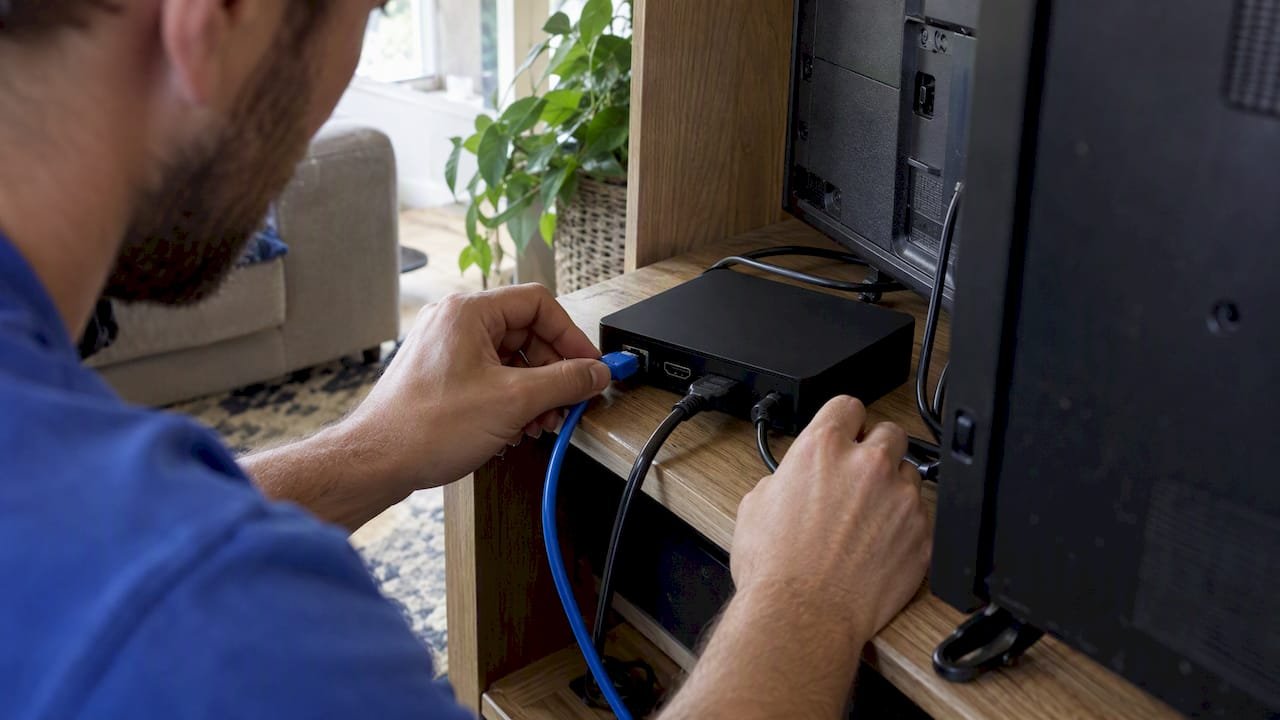
Type the HTTP portal address your IPTV operator gave you into Portal 1, then choose Save and restart. If the box still won’t load, check things in this order: your network, the exact URL, then the operator. Confirm your MAC address and note any on-screen error before you contact support, because “Page Loading Error” and “STB is blocked” point to different causes.
TL;DR:
- Find the MAC address on the box label or in the Service menu’s Network Settings, and have the operator register it before portal setup.
- Leave Portal 2 blank unless the operator supplies a backup; when enabled, the DHCP portal overrides the address entered in Portal 1.
- MAG boxes require an HTTP portal address, not an M3U playlist or Xtream login, so do not paste app credentials into the portal field.
- Page Loading Error usually signals network or URL trouble, while STB is blocked requires operator action; send support your MAC and exact error.
- A loaded menu does not confirm access, so test a live channel; if only one channel fails, the stream itself may be at fault.
Table of Contents
- Where to find your MAC address and how to prepare your network
- How to enter the portal URL in Portal 1, Portal 2, and DHCP options
- What the box does after you save and restart
- How to diagnose a failing portal: network, URL, or operator
- What to do if the portal loads but video won’t play
- How we help MAG box users get streaming
- Which IPTV protocols and formats a MAG box works with
- Initial MAG box setup from unboxing to first channel
- Choosing the right video output resolution for 4K and HD
- Simple maintenance habits that keep your IPTV running
- How to update MAG box firmware without breaking your IPTV
- Fixing buffering and freezing on a MAG box
- Why most MAG setups fail, and the shortest path to a working one
- Get your MAG box streaming with our 1 Year+Free 3 Months plan
- FAQ
- Sources
Where to find your MAC address and how to prepare your network
Your operator needs your MAG box’s MAC address to register the device, so find it before anything else. It is printed on the label on the bottom of the box, and you can also read it inside the device’s Service menu under Network Settings. Write it down exactly, since one wrong character means the operator registers the wrong device.
Then make sure the box can actually reach the internet. A few quick checks save a lot of wasted effort later:
- Use a wired Ethernet cable if you can. It removes Wi-Fi interference from the list of suspects.
- Confirm your router has DHCP enabled so the box receives an IP address automatically.
- On Wi-Fi, check signal strength where the box sits, and test internet access from another device on the same network first.
- Restart the router if other devices also struggle to get online, then check the box’s network status again.
Infomir’s official documentation states that the box must be connected to a network before the operator’s portal addresses can be used, so this step is not optional. According to Infomir’s MAG user guide, the portal address comes from the multimedia-service operator, not the device manufacturer. Once the box shows a valid IP address, you are ready to enter the portal.
How to enter the portal URL in Portal 1, Portal 2, and DHCP options
MAG boxes are portal clients, not app-based devices. That means the box stores an external portal URL, while your operator decides whether that portal accepts your device. Infomir’s external portal loading documentation describes this split clearly, and it shapes the whole setup.
Follow these steps with your remote:
- Open the Embedded Portal on the box.
- Go to System settings, then Servers, then Portals.
- Type the operator-supplied HTTP portal address into Portal 1, exactly as given.
- Leave Portal 2 empty unless your operator explicitly gave you a backup URL.
- If your operator supports a DHCP portal, decide whether to enable Use DHCP portal. When enabled, the DHCP-supplied URL overrides Portal 1.
Check each character of the address before moving on. A missing slash or a swapped letter produces the same failure as a wrong server.
Pro Tip: Never guess a portal address or try to turn an M3U or Xtream login into one. The box only accepts the operator’s portal address in the portal field.
If you subscribe through us, you can copy the portal address rather than construct it. Our IPTV setup guide walks through the same steps with screenshots.
What the box does after you save and restart
After entering the address, choose Save and restart. Infomir’s documentation says this action applies the portal settings, and the box then reboots and tries to load the external portal. This is the documented workflow, so do not skip the restart or simply back out of the menu.
Here is what you will see and what it means:
- Loading portal: the box is contacting the operator’s server. Give it some time, especially on the first boot.
- Page Loading Error with a retry option: the box could not load the page. Press retry once, then check the network and the URL.
- Portal selection screen: this appears when two external portals are configured. The box asks you to choose instead of auto-loading.
- Operator information screens: a message from the operator, often about registration or account status, rather than a device fault.
For first-time setup, keep everything in Portal 1 and leave Portal 2 blank. That avoids the selection screen entirely and removes a delay you do not need while you are still confirming that the service works. You can add a second portal later if your operator supplies one as a backup.
If the portal loads and shows channels or a menu, the connection side is done. If it stalls on an error, move on to the diagnostic routine in the next section rather than re-entering settings at random.
How to diagnose a failing portal: network, URL, or operator
Infomir’s troubleshooting guidance lists four distinct causes when a portal does not load: network failure, an incorrect portal URL, an unavailable operator portal, and operator-side blocking. Check them in that order, and stop as soon as you find the problem.
- Network first: confirm the box has an IP address and that other devices online work.
- URL second: reopen Portals and compare the address character by character against what your operator sent.
- Operator third: if both look right, the portal may be down or may not have accepted your device yet.
The two most common messages mean different things. “Page Loading Error” usually points to the network or a wrong URL. “STB is blocked” points to operator-side blocking or an account or device issue, so re-entering the URL will not fix it.
Pro Tip: When you contact the operator, send your MAC address and the exact on-screen error text in one message. That lets support act on the first reply.
What to do if the portal loads but video won’t play
Once the portal appears, open a live channel or a video-on-demand title to confirm your service works. A menu that loads is not proof of access, so always test an actual stream.
If channels fail to play, work through these steps:
- Confirm with your operator that your MAC address is registered and your account is active.
- Re-enter the exact portal URL, save, and restart the box.
- Check that your connection is stable by testing another streaming device on the same network.
- Contact support with your MAC address and a description of what happens when you press play.
Avoid factory resetting the box repeatedly. It wipes your settings, rarely fixes a server-side issue, and costs you time. A registration or activation problem lives on the operator’s side, and only they can change it. A single clean re-entry and restart rules out a typo, and after that the fastest path is a support request.
How we help MAG box users get streaming
Our setup support maps directly onto the tasks above, so you are not left decoding menus alone.
- We provide step-by-step setup help and premium support for subscribers.
- Our plans run 1 month, 3 months, 6 months, or 12 months.
- If MAC registration, portal acceptance, or account activation is the problem, our support team can help.
- Our service covers live TV in HD and other quality levels, plus a large video-on-demand library, and you can browse the channels list before you commit.
The two halves of a MAG setup, the device and the operator, are managed separately.
Which IPTV protocols and formats a MAG box works with
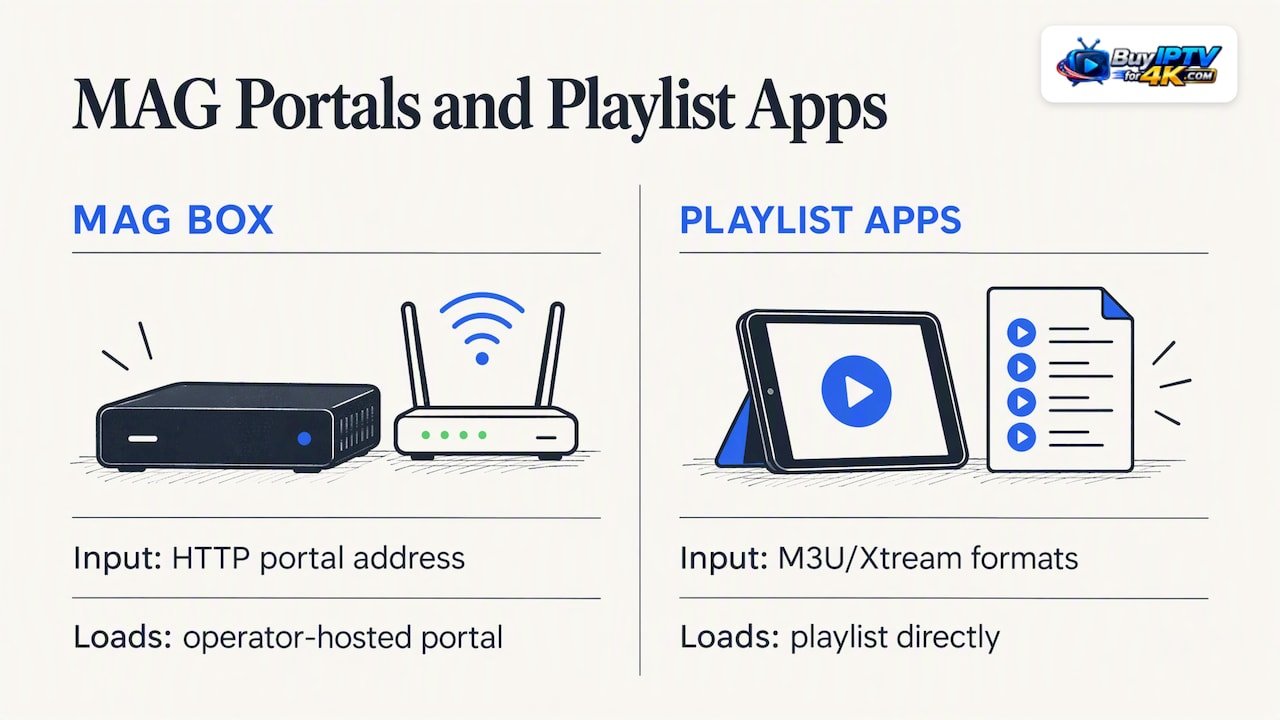
A MAG box does not behave like a generic media player. It loads a portal, a web-based interface hosted by the operator, and the operator’s server delivers the streams inside it. That is why the portal URL matters more than any playlist file.
In practice, this means a few things for you. The box is built to handle common IPTV streaming over your network, and the operator decides which stream formats and quality levels appear in the portal. You do not pick a protocol in the box’s settings the way you would pick an app. Instead, you pick the portal, and the portal presents the channels already prepared for the device.
This also explains why M3U playlists and Xtream-style logins do not paste into a MAG box. Those formats suit apps that read a playlist directly. A MAG box expects an HTTP portal address instead, so any conversion attempt only produces the loading errors covered earlier.
For picture quality, the practical limits are your operator’s encoding and your connection speed, not a setting hidden in the box. If a channel supports 4K or HD, the portal offers it, and the box decodes it according to your resolution setting, covered below. When you choose a provider, ask whether it supports MAG portals and high-resolution streams, and see our guide to choosing an IPTV provider for other questions worth asking before you subscribe.
Initial MAG box setup from unboxing to first channel
If your box is brand new or freshly reset, the order of operations matters. Doing the physical and network steps first keeps the portal steps simple.
- Connect the box to your TV with the supplied cable and power it on.
- Plug in an Ethernet cable if your router is nearby, or set up Wi-Fi in the network settings.
- Open the Service menu and confirm the box shows a valid IP address under Network Settings.
- Copy your MAC address from the label or the Service menu and send it to your operator for registration.
- Wait for the operator to confirm registration, then open Embedded Portal, System settings, Servers, Portals.
- Enter the operator-supplied URL in Portal 1 and select Save and restart.
- When the portal loads, open a live channel to confirm playback.
Notice that registration comes before the portal entry. If you enter the URL first, the portal may load but refuse your device, which looks like a fault when it is simply a missing registration. Our setup page lists each stage so you can follow along on screen.
Keep the original box label or a photo of it. You will need the MAC address again if you ever move to a new subscription or contact support.
Choosing the right video output resolution for 4K and HD
Resolution is set on the box, and it should match what your TV can actually display. A mismatch causes a blank screen, a flickering picture, or a stream that looks softer than it should.
Open the video settings on the box and pick an output mode that your television supports. If you own a 4K television and a 4K-capable MAG model, choose the 4K option so high-resolution channels are not scaled down. If your TV has a lower maximum resolution, set the box to a mode it supports. Forcing a higher mode than the TV supports often produces a black screen, and you may need to wait for the box to revert or reset the mode with the remote.
Cable and port quality matter here too. Use a good HDMI cable and plug it into the TV input that supports your target resolution. Some TVs label only one HDMI port as 4K capable, which is an easy detail to miss.
Remember that setting the output high does not create quality that the stream lacks. A channel broadcast in standard definition looks like standard definition even on a 4K setting. Your connection also has to keep up: higher resolutions need more steady bandwidth, so if 4K stutters, try 1080p before blaming the portal. Wired Ethernet gives 4K the best chance of staying smooth.
Simple maintenance habits that keep your IPTV running
A MAG box is low maintenance, but a few habits prevent most avoidable problems.
- Restart now and then. A reboot every few weeks clears small memory and network glitches before they turn into freezes.
- Keep ventilation open. These boxes run warm. Leave space around the unit and avoid stacking other devices on top.
- Protect your records. Store your MAC address and portal URL somewhere safe, so a reset or replacement takes minutes instead of an afternoon.
- Check your network. Wired connections stay steadier than Wi-Fi. If you must use wireless, keep the box close to the router.
- Watch your subscription dates. An expired account looks like a technical failure, so note your renewal date.
- Leave settings alone. Changing portal entries without a reason is a common way to break a working setup.
Also keep your router healthy. Router firmware updates and the occasional restart help every streaming device in the house, not just the MAG box.
If a problem appears after weeks of normal use, check the simple things first: power, cable, network, account status. Our support team can help you work through the issue, which saves guesswork.
How to update MAG box firmware without breaking your IPTV
Firmware updates improve stability and add fixes, but they can also reset or alter settings if handled carelessly. A little preparation makes the process routine.
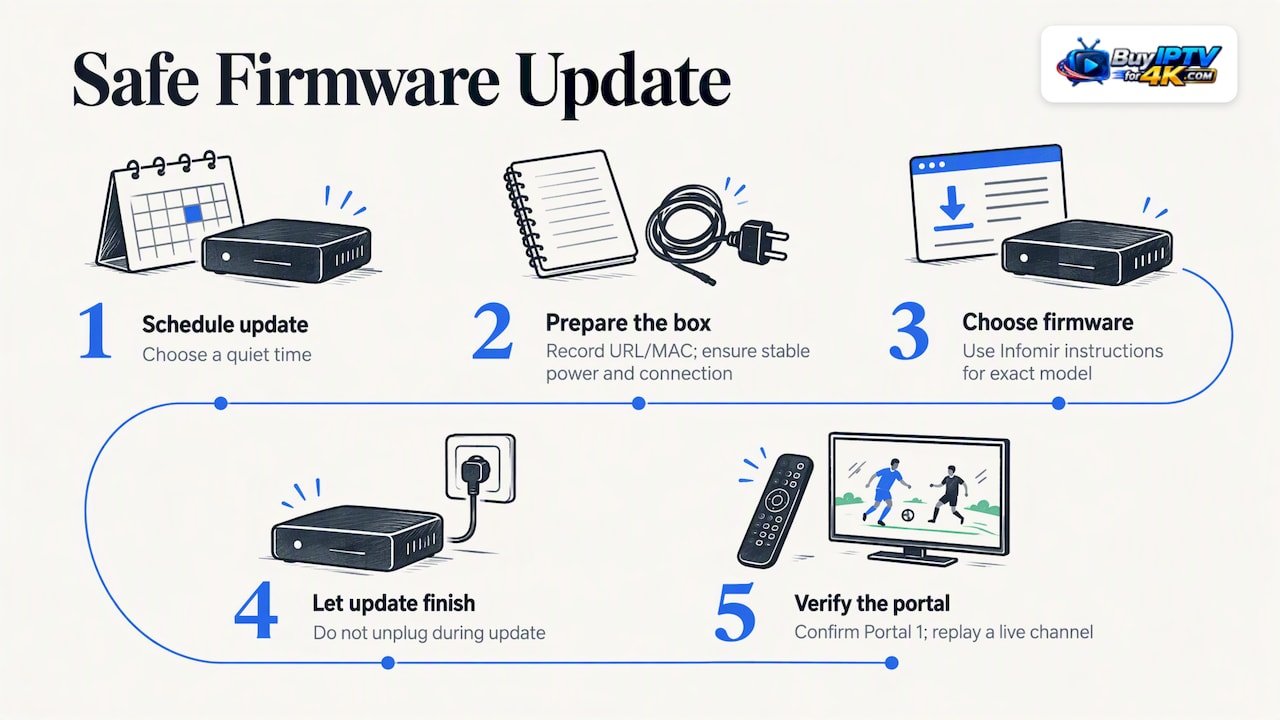
Before you update, note your portal URL and MAC address. If the box loses its saved portal after the update, you can re-enter the details in a minute. Make sure the box has a stable connection, ideally wired, and a reliable power source. Cutting power mid-update is the single riskiest thing you can do to the device, so do not unplug it while an update runs.
Use the update method described in Infomir’s documentation for your specific model. The company publishes model-specific pages, such as the MAG322/324/349/351 documentation, and following the page for your exact box avoids mismatched files. Avoid unofficial firmware downloads, which can leave the device unusable.
After the update finishes and the box restarts, open Embedded Portal, System settings, Servers, Portals and confirm your Portal 1 entry is still there. If it vanished, type it again and choose Save and restart. Then play a live channel to confirm everything works.
Schedule updates for a quiet time, not right before a match or a show you care about. If the portal fails afterward, treat it as a normal portal failure and run the same network, URL, operator order from earlier.
Fixing buffering and freezing on a MAG box
Buffering and freezing usually come from the connection, not the box itself, so start there. Work from the simplest cause to the most involved.
- Check your connection speed. Run a speed test on another device. If it is slow or unstable, the stream will stall.
- Switch to Ethernet. Wi-Fi interference causes most intermittent freezing. A cable removes that variable.
- Lower the resolution. If 4K stutters, drop the output to 1080p and see whether playback steadies.
- Restart the box and router. This clears temporary network and memory problems.
- Test other channels. If only one channel freezes, the issue is likely that stream, not your setup.
- Check peak hours. If trouble appears only in the evening, your home network or your provider’s line may be congested.
Heavy use elsewhere in the house also matters. Large downloads, video calls, or several streams at once compete for bandwidth. Pausing them for a test tells you quickly whether your network is the bottleneck.
Our service uses fast servers built to reduce freezing, but even the best server cannot fix a weak home connection. If you have tried these steps and the problem persists, contact our support with your MAC address, the channel that fails, and the time it happened, so we can check the server side.
Why most MAG setups fail, and the shortest path to a working one
My editorial view is simple: nearly every failed MAG setup comes from improvising. People guess portal addresses, paste playlist links that the box cannot read, or fill both portal slots and then wonder why a selection screen appears. The setups that work share a habit: they copy the operator’s address exactly, use Portal 1 only, and restart the box. If you reach out to us for help, have your MAC address and the exact on-screen error ready, so we can investigate efficiently.
— AHMED
Get your MAG box streaming with our 1 Year+Free 3 Months plan
If you would rather skip the trial and error, our subscription service includes support for setup. You get setup support and a team that answers around the clock when something looks off.

- See our available subscription options and choose the one that suits you.
- Prefer a shorter term? Our 3 months option lets you start smaller.
- Our support team can help with setup so the box can start streaming.
- Open our setup guide for immediate step-by-step help.
Pick a plan and contact us if you need setup help.
FAQ
Does IPTV have live channels?
Yes, IPTV delivers live channels over the internet alongside on-demand movies and series. Our service offers live TV in HD and other quality levels, and you can preview what is available on our channels list.
What is a MAG box?
A MAG box is a set-top box made by Infomir that loads an operator’s web portal to play IPTV. It works as a portal client rather than an app-based device, so it needs an operator-supplied portal URL to show channels.
Is there any way to record IPTV?
Recording depends on the portal and the box model, because the operator decides which features appear in its portal. Ask your operator whether recording is supported for your device before you plan around it.
Is having IPTV legal?
IPTV itself is a delivery technology, and legality depends on whether the content is properly licensed in your location. Check the rules that apply to you and confirm the licensing status of any provider before you subscribe.