
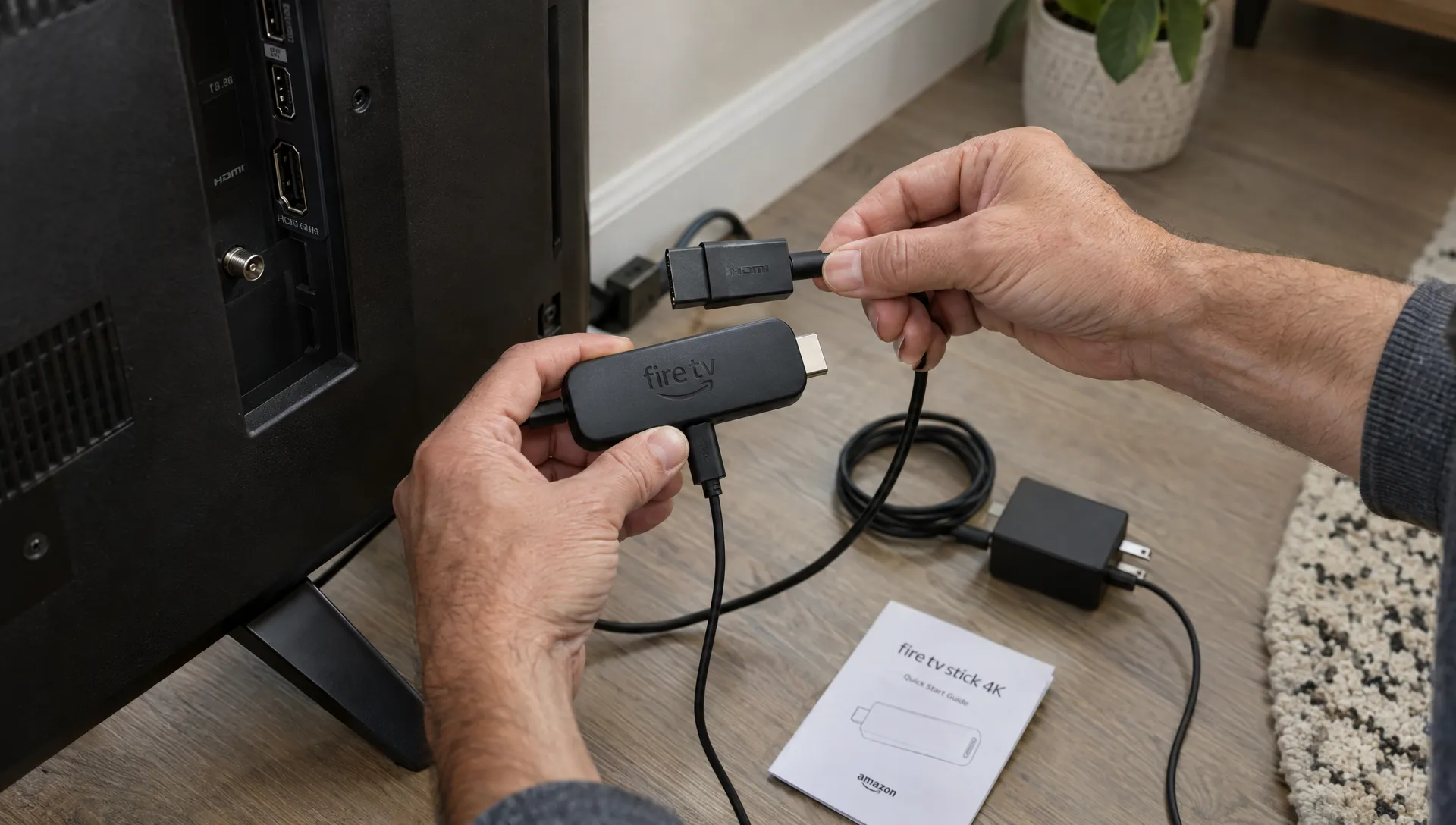
Setting up IPTV for Fire TV Stick 4K starts with checking that your device, app and subscription work together. A successful login alone does not confirm that your setup is ready for reliable viewing, and a 4K-capable stick does not make every channel a 4K stream.
Use this checklist before installing anything, then run a short playback test before settling in. The aim is to catch common problems early: an incompatible app, weak Wi-Fi, incorrect login details or a TV connection that limits picture quality.
Start with a pass/fail setup card
Work through these checks in order. If a requirement fails, resolve it before moving to the next stage.
| Check | Pass condition | If it fails |
|---|---|---|
| Device compatibility | The provider confirms support for your exact Fire TV model and operating system | Ask for a compatible app before buying |
| TV connection | The stick connects to a suitable HDMI input and uses its supplied power adapter | Check the connection and power source |
| Network | The connection stays stable where the stick is installed | Improve Wi-Fi or consider compatible Ethernet hardware |
| Subscription access | Your plan is active and the login format is confirmed | Request the correct account details |
| App installation | The app comes from a verified distributor and supports your device | Stop and verify the installation source |
| Playback | Video, audio and navigation work during a sustained test | Troubleshoot the specific symptom |
Keep your order reference and provider support contact available. Store passwords and playlist links privately, not in shared notes or public screenshots.
Compatibility checks for IPTV for Fire TV Stick 4K
Confirm the exact model and software
Identify your device before choosing a player. Fire TV product names can look similar, but hardware generations and operating systems are not interchangeable.
On many Fire OS models, device information is under Settings > My Fire TV > About. Menu names can differ, so use the device information area available on your model. Check for system updates and allow them to finish before installing your streaming app.
Ask the provider which app supports that specific device and software version. Amazon’s Fire TV device specifications are useful when you need to confirm hardware or platform details rather than relying on a generic “works on Firestick” claim.
Check HDMI and power
Use the supplied power adapter connected to a wall outlet. A television’s USB port may not provide consistent power, which can cause restarts or unreliable operation.
For 4K output, your television must support 4K on the HDMI input you use. Some TVs require an enhanced HDMI setting for that port. Protected 4K services may also require HDCP 2.2 support throughout the connection, including any receiver or HDMI switch.
If the picture disappears when you change display settings, return to an automatic resolution setting and check the TV’s instructions.
Match the player to your subscription
Before installing an app for IPTV for Fire TV Stick 4K, ask your provider for its exact name, verified download source and supported login method. A player is not necessarily a content service, and purchasing a player license does not automatically include channels.
Providers may supply different types of access:
| Login method | Details you may need |
|---|---|
| Provider account | An email address or username and password |
| M3U playlist | A playlist URL, sometimes with a separate guide URL |
| Xtream Codes-compatible login | A server address, username and password |
Use only the method your provider specifies. Do not paste a playlist URL into a server-address field or assume every app accepts all three formats.
Check the Amazon Appstore first. If the recommended app is unavailable, verify its legitimate distributor and compatibility before considering any alternative installation method. Enabling installation from unknown sources is not a universal requirement, and modified APKs introduce avoidable security risks.
Confirm that the service is authorized to offer the content you want in your region. A large channel list or an “all sports” promise is not evidence of distribution rights.
For the installation sequence itself, the beginner’s Firestick setup guide provides a useful companion to these readiness checks.
Test the network at the television
A reliable connection matters more than the maximum speed advertised by your internet plan. For IPTV for Fire TV Stick 4K, test performance where the stick actually sits, ideally at the time of day you normally watch.
As a starting point, aim for at least 25 Mbps of consistently available bandwidth for one 4K stream, with additional headroom for other household activity. This is a practical planning target, not a universal requirement. Stream bitrate, compression and the provider’s delivery system all affect demand.
For comparison, Netflix recommends 15 Mbps for its own UHD streams. That figure should not be treated as a guarantee for another service’s 4K channels.
Try 5 GHz Wi-Fi when the router is reasonably close. If walls or distance weaken the signal, compare available bands rather than assuming 5 GHz will always perform better. Move the stick away from obstructions using an appropriate HDMI extender if needed.
A compatible Ethernet adapter can reduce wireless variability, but check its support for your exact model. During testing, pause large downloads and cloud backups to see whether competing traffic is causing interruptions.
Record whether playback improves after each change. Changing the router, app settings and connection type at once makes the cause harder to identify.
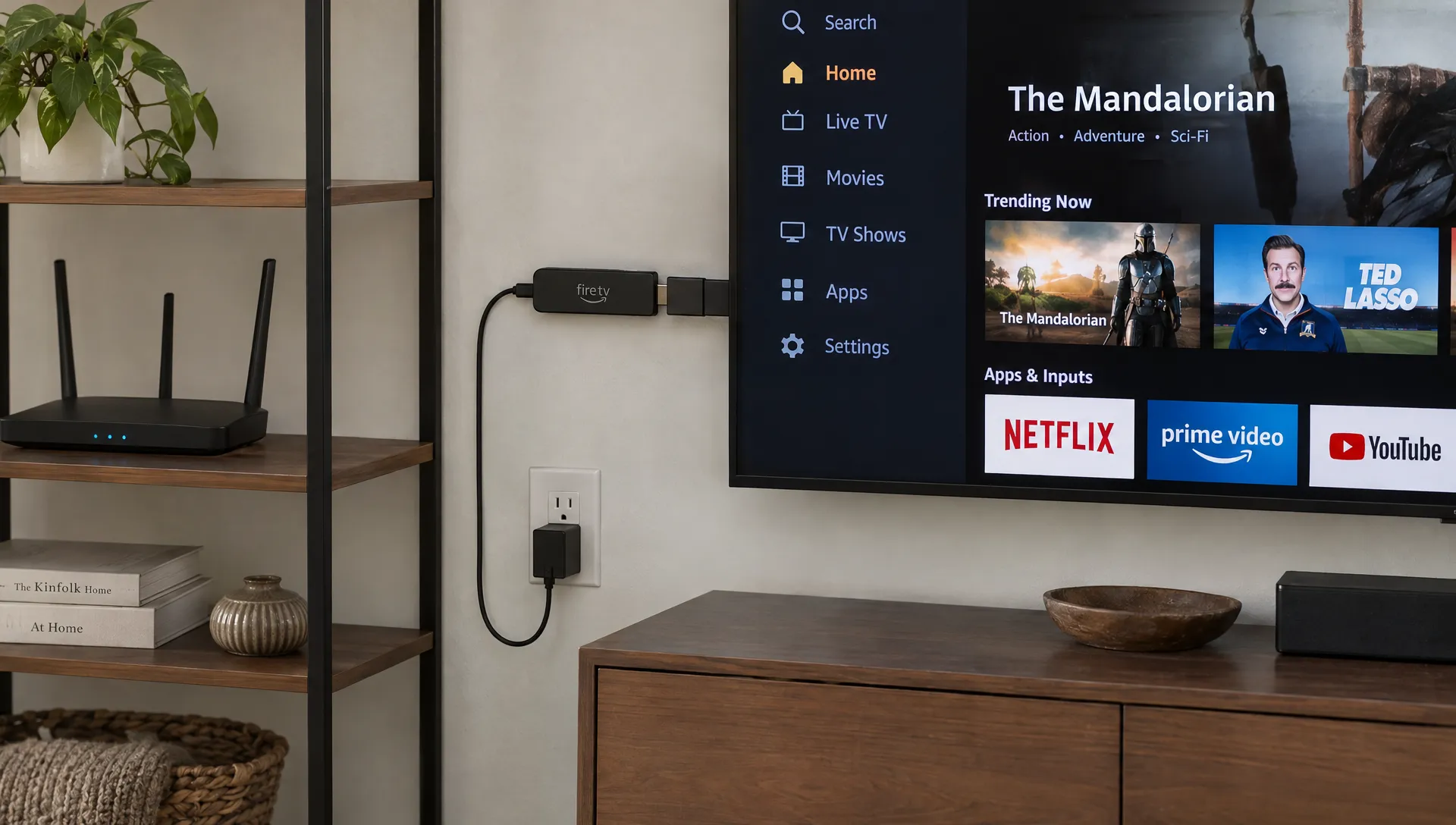
Run a first-session playback test
Do not judge IPTV for Fire TV Stick 4K from a few seconds of successful playback. Use a practical 15 to 20-minute test that includes the content types you expect to watch regularly.
Check ordinary playback first
Start with a standard HD channel or on-demand title. Confirm that video starts, sound is present and the remote can pause or navigate where those functions are supported.
Then try another channel or title. If only one stream fails, the issue may be that specific feed rather than your entire setup. Test both live and on-demand content if your plan includes them.
Verify what “4K” actually means
Select a title or channel explicitly identified as 4K by the service. If your player exposes stream information, check its reported resolution. UHD commonly uses 3840 × 2160 pixels.
Your TV reporting a 2160p input only confirms the Fire TV’s output resolution. The stick may be upscaling a lower-resolution source. Even a reported 2160p stream can contain upscaled material, so resolution alone does not prove native 4K production.
Leave display resolution on Auto unless you have a specific reason to change it. HDR is separate from resolution, and forcing HDR on all content can produce an inaccurate picture. Use an adaptive or matching option if your device offers one.
Check the guide and audio
If an electronic program guide is included, confirm that listings load and match your local time. A missing guide does not necessarily mean the video subscription is inactive.
Test voices for lip-sync problems. For missing audio, try an available alternate track or a compatible audio-output setting before changing unrelated video settings.
Troubleshoot one variable at a time
When IPTV for Fire TV Stick 4K misbehaves, note whether the problem affects one stream, the whole app or the device itself. That distinction makes support requests more useful.
| Symptom | First check | Next action |
|---|---|---|
| Login rejected | Account status, spelling and required login format | Confirm details with the provider |
| One channel buffers | Another channel at the same time | Report the affected channel and test time |
| Every stream buffers | Network stability and other household traffic | Compare Wi-Fi placement or a compatible wired connection |
| App closes unexpectedly | App updates and available device storage | Restart the app, then the device |
| Video plays without sound | Audio track and TV or receiver compatibility | Test another track or supported output setting |
| Picture is not sharp | Source resolution and Fire TV output | Confirm the feed is actually offered in 4K |
Avoid clearing app data as your first step. It can remove logins and preferences. Record the relevant details before reinstalling, and do not factory-reset the stick simply because one channel fails.
Sign off before regular viewing
Your setup is ready when the checks below pass:
- The provider confirms the exact device and app combination.
- Your login works without sharing credentials outside verified support channels.
- Representative live and on-demand streams play reliably during your test.
- Audio, remote navigation and any included program guide work as expected.
- You know the plan’s simultaneous-stream limit and how to contact support.
Keep a private note of the device model, app version and any settings you changed. For a support ticket, include the affected channel, approximate time and error message. Remove passwords, access tokens and full playlist URLs from screenshots.
Frequently asked questions
Do I need a special app for IPTV for Fire TV Stick 4K? You need a player supported by your provider and compatible with your exact Fire TV model. There is no single app that works with every subscription or device generation.
Does the Fire TV Stick 4K make all channels look like native 4K? No. It can output a 4K picture, but source quality depends on the stream. Lower-resolution content may be upscaled without gaining the detail of native 4K footage.
Should I use a VPN during setup? A VPN is not required simply because a service uses IPTV. It can change speed and routing, so establish a working baseline first. Follow applicable laws and service terms; a VPN does not authorize access to unlicensed content.
Can I use the same subscription on another television? That depends on the plan’s device and simultaneous-connection rules. Installing an app on several devices does not necessarily permit watching on all of them at once.
Confirm compatibility before choosing a plan
BuyIPTVfor4K offers subscriptions advertised with SD-to-4K content and installation help. Before selecting a plan, ask BuyIPTVfor4K to confirm your exact Fire TV model, recommended app, connection allowance and which requested content is available in 4K. Confirm content authorization for your region as well. Those answers are more useful than a broad compatibility claim and give you a clear starting point for setup support.