
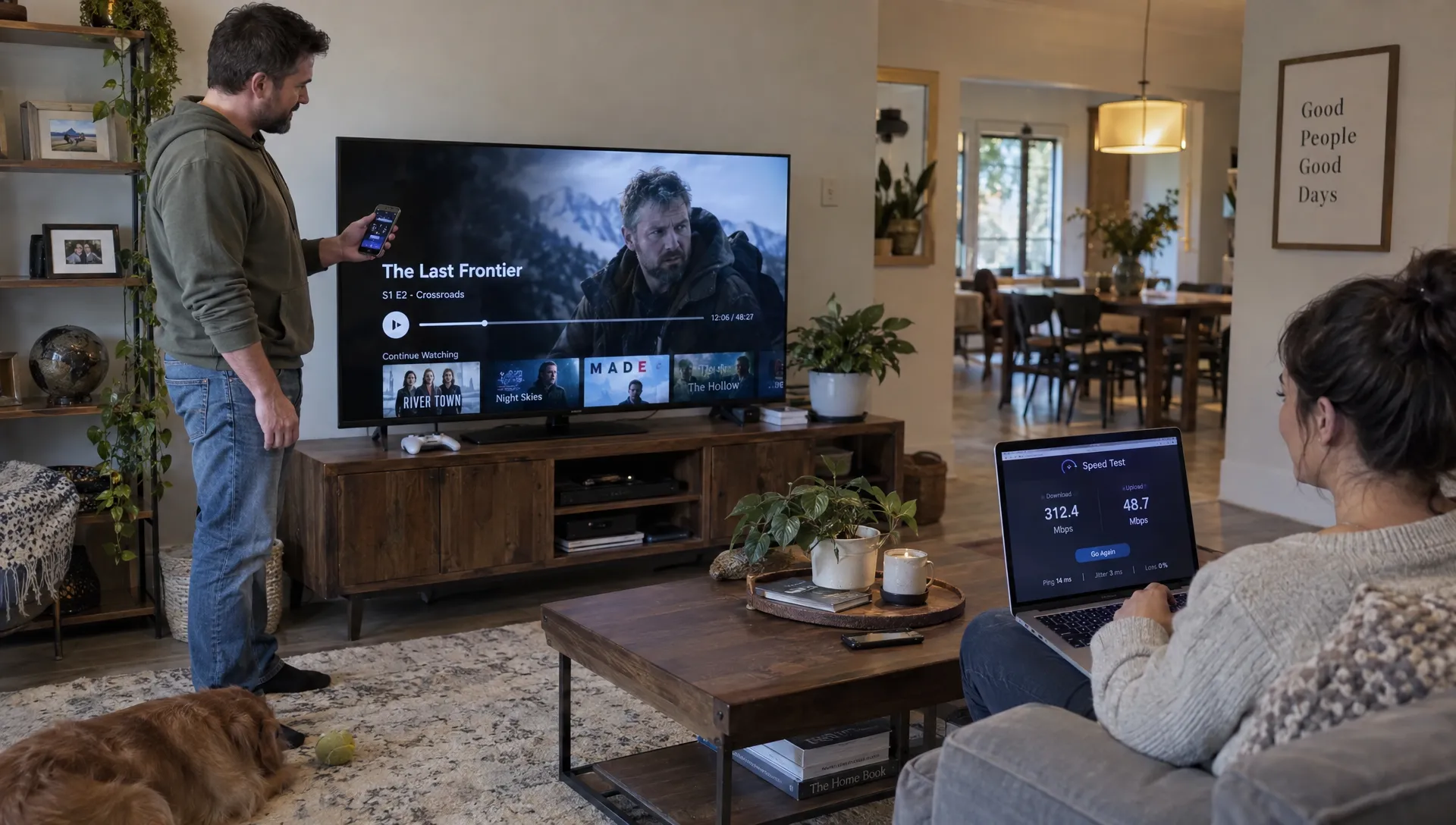
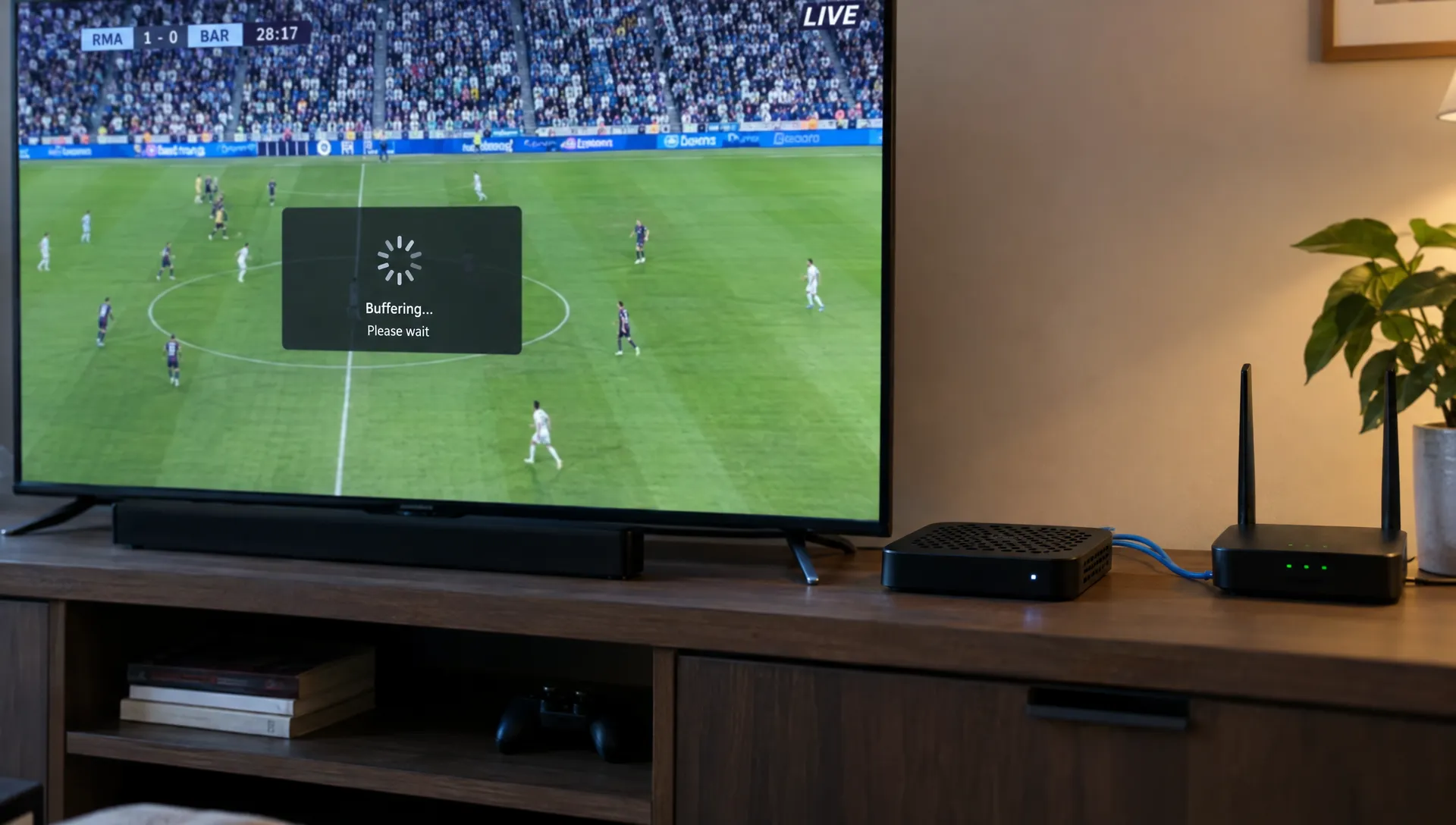
An iptv stream that keeps buffering does not automatically mean you need faster internet. The interruption could come from weak Wi-Fi, a busy home network, the playback device, an app setting or the provider’s servers. Buying a new router or changing subscriptions before testing can leave you with the same problem.
Start by identifying what fails, then change one thing at a time. The checks below help you separate problems you can fix at home from issues that need provider support. Use authorized services and official apps throughout the process.
First, identify the buffering pattern
Replay the affected channel, try another channel and test a separate streaming app on the same device. Compare them within a few minutes so network conditions are reasonably similar.
| What you observe | What to investigate first |
|---|---|
| One channel buffers but others play normally | That channel’s feed or delivery path |
| Every channel buffers on one device only | The device, its connection or its player app |
| Multiple streaming apps buffer on several devices | Your home network or internet connection |
| Playback gets worse when downloads start | Network congestion |
| Problems appear mainly during popular live events | Provider capacity or peak-hour network congestion |
These patterns are clues, not proof. A different app may use a different bitrate or delivery network, so smooth playback elsewhere does not completely clear your internet connection.
Also distinguish buffering from live delay. A picture that plays continuously but arrives behind broadcast TV is delayed, not buffering. Repeated pauses, loading circles or stop-start playback are the symptoms this guide addresses.
Fix an iptv stream on your home network
Start with the connection closest to the television or streaming box. A fast internet plan cannot compensate for an unstable wireless link between your router and device.
Test Ethernet before replacing equipment
If your device supports Ethernet, connect it directly to the router and replay the same channel. Some streaming sticks require a compatible Ethernet adapter, so check the manufacturer’s specifications before buying one.
If wired playback is stable while Wi-Fi buffers, focus on wireless coverage rather than your subscription. Move the device closer to the router, keep the router out of enclosed cabinets and check which wireless band the device uses.
A 5 GHz connection often works well nearby, while 2.4 GHz can reach farther but may encounter more interference. Neither is automatically best in every room. Test both where supported.
For a mesh network, remember that a wired connection to a satellite node can still depend on a wireless link back to the main router.
Measure usable speed at the playback device
Run several speed tests on the streaming device, if possible, or on a device beside it using the same connection. Repeat during the hours when buffering usually happens. A phone test next to the router tells you little about reception behind a television upstairs.
An iptv stream needs sustained throughput above its video bitrate, with room for bitrate peaks and other household traffic. A single impressive speed-test result does not establish that the connection stays stable.
For context, Netflix recommends at least 15 Mbps for UHD playback. That is Netflix’s recommendation, not a universal requirement for IPTV. Your feed may use a different codec or a higher bitrate.
As a hypothetical example, a feed averaging 20 Mbps should not rely on a connection that barely sustains 20 Mbps. Test a lower-resolution version of the same channel; stable HD but unstable 4K points toward a bandwidth or decoding limitation.
Pause competing traffic and restart once
Pause large downloads, cloud backups, console updates and other streams, then test again. Heavy uploads can also contribute to congestion, even when your download speed appears adequate.
If several devices have problems, restart the router and modem according to their manufacturers’ instructions. Wait for them to reconnect fully before testing. Do not factory-reset the router as an initial troubleshooting step.
If playback improves whenever competing traffic stops, targeted QoS settings for IPTV traffic may help manage congestion. QoS cannot create bandwidth or repair an unstable connection, so establish the cause first.
Rule out device problems and connection limits
Play the same channel on a second compatible device using the same network. Close playback on the first device before starting the second test.
If the iptv stream works on the second device, investigate the original device’s app, storage, temperature and decoding capability. This comparison is more useful than repeatedly changing router settings without evidence.
Restart the affected device, install official system and app updates and close unnecessary background apps. Check available storage against the manufacturer’s guidance. Keep streaming boxes ventilated, particularly if playback deteriorates after they have been running for a while.
Device compatibility does not mean unlimited simultaneous viewing. An account may allow installation on several devices while permitting only a specific number of active connections. Exceeding that allowance can cause playback failures or disconnections, depending on the service.
Check your plan’s limits before testing additional screens. The distinction between multiple-device installation and simultaneous IPTV connections matters when another household member may already be watching.
Adjust the player without making the problem harder to diagnose
App controls vary, so use the player’s documentation rather than copying settings from an unrelated tutorial. Record the current settings and make one change per test.
Start by clearing the app cache, if that option exists. Cache clearing removes temporary files; clearing app data may erase your login, playlist and preferences. Confirm that you can restore your account before taking that more disruptive step.
If an iptv stream pauses briefly and repeatedly, a modest increase in the player’s buffer setting may help it tolerate short delivery interruptions. It will not fix a feed that consistently arrives too slowly. A larger buffer can also increase startup time and delay live playback.
Where supported, compare hardware and software decoding. Hardware decoding may reduce processor load, but compatibility depends on the device, codec and player. Restore the original setting if the picture becomes corrupted or performance worsens.
Prefer official app stores and vendor documentation. Avoid modified players or unknown “buffering fix” downloads that ask for account credentials. Reinstalling the app should come after simpler checks, with your login details safely available.
Separate routing problems from provider problems
Once local tests are complete, compare the affected channel over a different internet connection if one is available. A brief phone-hotspot test can help, but check your data allowance and stop other active sessions first. High-resolution video can consume substantial mobile data.
If the same iptv stream fails over both your home connection and a hotspot, the channel feed or provider becomes a stronger suspect. It is still not definitive proof because the same player or device could be involved in both tests.
If you already use a VPN, compare playback with it enabled and disabled where permitted by your service and local rules. A VPN changes the route and adds overhead, so it can improve one delivery path while slowing another. It is not a guaranteed buffering fix.
Better playback through a VPN does not, by itself, prove that your internet provider is throttling video. Different routes and server locations can produce different results.
When one channel fails across devices and connections, stop changing local settings. Problems with the original feed, overloaded delivery infrastructure or server routing require action outside your home. Understanding how IPTV servers affect quality and uptime helps explain why a fast connection sometimes changes nothing.
Give support evidence they can act on
A useful report about a buffering iptv stream describes the pattern, not just “it keeps freezing.” Include the channel name, approximate time and time zone, playback device, app version and whether the connection is wired or wireless.
Also report whether other channels work, whether another device shows the same problem and whether reducing resolution helped. If you tested another network, share that result too. These details help support distinguish a channel-specific failure from an account, app or connection issue.
A concise message could read: “Channel A paused repeatedly around 8 p.m. Eastern. Other channels worked. The problem occurred on two devices, tested separately, and continued on a hotspot.” Use your actual observations rather than assumptions about the cause.
Never post passwords, full playlist URLs or account tokens publicly. Send account-specific information only through the provider’s official support channel.
For a group viewing, test playback before guests arrive and keep an authorized alternative ready. If a confirmed outage means changing the evening altogether, New York groups can consider NYC event tickets and group night-out options as an offline backup plan rather than spending the whole gathering troubleshooting.
Frequently Asked Questions
Why does my iptv stream buffer when a speed test looks good? A speed test measures performance over a short period and usually connects to a different server than your video feed. Wi-Fi instability, brief throughput drops, congestion, device limitations or provider-side problems can still interrupt playback.
Will increasing the buffer size stop freezing? It may help with short delivery interruptions by storing more video before playback. It cannot solve a sustained bandwidth shortage or a broken source feed, and it usually adds startup time or live delay.
Should I upgrade my internet plan immediately? No. First test Ethernet, pause competing traffic and compare devices. An upgrade is most relevant when your available bandwidth is consistently insufficient for the feed and household usage, not when only one channel fails.
Can an anti-freezing feature guarantee uninterrupted playback? No. Playback depends on the source, delivery network, internet connection and device. Such features cannot eliminate every outage or local network problem.
Why does buffering get worse during a major sports event? Higher demand can expose provider-capacity problems, while evening household traffic or local internet congestion can also contribute. Compare other channels and connections during the same period before assigning the cause.
Get setup help with your test results
If local checks do not resolve the problem, contact support with your findings rather than continuing to change settings at random. BuyIPTVfor4K offers installation help and 24/7 customer support. Subscribers can use the support options available through BuyIPTVfor4K to ask about device setup, account limits or a channel-specific issue.
The most effective fix is the one supported by your tests: improve the connection, correct the player or device issue, or let the provider investigate the feed.