
If your IPTV 4K Pro stream looks sharp one minute and soft or choppy the next, the problem is usually not one single setting. Crisp, stable playback depends on the whole chain: your internet line, router, playback device, app settings, TV picture mode and the IPTV provider’s server quality.
This guide focuses on practical setup tips you can apply at home without overcomplicating the process. It assumes you are using a lawful IPTV subscription, a compatible device and a legitimate player app. With that foundation in place, small changes can make 4K channels, live sports and VOD feel much more consistent.
IPTV 4K Pro Setup Baseline: Start With Signal, Speed, and Source
Before adjusting advanced settings, confirm that your source can actually deliver the quality you expect. A stable IPTV 4K Pro setup starts with a provider that supports true 4K streams, reliable servers and enough capacity during peak viewing hours, especially for major sports events.
Internet speed matters, but it is not the only metric. For a single 4K stream, many households should aim for at least 25 Mbps of available bandwidth to the device, not just to the router. If other people are gaming, downloading or watching video at the same time, leave more headroom. Latency, packet loss and Wi-Fi interference can ruin playback even when a speed test looks good.
If you are unsure whether your stream is native 4K or simply an upscaled source, compare resolution, bitrate stability and device output settings. The guide on getting and verifying real 4K IPTV explains what to check before blaming your TV or app.
Choose the Right Device Before Blaming the Stream
A good IPTV 4K Pro experience depends heavily on the playback device. Many Smart TVs can run IPTV apps, but older models may have weak processors, limited memory or outdated app stores. A dedicated streaming device often gives better app support and smoother decoding.
Look for a device that supports 4K output, HEVC or H.265 decoding, 5 GHz Wi-Fi or Ethernet through an adapter and enough storage to keep the app running cleanly. Fire TV Stick 4K models, Android TV boxes, Apple TV devices and modern Smart TVs can all work well when configured correctly.
Heat is another overlooked factor. Streaming sticks tucked behind a TV can run hot during long sports events or movie sessions. If your device becomes warm and starts stuttering after an hour, use the HDMI extender, improve airflow or restart the device before a long viewing session.
| Device factor | Why it matters for 4K IPTV | Setup tip |
|---|---|---|
| HEVC support | Reduces processing load for 4K streams | Use a device with hardware H.265 decoding |
| Available storage | Prevents app crashes and cache problems | Keep unused apps and downloads cleared |
| Network support | Improves stability and speed | Prefer Ethernet or strong 5 GHz Wi-Fi |
| App compatibility | Affects login, EPG and playback options | Use a trusted, updated IPTV player |
| Cooling | Helps avoid throttling during long sessions | Keep the device ventilated |
Network Settings That Make 4K Streams Feel Stable
If IPTV 4K Pro buffers during live channels but other apps seem fine, the issue may be jitter rather than raw speed. Live IPTV is less forgiving than on-demand platforms because there is less room to pre-buffer content.
Use Ethernet for the main TV whenever possible. A wired connection reduces interference from walls, neighboring routers, smart home devices and distance from the access point. If running a cable is difficult, powerline adapters or MoCA may help in some homes, though results depend on wiring quality.
For Wi-Fi, connect to the 5 GHz band if the router is close enough. Place the router away from metal cabinets, thick walls, microwaves and crowded entertainment units. Rebooting the router occasionally can help, but frequent rebooting is a sign that your network needs a more permanent fix.
If several devices compete for bandwidth, enable Quality of Service on your router and prioritize the streaming device. You can also schedule large downloads outside prime viewing hours. For a deeper network checklist, see this guide on optimizing a home network for 4K TV streaming.
App and Player Settings for Crisp Playback
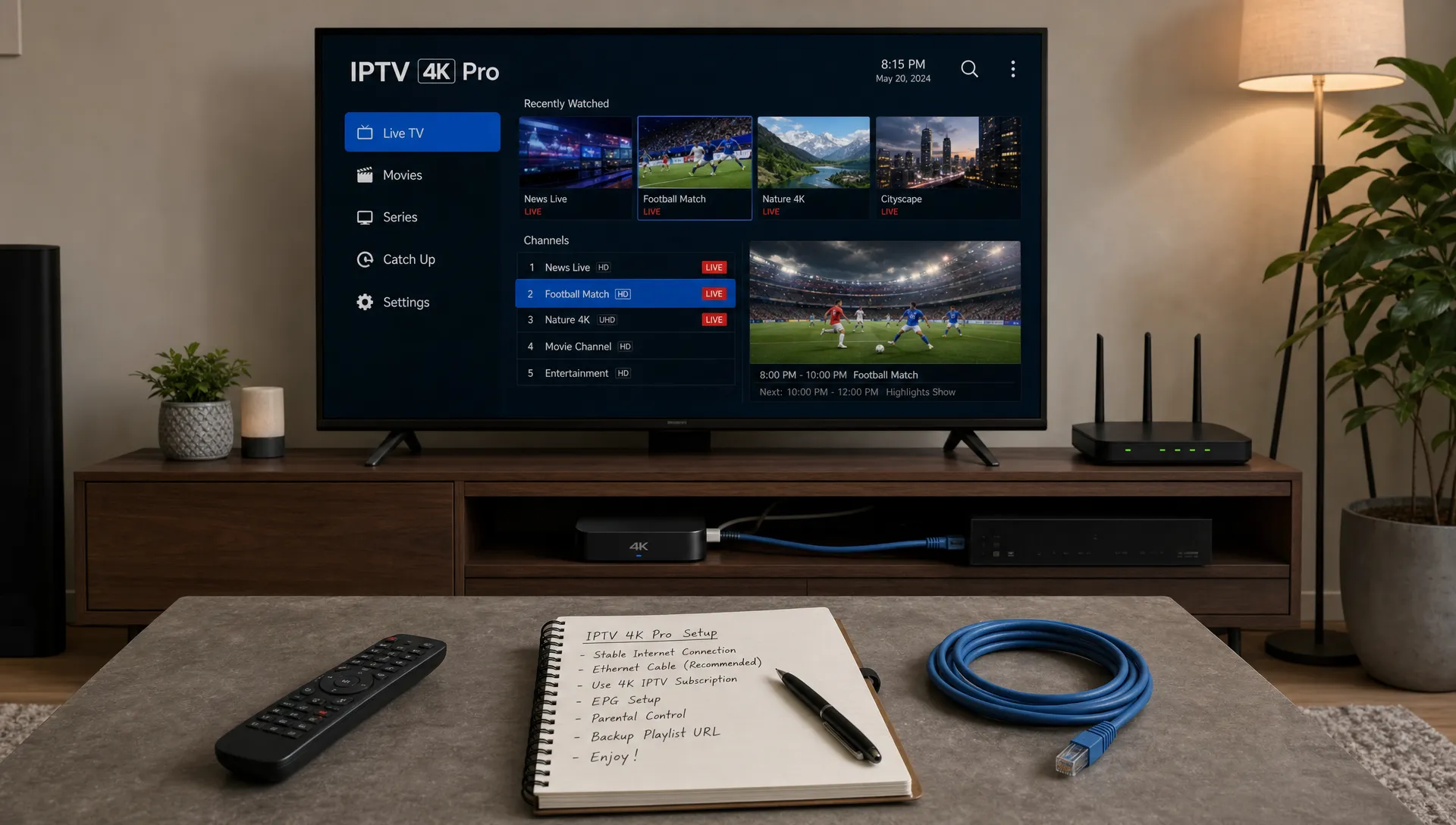
The most reliable IPTV 4K Pro configuration is usually simple: use a stable player, keep it updated and avoid unnecessary filters or experimental settings. IPTV Smarters Player, TiviMate and similar apps can perform well when installed from trusted sources and configured with the details provided by your subscription service.
Start by checking the decoder setting. Hardware decoding is usually best for 4K because it lets the device’s video chip handle the stream. If you see black screens, audio delay or crashing, test software decoding, but switch back if performance gets worse.
Buffer size is worth adjusting carefully. A larger buffer can smooth unstable connections, but it may also make channel switching slower. For live sports, many viewers prefer a moderate buffer because it balances stability and responsiveness.
Also review these app basics:
- Keep only one IPTV player running at a time.
- Clear the app cache if menus become slow or channels fail to open.
- Match the app’s output to your TV’s resolution when possible.
- Refresh the playlist or EPG after your provider updates channels.
- Restart the device after major app updates.
If you use a Fire TV device, the walkthrough on using a Firestick with IPTV safely and smoothly covers device-specific setup habits that reduce crashes and lag.
Picture Settings: Make 4K Look Like 4K
Even when IPTV 4K Pro is playing smoothly, poor TV settings can make the picture look artificial, dull or overly sharp. Start with your TV’s Cinema, Movie or Filmmaker mode instead of Vivid mode. Vivid mode can exaggerate colors and edge enhancement, which makes compression artifacts more visible.
Turn sharpness down rather than up. Most 4K TVs add fake edge detail when sharpness is too high, and that can make text, grass, faces and fast-moving sports look noisy. Motion smoothing is a personal choice, but many viewers disable it for movies and use a low setting for sports.
Check HDMI settings if you use an external box. Some TVs require “enhanced” HDMI mode for full 4K, HDR or higher refresh compatibility. Use a certified high-speed HDMI cable if your device connects through HDMI.
Room lighting affects perceived clarity too. Glare, reflections and overly bright ceiling lights can wash out dark scenes, so consider soft side lighting or dimmable fixtures around the viewing area. If you are improving the room itself, a curated source for modern designer lighting can help you reduce harsh glare while keeping the space comfortable.
Troubleshooting Buffering Without Guesswork
When IPTV 4K Pro starts buffering, avoid changing ten settings at once. Test one part of the chain, observe the result and then move to the next. This helps you identify whether the issue comes from your internet line, local network, device, app or provider route.
Begin with a speed test on the same device you use for IPTV, not just on your phone next to the router. Then test a lower-resolution channel. If HD plays smoothly while 4K struggles, you may have a bandwidth, decoding or server capacity issue. If every channel buffers, the problem is more likely your connection, app login or provider availability.
| Symptom | Likely cause | First thing to test |
|---|---|---|
| 4K buffers, HD works | Not enough stable bandwidth or weak device decoding | Try Ethernet and hardware decoding |
| All channels fail | Login, playlist or server issue | Refresh credentials and contact support |
| App freezes after long use | Cache, heat or low memory | Clear cache and restart the device |
| Audio is out of sync | Decoder mismatch or app bug | Switch decoder mode and reopen stream |
| Picture looks soft | Upscaled source or TV settings | Verify stream quality and reduce sharpness |
If you use BuyIPTVfor4K, support can help with setup questions, compatible devices and installation guidance. The service highlights broad device compatibility, live channels, VOD, sports content and streaming quality from SD through 4K, but your home network and device still need to be configured well.
Privacy, Safety, and Account Basics
A stable IPTV 4K Pro setup should also be a safe one. Use a legitimate subscription, avoid unknown APK files from random forums and keep your payment and account details secure. Official app stores or well-known player websites are safer than copied app files shared through social media.
Do not share your login with more devices than your plan allows. Extra simultaneous connections can cause account errors, stream drops or service restrictions. If your household needs multiple screens, choose a plan designed for that use rather than stretching one connection beyond its limit.
A VPN can help some viewers with privacy or routing, but it can also reduce speed if the VPN server is overloaded or far away. If playback gets worse with a VPN enabled, test a nearby server or temporarily disable it to compare performance. The goal is a clean, stable route from your device to the IPTV server.
Quick Setup Checklist
Use this checklist before a big match, movie night or live event. It covers the settings that most often make the difference between crisp 4K and constant buffering.
- Use Ethernet for the main TV when practical.
- Keep your streaming device cool and updated.
- Choose hardware decoding unless it causes playback errors.
- Close unused apps before watching long events.
- Keep at least 25 Mbps available for one 4K stream.
- Use a trusted IPTV player and current login details.
- Set your TV to Movie, Cinema or Filmmaker mode.
- Reduce sharpness and avoid extreme motion processing.
- Test channels before peak event time.
A clean IPTV 4K Pro setup is not about chasing every advanced setting. It is about removing weak links one by one until the device, network, app and display all support the quality your subscription can deliver.
Frequently Asked Questions
What internet speed do I need for IPTV 4K Pro? For one 4K stream, aim for at least 25 Mbps available to the streaming device. More bandwidth is better if other people in the home are gaming, downloading or watching video at the same time.
Is Ethernet always better than Wi-Fi for 4K IPTV? Ethernet is usually more stable because it avoids wireless interference, distance issues and signal drops. Strong 5 GHz Wi-Fi can work well, but wired connections are the safer choice for the main TV.
Why does my 4K IPTV stream look blurry on a 4K TV? The stream may be upscaled, your app may be outputting a lower resolution or your TV picture settings may be adding too much processing. Check the source quality, app output and TV sharpness settings.
Should I increase buffer size in my IPTV player? A moderate buffer can help with unstable connections, but a very large buffer may slow channel switching. Adjust it gradually and test during normal viewing conditions.
Can an old Smart TV cause IPTV buffering? Yes. Older Smart TVs may have slower processors, limited memory and outdated app support. A modern external streaming device can often improve stability and app performance.