
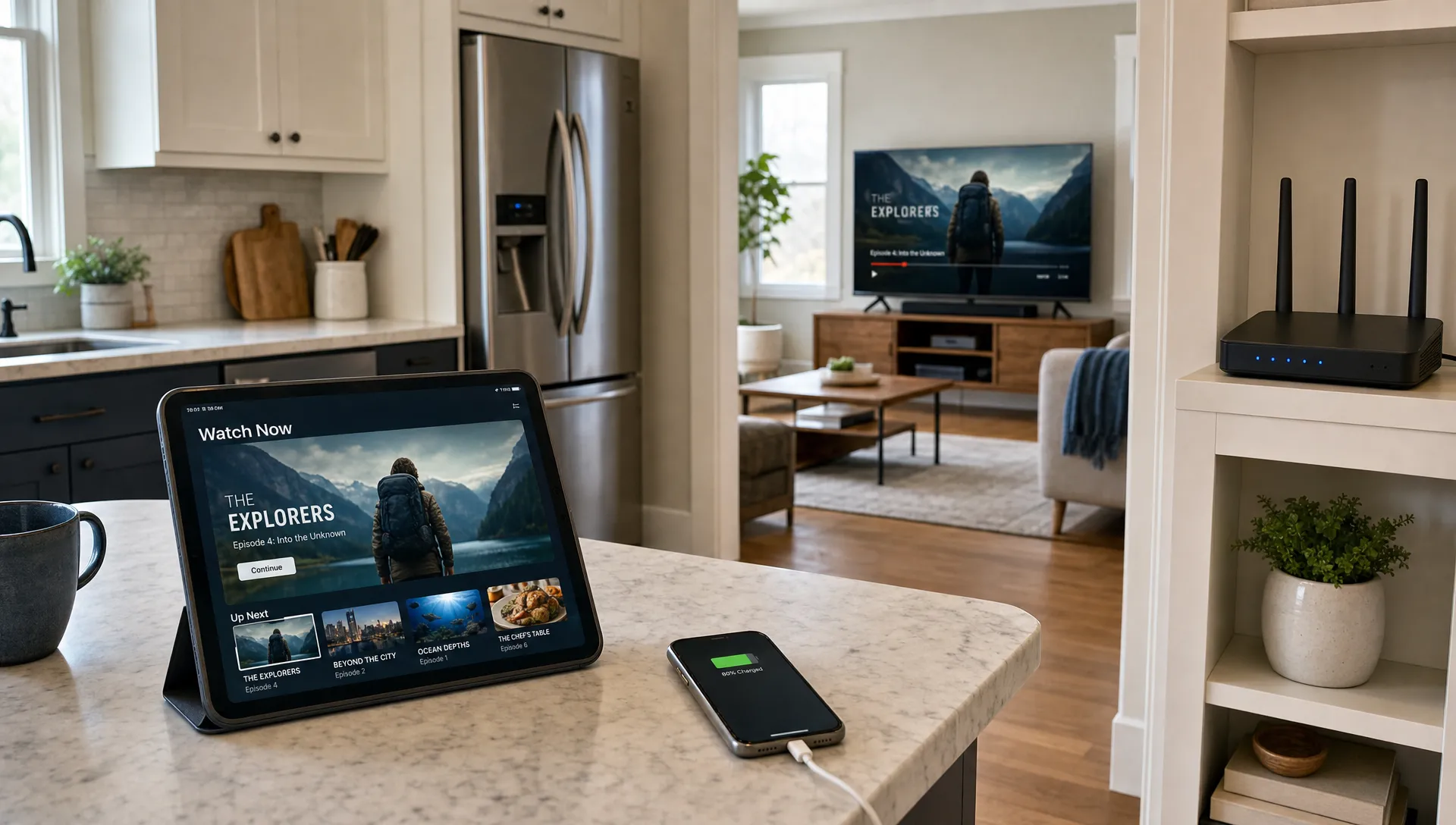
For smooth 4k tv streaming, your home network matters as much as your TV, streaming device and subscription. A fast internet plan can still buffer if the signal drops in the living room, the router is overloaded or every phone in the house starts cloud syncing during a live match. The goal is not simply to buy the biggest speed package. It is to create a stable path from your modem to the screen, reduce competing traffic and give your streaming device enough headroom to handle 4K video without stutter. This guide walks through the practical home network changes that make the biggest difference, from Ethernet and Wi-Fi placement to QoS settings, device care and upgrade timing.
What 4k tv streaming needs from your home network
4K video needs two things at the same time: enough bandwidth and consistent delivery. Bandwidth is the size of the pipe. Stability is how evenly data flows through it. Many buffering problems happen because the flow is uneven, not because the internet plan is always too slow.
A single 4K stream often needs roughly 15 to 25 Mbps depending on compression, frame rate, HDR and the app being used. Live IPTV and sports can feel less forgiving than on-demand movies because there is less time to buffer ahead. If your home has several TVs, phones, gaming consoles, security cameras and smart speakers, you need extra room.
| Household use case | Practical internet headroom to aim for | Why it helps |
|---|---|---|
| One 4K TV, light browsing | 50 Mbps or more | Leaves room for normal background traffic |
| One 4K TV plus gaming or video calls | 100 Mbps or more | Reduces congestion during peak use |
| Two 4K streams at once | 150 Mbps or more | Supports simultaneous high bitrate video |
| Busy smart home with multiple TVs | 300 Mbps or more | Gives more margin for many connected devices |
These are practical targets, not strict rules. A clean 100 Mbps connection can outperform a messy 500 Mbps setup if the router, Wi-Fi and device path are better managed.
Start with a clean speed and latency check
Run this test before you assume your 4k tv streaming service is the problem: measure performance where the TV or streaming box actually sits. A speed test beside the router only tells you what the router can receive. It does not prove that your living room TV gets the same quality.
Test at three times: morning, evening and during the exact hours you usually watch sports or movies. Peak evening congestion can expose weak Wi-Fi, overloaded routers and internet provider slowdowns. Look beyond download speed. Ping, jitter and packet loss matter because video playback depends on steady delivery.
A useful test routine is simple. First, test on your phone near the TV using the same Wi-Fi band the streaming device uses. Then test again with an Ethernet cable if your device supports it. If wired performance is much better, your issue is local Wi-Fi rather than the streaming app or internet plan.
If download speed looks strong but playback still freezes, check device storage, app cache, router placement and whether other devices are using bandwidth in the background.
Use Ethernet for the main screen whenever possible
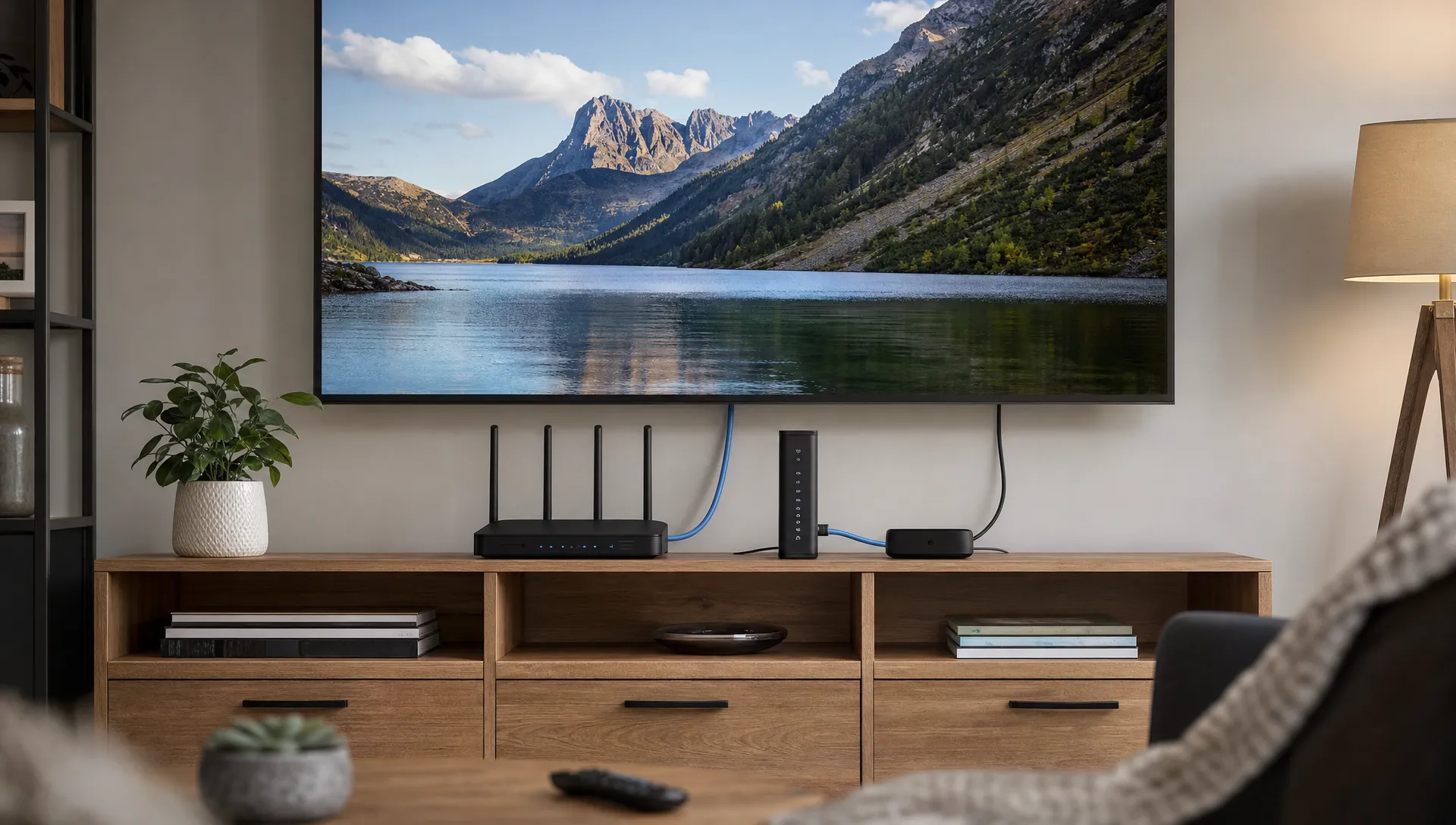
If you can, give your main screen a wired path because 4k tv streaming exposes every small Wi-Fi dip. Ethernet is usually the most reliable connection for a living room TV, Android box, Apple TV, Fire TV device with adapter or IPTV set-top box. It avoids interference from walls, neighbors’ routers, microwaves and smart home devices.
A basic Cat 5e or Cat 6 cable is enough for most homes. You do not need an exotic cable for typical streaming distances. What matters more is that the cable is undamaged, properly seated and connected to a router or switch that is not overloaded.
If you cannot run a direct cable, consider MoCA adapters if your home has coax wiring. Powerline adapters can work in some homes, but performance varies with electrical wiring, circuit layout and appliances. For a deeper comparison of wired options, see this guide to IPTV cable vs Ethernet for 4K streams.
Wired connections are especially useful for live sports, pay-per-view style events and any stream where a few seconds of buffering ruins the experience.
Improve Wi-Fi when wiring is not realistic
When Wi-Fi is your only option, 4k tv streaming works best when the router and streaming device have a strong, clean signal. Place the router in an open, central location rather than inside a cabinet, behind the TV or near thick walls. Height helps, so a shelf often beats the floor.
Use the 5 GHz band or 6 GHz band when available for the main TV, especially if the router is nearby. These bands are usually faster and less crowded than 2.4 GHz, though they do not travel as far through walls. Use 2.4 GHz for low-demand smart devices like plugs, bulbs and sensors.
If your home is larger, a mesh system can help, but placement matters. Put mesh nodes where they still receive a strong signal from the main router, not in the dead zone you are trying to fix. If the mesh supports wired backhaul, connect nodes with Ethernet for better stability.
Avoid stacking many cheap Wi-Fi extenders. They often reduce throughput and add latency. One well-placed modern router or mesh system usually performs better than several repeaters fighting for airtime.
Prioritize streaming traffic with QoS
QoS will not create bandwidth, but it can protect 4k tv streaming when the network gets busy. Quality of Service settings tell your router which devices or traffic types should get priority. For most homes, the TV, IPTV box or main streaming device should rank above phones, tablets, game downloads and cloud backup tools.
Before a major match or movie night, pause large downloads, console updates, cloud backups and smart camera uploads. If the evening is also a dinner event, for example a watch party with restaurant-quality meat from Beef Boutique, keep casual browsing, recipe videos and shopping on guest Wi-Fi so the main streaming device has the cleanest path.
QoS settings vary by router brand. Some routers let you prioritize a device. Others let you prioritize streaming, gaming or video traffic. If your router asks for upload and download values, enter realistic numbers based on speed tests rather than the maximum speed advertised by your internet provider.
For a more focused walkthrough, this guide explains QoS moves that help IPTV subscribers stop buffering.
Choose streaming settings that match your real bandwidth
Correct playback settings make 4k tv streaming more stable when your connection is good but not unlimited. Many apps use adaptive bitrate, which automatically lowers or raises quality based on conditions. That helps prevent total playback failure, but it can also cause quality shifts if your network is unstable.
Check the app settings on your Smart TV, IPTV player or streaming device. If you see options for external player, buffer size, hardware decoding or stream format, test one change at a time. Do not change five settings at once or you will not know what fixed the problem.
On slower connections, forcing maximum 4K quality can backfire. A stable high-quality 1080p stream may look better than a 4K stream that constantly drops frames or freezes. If your TV has strong upscaling, good HD content can still look clean from normal sofa distance.
Also check HDR settings. 4K HDR may require more bandwidth than standard dynamic range video. If your TV or device struggles, try 4K without HDR and compare stability.
Keep the router and streaming device healthy
Good device hygiene also matters for 4k tv streaming because routers and streaming boxes are small computers. They can overheat, run low on memory or slow down after weeks without a reboot. Place the router and streaming device where air can circulate. Avoid hiding boxes behind the TV if the area gets hot.
Update router firmware when updates are available from the manufacturer. Firmware updates can fix stability issues, security problems and Wi-Fi bugs. Streaming apps should also stay updated, especially on Android TV, Fire TV, Apple TV and Smart TV platforms.
If an app becomes slow, clear its cache if the device offers that option. Remove unused apps from streaming sticks with limited storage. A nearly full device can become sluggish, which looks like network buffering even when the internet connection is fine.
Restarting the router every day is not a real fix. An occasional reboot is normal, but frequent restarts point to deeper problems such as overheating, old firmware, weak hardware or ISP instability.
Troubleshoot buffering by symptom
Buffering is a symptom, not a diagnosis. The pattern tells you where to look first. A stream that freezes every few minutes is different from one that fails only during big live events.
| Symptom | Likely cause | First fix to try |
|---|---|---|
| Quality drops from 4K to HD | Wi-Fi fluctuation or congestion | Test Ethernet or move closer to router |
| Freezing during evening hours | Peak network congestion | Run speed tests at the same time of day |
| Only one app buffers | App cache, server route or app settings | Update app and clear cache |
| All devices are slow | ISP, router or modem issue | Test wired speed from router |
| Stream works until another device starts downloading | Local bandwidth competition | Enable QoS and pause downloads |
If the same issue happens on every device and every app, start with the modem, router and ISP. If only one TV has trouble, focus on that room’s Wi-Fi, cable, app and streaming hardware.
Secure your network so unknown devices do not steal bandwidth
A crowded or poorly secured network can quietly damage performance. Use WPA2 or WPA3 encryption, set a strong Wi-Fi password and remove devices you do not recognize from the router’s device list. If you regularly have guests, create a guest network instead of sharing your main password.
Smart home devices should not all need access to the same network as your streaming box. Separating guest phones and low-priority devices can reduce clutter and improve control.
Be careful with VPNs. A VPN can add privacy in some situations, but it can also reduce speed, raise latency and cause routing issues. If playback gets worse when the VPN is on, test again with it off. If you need a VPN, choose one with fast nearby servers and avoid stacking it on top of an already weak Wi-Fi signal.
Security is not only about privacy. It is also about keeping your bandwidth available for the devices you actually use.
Know when it is time to upgrade
In a multi-TV home, 4k tv streaming may require a router upgrade before it requires a bigger internet plan. If your router is more than five years old, struggles with many devices or lacks modern Wi-Fi standards, a new router can make a major difference.
Consider upgrading when Ethernet works well but Wi-Fi is consistently poor, when the router gets hot and drops connections or when mesh nodes cannot maintain stable backhaul. Wi-Fi 6 or Wi-Fi 6E can help busy homes, especially where many devices compete at the same time.
Upgrade your internet plan only after checking the local network. If a wired speed test from the router already reaches your plan speed, but the TV area performs badly, paying for more internet will not fix the weak link. If wired tests are consistently below what you pay for, contact your ISP and ask them to check the modem, signal levels and line quality.
For apartments, interference from nearby routers can be a bigger issue than raw speed. Changing channels or moving to 5 GHz may help more than buying a faster plan.
Pair a stable network with a reliable IPTV service
Even the best home network cannot fully compensate for overloaded servers or an unreliable provider. For a clean viewing experience, your connection, device and IPTV service all need to work together. Fast servers, stable uptime, clear setup help and broad device support reduce the number of variables you have to troubleshoot at home.
BuyIPTVfor4K focuses on IPTV subscriptions with live channels, movies and sports in SD through 4K quality. The service highlights 30,000+ live channels, 140,000+ VOD titles, anti-freezing technology, 99.9% server uptime, broad device compatibility, free installation help and 24/7 customer support for UK and USA viewers.
If you are building your setup from scratch, start with the network steps above before judging any service. A premium stream still needs a clean route through your home. Once the router, wiring and device are in good shape, it becomes much easier to tell whether a playback issue comes from your network, the app or the provider.
To compare plans and setup options, visit BuyIPTVfor4K.
Frequently Asked Questions
What internet speed do I need for 4K streaming? A single 4K stream often works best with at least 25 Mbps available to the streaming device, but a household should have extra headroom for phones, gaming, video calls and smart devices.
Is Ethernet better than Wi-Fi for IPTV? Yes, Ethernet is usually more stable because it avoids wireless interference, signal drops and congestion. Wi-Fi can work well, but the router position and signal quality become more important.
Why does my 4K stream buffer if my speed test is fast? Speed tests often measure a short burst under ideal conditions. Buffering can still happen because of weak Wi-Fi, packet loss, router overload, app issues, device storage problems or peak-hour congestion.
Should I use a VPN for IPTV streaming? A VPN can help with privacy, but it may reduce speed or increase latency. If buffering starts after turning on a VPN, test without it and compare performance before changing other settings.
Does a new router help with 4K streaming? A new router can help if your current one is old, overheats, drops Wi-Fi or struggles with many devices. If wired performance is already poor, check your modem and ISP connection first.
One Reply to “How to Optimize Your Home Network for 4K TV Streaming”