

If your provider supports the Xtream Codes API, use it, because the player pairs the guide with your channels automatically. If not, paste a trusted XMLTV .xml.gz link into your player’s EPG or TV Guide settings and tap Update EPG. Large guides usually take 2–5 minutes to download, so wait before judging the result.
TL;DR:
- Match each playlist channel ID exactly to the XMLTV channel ID, including capitalization and punctuation; name matching often fails when labels differ.
- If all channels are blank, test the URL in a browser and check authentication; if only some are blank, compare channel IDs.
- Wrong show times usually indicate a missing timezone offset or incorrect device zone; use a time correction setting rather than editing the guide.
- Refresh community guides every 4 to 6 hours, not hourly, and choose a Lite feed on low memory devices to reduce bandwidth and crash risk.
Table of Contents
- How does an XMLTV guide connect to your playlist?
- How do you set up EPG in TiviMate and IPTV Smarters?
- What should you check when your EPG is not working?
- How do you keep your EPG reliable over time?
- Which other IPTV apps can use an EPG?
- What do the fields in an EPG actually mean?
- How does an EPG improve the IPTV experience?
- What I check first when a guide breaks
- Want a playlist and guide that work from the start?
- FAQ
- Sources
How does an XMLTV guide connect to your playlist?
XMLTV is the de facto EPG format, defined by a published DTD. The UniPlayer XMLTV reference describes the structure: channel elements with unique ids, and programme elements that point to those channels and carry start and stop times.
A couple of details cause most real-world trouble. First, timestamps should be full 14-digit values (year, month, day, hour, minute, second) with an explicit timezone offset, such as a timestamp in that format. A guide that omits the offset leaves the player guessing, and that can lead to incorrect show times.
Second, the link between your playlist and the guide has two halves. In the M3U file, the header line can carry a guide address:
#EXTM3U url-tvg="https://example.com/guide.xml.gz"
Each channel line then carries a tvg-id value:
#EXTINF:-1 tvg-id="ESPN.us" tvg-name="ESPN",ESPN
That tvg-id must equal a channel id inside the XMLTV file character for character. Differences in case, dots, and underscores can matter. The guide experience depends on this handshake: the id in your M3U and the id in the XMLTV must be identical, and that exact equality is the most reliable guarantee of a populated guide.
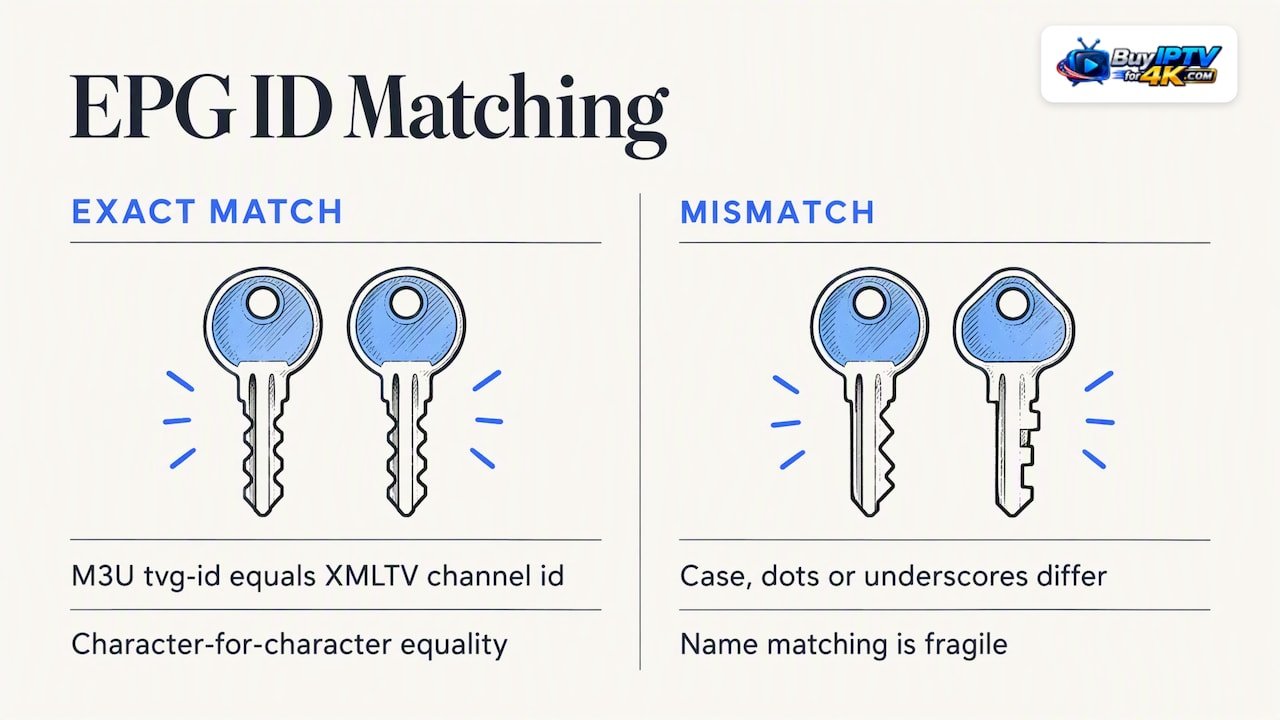
Many players fall back to matching by channel name when ids fail. Name matching is fragile. “ESPN HD”, “ESPN FHD” and “ESPN (US)” can all be treated as different strings, and a punctuation change in your provider’s naming can break the link. That is why standardized id feeds exist, and why we recommend fixing ids over hoping names line up.
You may also meet nonstandard attributes in M3U files. Catchup-id supports catch-up and replay features in some setups, and dd_progid appears in some guide sources that carry program identifiers. They are optional, but if your provider includes them, leave them intact when editing. When you do edit a playlist, use a plain text editor and save as UTF-8 so special characters in channel names survive.
The Xtream Codes API skips this manual wiring. It handles the pairing server-side, which is why it beats a hand-built M3U setup whenever exact id matching is the sticking point.
How do you set up EPG in TiviMate and IPTV Smarters?
Both players support two methods: the Xtream Codes API, which fetches the guide automatically, and a manual XMLTV URL. Try the API first.
Confirming the Xtream Codes method. Add your playlist using the server address, username and password rather than a plain M3U link. If your provider issued an M3U link, check that it was generated in the m3u_plus format, because that format preserves tvg-id attributes. After loading, open the guide. If it fills within a few minutes, you are done. If not, confirm the credentials, force an update, and see the troubleshooting section below.
Manual setup in TiviMate:
- Open Settings, then Playlists, and select your playlist.
- Choose EPG, then Add EPG Source.
- Paste your .xml.gz URL and save it.
- Select Update EPG.
- Wait 2–5 minutes, then open the guide.
This follows the TiviMate setup flow: add the source under Playlists, then EPG, update, wait a few minutes, and use channel mapping for anything that stays unmatched.
Manual setup in IPTV Smarters:
- Open your playlist or user settings.
- Find the EPG or TV Guide section.
- Add the XMLTV URL and save.
- Trigger a refresh and wait for the download.
Menu names differ between versions. Older boxes and some Firestick builds may bury the guide option in a submenu, and their slower storage can make the first import take longer. Be patient before assuming failure.
Quick checklist before you call it done:
- Open the EPG URL in a browser and confirm it returns XML or downloads a file.
- Choose .xml.gz over plain .xml when the player accepts it.
- Set the correct timezone, or apply a tvg-shift value if shows appear hours off.
- Check three channels you watch daily, not just the first row.
For device-specific screens, our IPTV setup walkthrough and our guide to setting up IPTV Smarters on a Smart TV cover the steps that come before the guide.
What should you check when your EPG is not working?
Work through these steps in order. Each is quick, and many problems can be resolved with basic troubleshooting.
- Test the URL. Open it in a browser. XML text or a .xml.gz download means the source is up. A 404 or 503 means the source is down, so switch feeds. As gisuser’s troubleshooting guide advises, check for valid XML before touching anything else.
- Check for a tvg-id mismatch. Compare the tvg-id on a missing channel in your M3U against the channel id in the XMLTV file. If they differ, TiviMate’s channel mapping (a Premium feature) lets you assign guide entries by hand, or you can edit the M3U so the ids match.
- Clear the cache and refresh. Force Update EPG, clear the player’s guide data, then restart the app. If the guide stays stale, remove the playlist and add it again.
- Check the timezone. Programs showing at the wrong hour usually point to a missing offset or a device clock set to the wrong zone. Apply a tvg-shift correction.
- Watch for authenticated feeds. Some EPG URLs need headers or cookies that a player cannot supply. The usual workaround is the Xtream Codes API, which handles the connection for you.
- Rule out size problems. A huge guide on a low-memory box can fail silently. Switch to a Lite or national pack.
The core diagnosis: Most missing-guide issues trace to tvg-id mismatches between the M3U and the XMLTV channel id. Fix the id and the guide usually appears.
If only some channels are blank, you have a matching problem, not a download problem. If every channel is blank, suspect the URL, the authentication, or the cache. That one distinction saves most of the wasted effort, so ask it first.
When fixes pile up without results, check whether your provider’s playlist is the cause. Our overview of IPTV providers and what to expect from them helps you judge whether to ask for a matching feed.
How do you keep your EPG reliable over time?
A guide that works today can drift next month, so a few habits pay off.
- Update every 4 to 6 hours. That matches how often many community feeds refresh, and it keeps tonight’s schedule accurate. Avoid hourly updates, which waste bandwidth and can get your device blocked by the host.
- Prefer .xml.gz. Compressed files download faster and put less strain on small devices. Iptv-epg, and the XMLTV reference recommends serving gzipped files where possible.
- Validate when you build your own. If you author or edit a guide, check it against the XMLTV DTD so players do not choke on malformed entries.
- Keep tvg-id values stable. Renaming ids breaks every mapping you made. Rely on id matching, not names.
- Use tvg-shift for time fixes. It corrects an hour or two of drift without editing the guide itself.
- Keep a backup source. Save one alternate URL so you can swap feeds in a minute when the first goes down.
Which other IPTV apps can use an EPG?
TiviMate and IPTV Smarters get most of the attention, but the same two inputs work almost everywhere: an XMLTV URL, or an Xtream Codes login that supplies the guide for you.
Most apps ask for the guide in one of three places. Some have a dedicated EPG or TV Guide setting under the playlist. Others read the url-tvg value straight from the M3U header, so you add nothing extra. Some apps accept an XMLTV link in a general settings screen that applies to all playlists.
The practical advice carries over. Test the URL in a browser, use the gzipped file if the app supports it, confirm ids match, and give the first download several minutes. Apps built for server-style setups, such as tvheadend, treat the guide as part of a larger pipeline, and community discussion of EPG for IPTV shows how many grabbers and utilities feed them.
If an app has no guide field at all, check whether it reads the M3U header. Adding a url-tvg value to the playlist can fix that without any menu. And if you are choosing between apps, favor one that lets you map channels by hand, since that single feature rescues a poorly matched guide.
What do the fields in an EPG actually mean?
A guide is a list of channels and a list of programs, and each carries a few core fields.
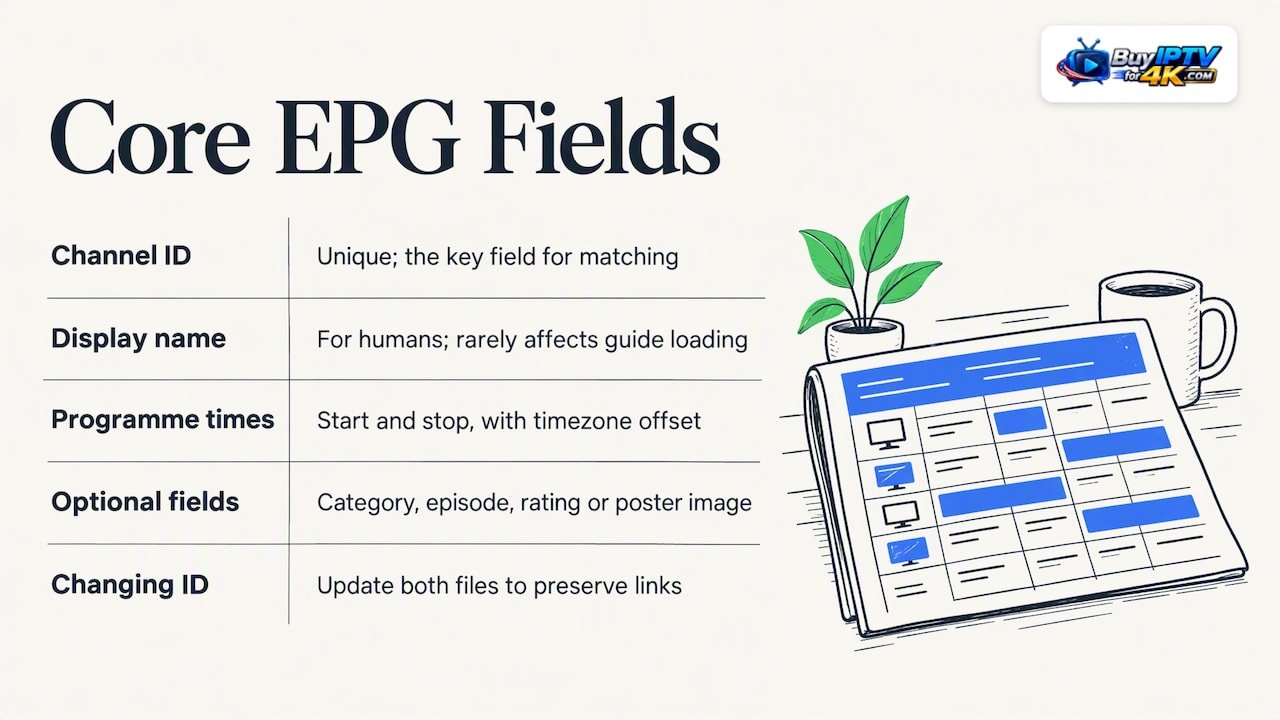
A channel entry holds a unique id, one or more display names, and often an icon. The id is the one that matters for matching. Display names are for humans and rarely decide whether a guide loads.
A programme entry holds a start time, a stop time, the channel id it belongs to, a title, and usually a description. Many feeds add a category, an episode number, a rating, or a poster image. The start and stop times use the full timestamp format described in the XMLTV reference, including the timezone offset.
Customizing the guide mostly happens in the player, not in the file. You can hide channels you never watch, reorder groups, and map unmatched channels to the right guide entry. If you want a smaller or tailored feed, tools like M3U Edit and the iptv-org utilities let you build packs with only the channels you need. A trimmed guide loads faster, uses less memory, and leaves less room for mismatches.
Be careful when editing by hand. Change a display name and nothing breaks. Change a channel id and every link to it breaks until you update both files.
How does an EPG improve the IPTV experience?
Without a guide, a live channel list is a wall of names. You tune in blind, hoping something worth watching is on. With a guide, the same list becomes a schedule you can read.
You see what is airing now and what comes next, so you stop flipping through channels. You can plan around a match kickoff or a series start time. Descriptions and categories help you pick a show in seconds, and posters or icons make the grid easier to scan on a big screen.
A good guide also supports features that depend on timing, such as reminders and recording on players that offer them. That is why accuracy matters more than size: a correct guide for the channels you watch beats an enormous one with wrong times.
The gap between a frustrating setup and a smooth one is rarely the player. It is the match between the playlist and the guide, the freshness of the file, and a correct timezone. Get those three right and the interface does the rest.
What I check first when a guide breaks
I run the same three checks every time, in this order. First, I open the EPG URL in a browser, because a dead source can explain the problem and is quick to confirm. Second, I compare the tvg-id of a blank channel against the XMLTV channel id, since a mismatch is the usual culprit. Third, I clear the cache and force an update before touching any other setting.
If all three pass and channels are still blank, the problem is probably on the provider side, such as a playlist that strips ids. At that point, contact your provider’s support rather than hunting through public guides.
— AHMED
Want a playlist and guide that work from the start?
We offer step-by-step installation support and customer help, so you spend your evening watching instead of mapping channel ids. Our plans are listed on our main page. Prefer a shorter term? Our other plans are listed on our main page. If your guide still misbehaves, contact our support team and we will help you set it up.

FAQ
How do I get EPG on my IPTV?
Use the Xtream Codes API if your provider offers it, since the player fetches the guide automatically. Otherwise, add a trusted XMLTV .xml.gz URL under your playlist’s EPG settings and select Update EPG. Large guides usually need 2–5 minutes to download.
What is the best EPG for IPTV?
For most viewers, a Combined or national .xml.gz feed from a free community source is the best starting point. Choose a Lite pack on low-memory devices, and consider a paid guide if matching problems keep returning. Test any feed in a browser before adding it.
How to get TV guide on IPTV?
Open your player’s playlist settings, find the EPG or TV Guide option, and paste an XMLTV URL. Save it, refresh the guide, and check a few channels you watch. If the guide stays blank, compare the tvg-id values in your playlist against the guide’s channel ids.
What is EPG in IPTV?
EPG stands for electronic program guide. It is the on-screen schedule that shows what is airing now and next on each channel. In IPTV, it usually comes from an XMLTV file that your player links to your channels through matching tvg-id values.
Sources
Start with free community projects, because they cost nothing and cover most mainstream channels. Pick one, test it, and move on if the match rate is poor.
Whatever you choose, open the URL in a browser first. If you see XML or a .xml.gz download begins, the source is alive. If you get a 404 or 503, skip it and try another.
Begin with a Combined or national .xml.gz file. On an older Firestick or a budget Android box, a Lite pack avoids memory crashes and keeps the guide scrolling smoothly. EPGTalk’s Combined and Sports feeds refresh every 6 hours, which is a healthy cadence for live schedules.
Paid guide providers earn their fee in three situations. Their files tend to be smaller because they cover only the channels you actually watch. They curate channel ids so matching works with fewer fixes. And they leave fewer blank rows in the guide. If you have spent an evening fixing mismatches on a free feed and still have gaps, a paid feed may be worth considering. If your free guide fills most of your lineup, keep it.
The wider ecosystem is large. Community threads such as this tvheadend discussion on EPG for IPTV show how many guide grabbers and XMLTV utilities exist, which is why quality varies so much between sources. Treat any new feed as a trial: check the channels you care about, check that tonight’s schedule is present, and check that start times line up with your clock. Keep a note of which URL worked so you can restore it quickly after a player reset.