

The fastest way to watch IPTV on a Windows PC is to install a desktop-native IPTV player and load an authorized M3U or Xtream playlist, or sign up for a paid IPTV subscription that provides one for you. Download a Windows-native app, point it at your playlist URL or credentials, and you can be watching channels in minutes. Compatible playlists and 24/7 setup help are available for anyone who wants that part handled.
TL;DR:
- Choose VLC for basic authorized M3U playback; dedicated Windows players add EPG, Xtream support, catch up, recording, and desktop controls.
- EPG accuracy depends on matching playlist channel IDs with provider guide data; catch up also requires provider links, while recording usually saves locally.
- For buffering, try Ethernet, hardware acceleration, current GPU drivers, and an HD or SD stream; check firewall access, power settings, and background apps.
- Use only authorized playlists or licensed subscriptions, since IPTV technology is legal but streaming copyrighted broadcasts without permission is not.
- Plans include one month for $14, three months for $32, and one year with three months free, according to the listed offer.
Table of Contents
- What makes a good Windows IPTV player
- Install and load your playlist on Windows: step by step
- How EPG, catch-up, and recording actually work
- Fixing buffering and playback issues on Windows
- How our service supports IPTV on Windows
- Which setup fits you: free player, premium app, or managed subscription
- Start watching on Windows today
- FAQ
- Sources
- Primary sources and trusted downloads
What makes a good Windows IPTV player
Not every IPTV app built for mobile translates well to a desktop screen, so it pays to check a few things before you commit to one.
A player worth keeping on your PC should offer:
- A desktop-native interface built for keyboard and mouse, with real multi-monitor support rather than a stretched phone layout.
- Broad playlist compatibility, including M3U, M3U8, Xtream Codes or XUI panels, and Stalker portals.
- A working EPG (electronic program guide) parser, plus catch-up or recording options if your provider supports them.
- Playback features such as hardware-accelerated decoding, multi-audio tracks, subtitle support, and picture-in-picture or multi-view for watching more than one feed at once.
- Stable performance under long sessions and sensible privacy practices, since the app will handle your playlist credentials.
Several Windows-native apps on the Microsoft Store advertise exactly this combination: EPG support, M3U and Xtream compatibility, and layouts built for Windows 10 and 11 rather than a shrunk mobile port. If you want a free fallback that handles basic M3U playback without the extra features, VLC for Windows can open a playlist URL directly, though it won’t give you EPG, catch-up, or the polished interface a dedicated IPTV app provides. For a deeper look at what separates a solid provider from a weak one, our guide on choosing an IPTV provider covers the evaluation side in more detail.
Install and load your playlist on Windows: step by step
Once you’ve picked a player, getting your channels on screen is a short process.
- Download your chosen app from the Microsoft Store or the vendor’s own site, and confirm your Windows version meets the app’s minimum requirements before installing.
- Open the app and look for an “add playlist” or “add source” option.
- Choose how you’ll connect: load a local M3U file saved on your PC, paste a remote M3U/M3U8 URL, or enter your Xtream/XUI username, password, and server address if your subscription uses that format.
- Save the source and let the app pull the channel list; this can take a few seconds to a couple of minutes depending on list size.
- Turn on EPG. Many apps auto-detect a guide URL bundled with the playlist; if not, add the XMLTV URL manually in settings and confirm program times match your time zone.
- Run a first-play check: pick a channel, confirm video and audio sync, test subtitles if the stream includes them, and flip through a few channels to confirm switching is smooth.
Pro Tip: If a channel loads but shows no sound or a black screen, update your GPU drivers and check that your firewall isn’t blocking the app’s network access before assuming the stream itself is broken.
Most first-run problems trace back to one of three things: an outdated codec pack, a GPU driver that hasn’t been updated in a while, or a firewall rule quietly blocking the stream. Checking those three before contacting support saves time on both ends.
How EPG, catch-up, and recording actually work
Guide data and recording features depend on more than the app you install. It helps to know who’s actually responsible for each piece.
- EPG data usually comes from your provider as a separate XMLTV feed or embedded channel IDs; the player just parses and displays it, so a mismatch between a channel’s playlist ID and its guide ID will show the wrong schedule or none at all.
- Catch-up (watching a show after it aired) is a provider-side feature; the player only displays it if the provider’s EPG entries include catch-up links.
- DVR-style recording, by contrast, is often handled locally by the player, which saves the stream to your hard drive in a standard video format.
- To test either feature, pick a channel with a full EPG entry, look for a rewind or record icon on that entry, and confirm playback starts where expected.
- Recorded files are typically portable MP4 or TS files, so check available disk space before scheduling long recordings.
Fixing buffering and playback issues on Windows
Most playback complaints come down to network conditions or a setting the player isn’t using correctly, and most are fixable without reinstalling anything.
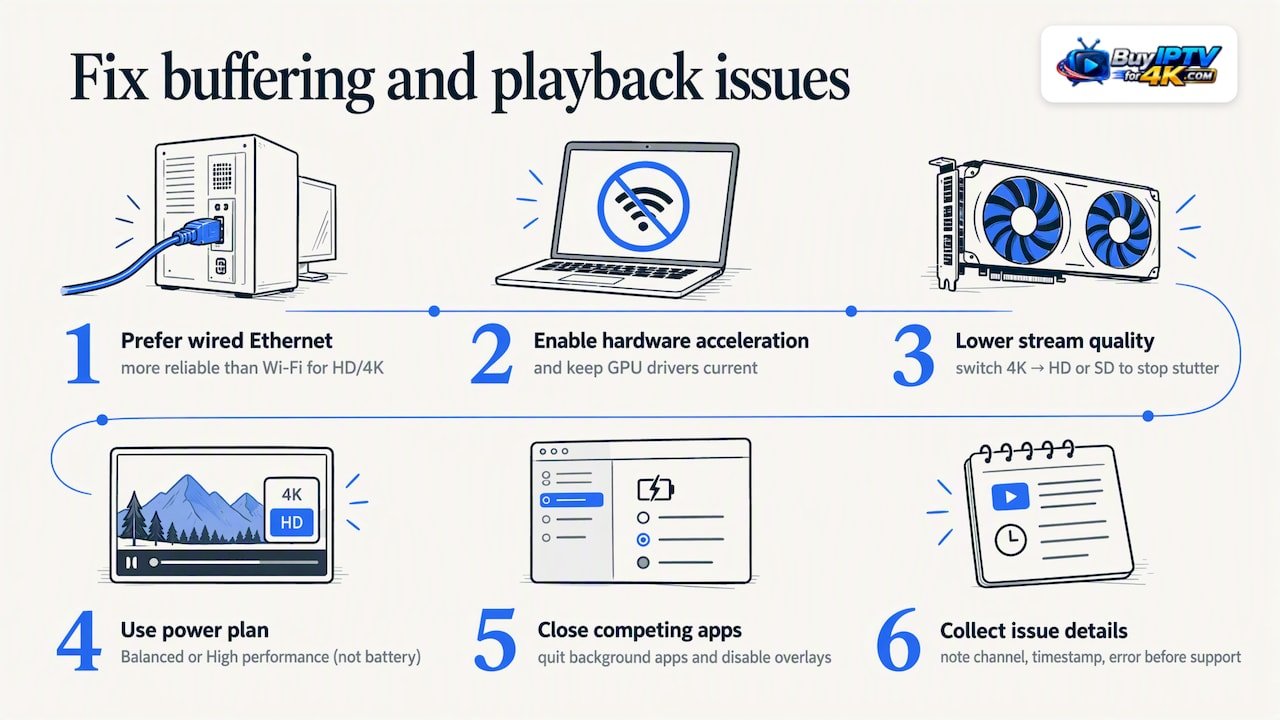
Start with the connection: a wired Ethernet connection is more reliable than Wi-Fi for HD and 4K streams, since wireless interference causes the stuttering most people blame on the provider. Inside the player, turn on hardware acceleration and keep your GPU drivers current. If you’re still seeing stutter on a 4K channel, dropping to the HD or SD version of the same stream often clears it instantly. On the Windows side, switch your power plan to “Balanced” or “High performance” rather than a battery-saving mode, close background apps competing for bandwidth, and disable overlay software like game recorders that can interfere with video rendering.
Pro Tip: If an issue persists, note the exact channel, timestamp, and error message before contacting support, since that detail lets a support team diagnose a server-side issue versus a local one much faster.
How our service supports IPTV on Windows
Choosing a player is only half the job. Getting a reliable, correctly formatted playlist and knowing what to do when something goes wrong is the other half, and that’s where a managed subscription earns its keep.
- Compatible M3U and Xtream playlists that drop straight into any Windows-native IPTV player, no reformatting needed.
- Servers built to minimize freezing during live sports and peak viewing hours.
- A full channel and video-on-demand library that updates regularly at no extra cost.
- Step-by-step installation support and 24/7 customer assistance if setup doesn’t go smoothly the first time.
To get started, pick a subscription length that matches how long you plan to watch, then use the setup page above to walk through connecting your Windows player.
Which setup fits you: free player, premium app, or managed subscription
If you watch casually and already have a legal streaming source, a free player like VLC paired with an authorized playlist covers the basics. If you watch across a laptop, a living room PC, and a phone, a dedicated Windows-native app with EPG and multi-device support is worth the switch. Heavy sports viewers who can’t afford freezing during a big match benefit most from a managed subscription, since server reliability and support response time matter more than any single app feature. For that last group especially, pairing a solid Windows player with our IPTV provider in the USA overview helps match the subscription to how you actually watch.
— AHMED
Start watching on Windows today
Once your player is installed, the only thing left is a playlist worth loading. We offer plans built for exactly the setup described above: large channel and VOD libraries, 4K and HD quality, and 24/7 help if you get stuck connecting your Xtream credentials.
Pick the length that fits how you watch: 1 Month, 3 Months, 6 Months, or 1 Year with 3 months free, our most popular option for anyone settling in for a full season of sports and shows. Shorter on commitment, the 1-Month plan runs $14 per month and the 3-Month plan runs $32 per quarter if you’d rather try things out first.
FAQ
Can I get IPTV on my PC?
Yes. Any Windows PC that meets a player’s minimum requirements can run a desktop-native IPTV app or a general media player like VLC that opens an M3U playlist URL directly.
Is IPTV legal in the USA?
IPTV technology itself is legal, but streaming copyrighted content without authorization is not. The U.S. Copyright Office treats unauthorized retransmission of copyrighted broadcasts as a public performance issue, so the safest path is sticking to authorized playlists or a licensed subscription.
What is the best IPTV for Windows?
The best choice depends on what you need: a free app like VLC covers basic M3U playback, while a dedicated Windows-native app with EPG and Xtream support suits anyone who wants a fuller TV-like experience. Our subscriptions are built to work with either kind of player, with setup help included.
What is the best IPTV streamer for Windows?
Look for a Windows-native player, one built for the desktop rather than a resized mobile app, since those tend to handle multi-monitor setups, hardware-accelerated playback, and keyboard controls better. Several options with EPG and M3U support are available through the Microsoft Store.
Sources
- Promoting Investment and Protecting Commerce Online: The ART Act, the NET Act and Illegal Streaming
- Title II—Intellectual Property: Unauthorized streaming (U.S. Copyright Office legislative materials)
- VLC media player — Download VLC for Windows
Primary sources and trusted downloads
- Promoting Investment and Protecting Commerce Online: The ART Act, the NET Act and Illegal Streaming
- Title II, Intellectual Property: Unauthorized streaming (U.S. Copyright Office legislative materials)
- VLC media player, download VLC for Windows
- MyIPTV Player, Microsoft Store