
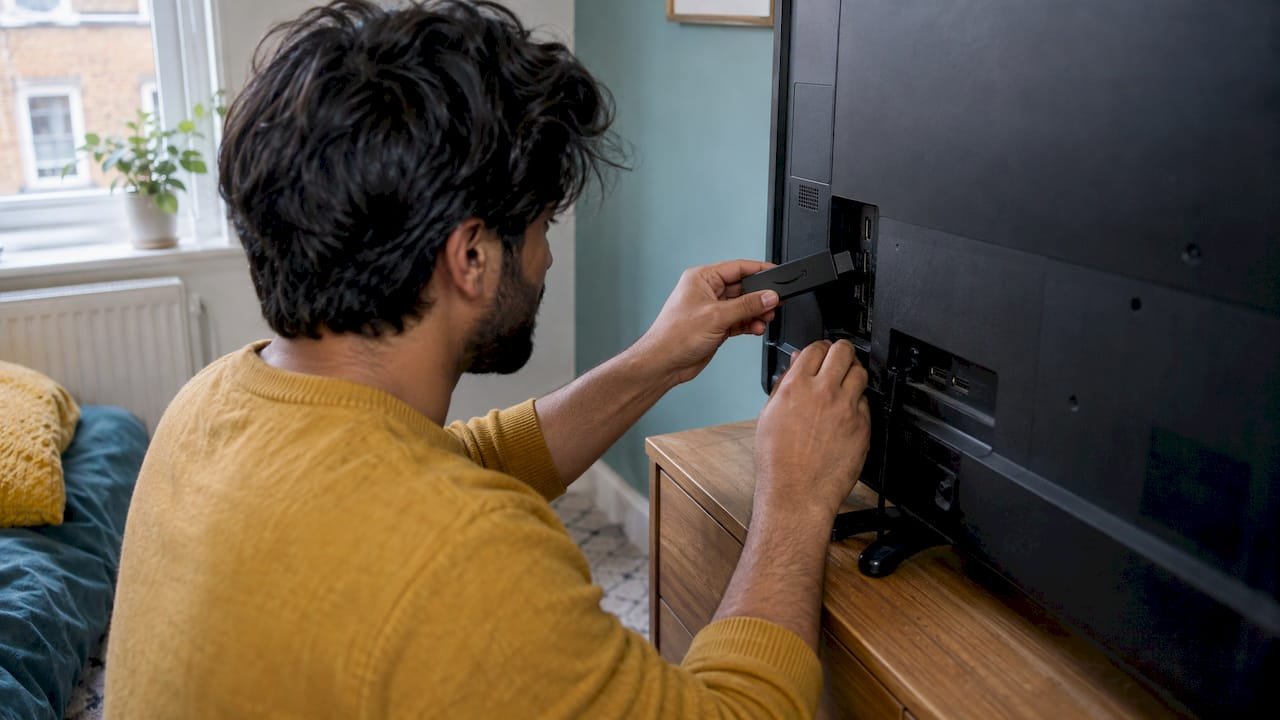
IPTV works on an Amazon Fire TV Stick because the Stick is a small Android-based streaming box: you add a player app, sign in with the details your provider gives you, and your live channels, films and series appear on the TV. The whole job takes about ten minutes. What decides whether it feels smooth is your broadband, how the Stick is connected and which player you choose. This guide covers all three, plus the legal basics for UK viewers.
TL;DR
- A Fire TV Stick needs three things for IPTV: a working Amazon set-up with Wi-Fi, a player app that suits a remote control, and login details from an authorised provider.
- Pick a player that works with the remote alone, supports hardware video decoding, and handles both M3U and Xtream Codes logins plus a TV guide.
- Buffering usually comes down to Wi-Fi, an overloaded Stick or too little speed. A restart, a clear line to the router or an Ethernet adapter fixes most cases.
- In the UK you need a TV Licence to watch live TV however it arrives, and you should only use services you are entitled to use.
- Our plans start at £14 a month, with free installation help if you get stuck.
Table of Contents
- Does IPTV work on a Fire TV Stick?
- What you need before you start
- Step 1: Set up the Fire TV Stick itself
- Step 2: Choose an IPTV player app
- Step 3: Install the player and sign in
- Watching live channels and finding the guide
- Getting the best picture quality
- Fixing buffering and playback problems
- Is IPTV legal in the UK?
- Our perspective
- Our plans for Firestick viewers
- Tips for a smoother Firestick experience
- Choosing a provider for your Firestick
- FAQ
- Sources
Does IPTV work on a Fire TV Stick?
Yes. Amazon describes the Fire TV Stick as a device where you install and use services such as BBC iPlayer and watch live TV once the device is set up. IPTV simply means television delivered over your internet connection rather than through an aerial or satellite dish. A Stick has no aerial socket, so everything it plays comes through your broadband, which is exactly what IPTV needs.
There are two parts to the picture:
- The device. Your Fire TV Stick, plugged into an HDMI port and signed in to your Amazon account.
- The service and the player. A subscription that supplies channels and on-demand titles, and an app on the Stick that plays them.
People often mix these up. The Stick is the hardware. The player app is the software that reads your login. The provider is who supplies the content. If any one of the three is weak, the whole experience suffers, so it pays to get each right.
Which Fire TV Stick should you use?
Any current Stick will run a player app, but newer models have more headroom. Amazon lists the newer Fire TV Experience as available on the Fire TV Stick 4K (2nd Gen), 4K Plus and 4K Max (2nd Gen), among other devices. If you want to watch in 4K, choose one of the 4K models and a TV that supports 4K. If you only watch in HD, a basic Stick is fine.
What you need before you start
Gather these first and the rest goes quickly:
- A Fire TV Stick and its power adapter and remote.
- A TV with a free HDMI port.
- An Amazon account and your Wi-Fi password.
- Broadband with enough speed for the quality you want (more on this below).
- Your IPTV login details from your provider: usually a username, password and server address, or an M3U link.
Amazon’s own set-up guide asks for the Stick, a TV with an available HDMI port, an Amazon account and your Wi-Fi credentials. If you already use the Stick for other apps, you have done this part.
Step 1: Set up the Fire TV Stick itself
If the Stick is brand new, follow Amazon’s sequence. It tells you to put batteries in the remote, connect the Stick to wall power, choose the right HDMI input on your TV, set up Wi-Fi and then sign in using the on-screen code or QR workflow.
A few practical points that save time:
- Plug the power adapter into a wall socket rather than the TV’s USB port where you can. It keeps the Stick steady.
- If the remote will not connect, Amazon’s guidance is to re-pair it by holding the Home button for about ten seconds.
- If apps will not download, the same guidance says to check that a default payment method is set on your Amazon account.
If your TV, soundbar and Stick sit in a tight spot and you need a lead between devices, use a 4K HDMI cable so you do not lose picture quality on the way to the screen.
Step 2: Choose an IPTV player app
The player is where most people go wrong. Many “best app” lists are written for phones and then reused for TV. A Fire TV Stick is a different thing: it has no touchscreen and a low-power chip. One Fire TV app guide points out that every screen must be reachable with the remote’s ring and select button, and that the player should hand video to the device’s decoder chip to avoid stutter that looks like buffering.
That same guide, updated in July 2026, lists seven things worth checking. In plain terms:
| What to check | Why it matters on a Stick |
|---|---|
| Remote and D-pad navigation | You have no mouse or touchscreen, so every menu must work with the remote |
| No intrusive ads | Ads inside a player slow you down and get in the way of live TV |
| Honest pricing | Know what is free and what is paid before you commit |
| Hardware video decoding | The Stick’s processor struggles to decode 1080p H.265 in software |
| Full TV guide (EPG) support | Lets you browse what is on now and next, in XMLTV format |
| M3U and Xtream Codes support | These are the two common ways a provider hands you your login |
| Privacy | Your playlist address and credentials should stay on your device |
You do not need to chase a long list of apps. Pick one that ticks these boxes, set it up properly and stick with it. Switching players every week is a common cause of “it was working yesterday” frustration.
M3U or Xtream Codes: which login do you have?
Your provider will give you one of two formats.
- Xtream Codes login: a server address, username and password. You type these into the player’s login screen. It usually brings the guide and the on-demand library along with it.
- M3U link: a web address that points to a playlist file. You paste it into the player. A separate guide address may be supplied for the programme guide.
Treat either as private account information. Safe-use guidance for Fire TV players says to use only a playlist you received lawfully from an authorised source, add guide data only when it is supplied separately, test a known stream first, and avoid posting private playlist links in public. If you want to check an M3U link on a computer before you load it on the Stick, our guide to M3U IPTV setup and testing in VLC walks through it.
Step 3: Install the player and sign in
The exact screens differ by app, but the pattern is the same for every player.
- From the Fire TV home screen, open the search function and look for your chosen player by name.
- Select it and choose to download or install it.
- Open the app and choose the login type that matches what your provider gave you.
- Enter the server address, username and password, or paste the M3U link. Use the on-screen keyboard slowly: one wrong character is the most common reason a login fails.
- Wait for the channel list to load. A large library can take a minute or two the first time.
- Open a channel you know and confirm that picture and sound both work.
If you are typing long addresses with the remote, the Fire TV app on your phone can make the keyboard faster. If a login keeps failing, copy the details exactly from your provider’s email rather than retyping them from memory.
If you would rather not do this alone, we offer free installation help to our customers, and our setup page is the place to start. We designed the process so beginners can follow it.
Watching live channels and finding the guide
Once the player has loaded, live channels sit in a list or grid, usually grouped by category: sport, news, entertainment, films, kids and so on. A good player lets you search by channel name and mark favourites so you reach your regular channels in two clicks.
Two things are worth knowing about guides on the Fire TV Stick:
- Fire TV’s built-in guide is separate from your IPTV player’s guide. Amazon says the built-in guide can show BBC, ITV and Channel 4 listings, can be opened by saying “Alexa, open TV guide” or from the Live tab, and lets you browse schedules for the next seven days.
- A listing is not playback. Seeing a channel in a guide does not mean it will play: you still need the relevant app and, for some services, a subscription. Your IPTV player’s own guide covers the channels in your IPTV plan.
For a full picture of what our service carries, see our channels list.
Getting the best picture quality
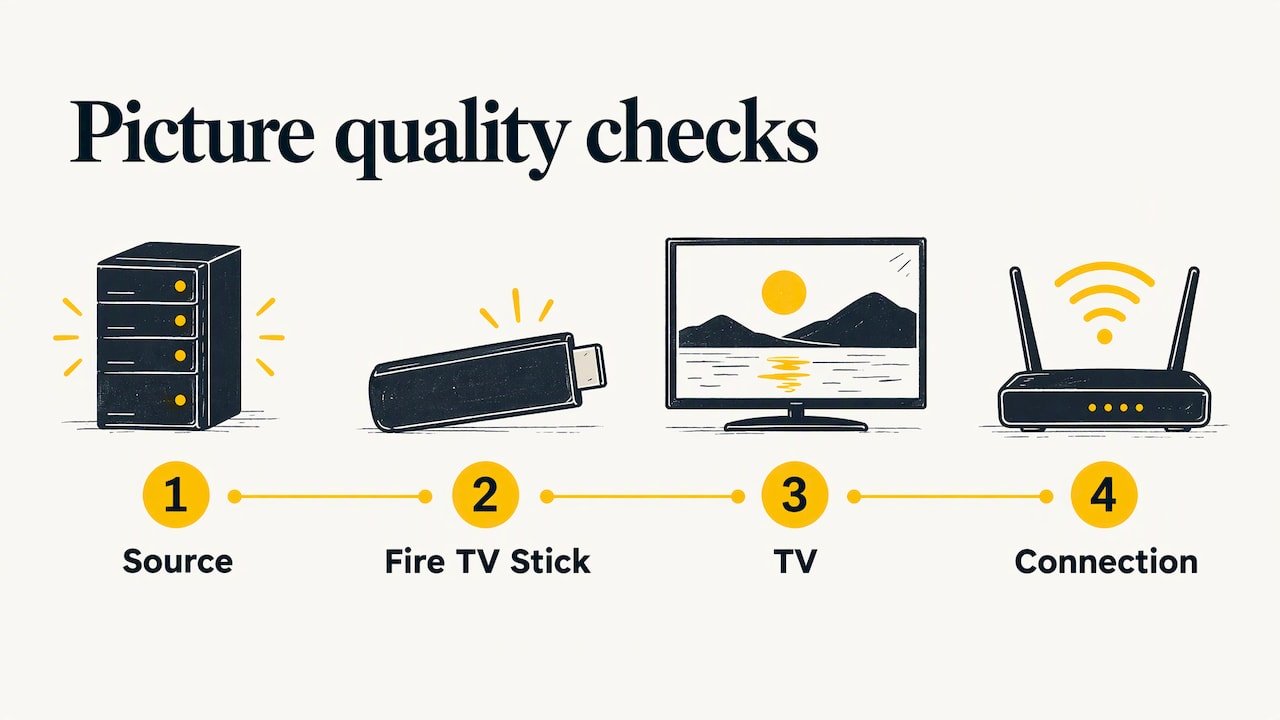
Picture quality depends on the source, the Stick, the TV and your connection. Work through them in that order.
Check your broadband speed
For reference, Netflix’s published requirements quoted by How-To Geek are at least 5 Mbps for HD and 15 Mbps for 4K, though other services and conditions can differ. Remember that those figures are per stream. If someone else is gaming or downloading while you watch, your real headroom is smaller. We cover this in more detail in our guide to internet speed for 4K in the UK.
Set your TV to the right mode
If you have a 4K TV and a 4K Stick, make sure the Stick’s display settings are set to the highest resolution your TV supports, and that the HDMI port you use on the TV accepts 4K. Some TVs only enable full 4K on certain ports.
Pick a player that decodes in hardware
The July 2026 guide mentioned earlier notes that the Stick’s processor cannot smoothly software-decode 1080p H.265 video, so hardware decoding matters. If your picture stutters on high-quality channels but your internet is fast, the player’s decoder setting is a likely cause. Look in the player’s settings for a hardware decoding option.
Fixing buffering and playback problems
Buffering is the problem readers ask about most. The cause is not always the service. Work down this list in order, because the early items are the quickest.
- Restart the Stick and the router. Established Fire TV troubleshooting advice, summarised by How-To Geek, starts here, then moves on to running the Fire TV network speed test and checking for interference or obstacles.
- Give the Stick a clear line to the router. A UK news report on slow Sticks recommends soft-rebooting the Stick, updating its software and moving it for a clearer line of sight to the router.
- Switch off video autoplay on the home screen. The same report suggests turning off Featured Content video and audio autoplay, which frees up the Stick’s limited resources.
- Update Fire OS and your apps. Out-of-date software causes odd faults.
- Try another app or channel. If only one channel fails, the problem is with that stream, not your connection.
- Turn off any VPN temporarily. How-To Geek suggests this to isolate whether the VPN is causing slowdowns.
- Consider a wired connection. One 2026 writer found that adding an Ethernet adapter made 4K playback steadier, with an episode playing for 30 minutes without buffering. That is one person’s experience, but cable is generally steadier than Wi-Fi in a busy home.
If you want a fuller approach to a reliable home set-up, our guide to building a stable 4K IPTV setup at home covers router placement, wiring and more.
Is it the Stick, the Wi-Fi or the service?
A simple way to tell them apart:
| What you see | Likely cause | What to try |
|---|---|---|
| Every app buffers, including other streaming apps | Wi-Fi or broadband | Move the Stick, restart the router, try Ethernet |
| Menus lag and the Stick feels slow | Stick overloaded | Soft reboot, switch off autoplay, update software |
| One channel freezes, others are fine | That stream | Try another channel or contact support |
| Picture stutters but speed tests are fine | Decoder settings | Enable hardware decoding in the player |
| Login fails or channel list is empty | Wrong details | Re-enter the details exactly or ask your provider |
Our service uses what we call antifreezing technology, which is designed to keep streams running without freezing. If you still have trouble after the steps above, our 24/7 support team can help you find the cause.
Is IPTV legal in the UK?
IPTV itself is just a delivery method, and many broadcasters use it. What matters is whether the service has the right to supply what it offers, and whether you are using it properly. Use only services you are entitled to use and get your login from an authorised provider.
Two official points are worth knowing:
- Regulation. Ofcom explains that internet-delivered IPTV channels do not necessarily fall under its broadcast rules unless they appear on an Ofcom-regulated electronic programme guide. That makes household supervision and checking your source particularly important, especially if children use the TV.
- TV Licence. You need a licence to watch live TV on streaming services and to use BBC iPlayer. A 2026 report puts the cost at £180 a year for colour TV after the rise on 1 April 2026, and the maximum penalty at a £1,000 fine plus legal costs. Check the TV Licensing site for the current fee.
Keep your login private, never share a playlist link publicly, and buy from a provider that gives you clear terms and real support.
Our perspective
Most Firestick problems that people blame on their IPTV are really set-up problems: a weak Wi-Fi signal, a player that is not built for a remote, or login details typed in wrong. That is why we put as much effort into helping people install as we do into the service itself.
Our approach starts from the viewer. We designed our service to deliver more than 30,000 live channels and more than 140,000 films and series in 4K, HD and FHD, with regular library updates so there is always something new on. We built in antifreezing technology to reduce the stalls that spoil a match or the end of a film.
We also believe nobody should be left alone with a remote and a login screen. That is why we offer free installation help and 24/7 support, so a beginner can be watching quickly and a seasoned user can get an answer at any hour. If you want a Firestick set-up that just works, that combination is what we think matters most.
ANASS
Our plans for Firestick viewers
Our IPTV subscription works on the Fire TV Stick and on other devices too, with free installation help included. You can choose the length that suits you:
- £14 per month
- £29 per quarter
- £55 per year
Every plan comes with our satisfaction guarantee, 24/7 customer support and regular library updates. If you watch sport or films most weeks, the longer plans lower the cost per month. You can see them on our IPTV subscription page.

After you check out, our team can guide you through installing a player on your Stick. If you also use a smart TV in another room, our guides to IPTV on a smart TV and to setting up IPTV Smarters on a smart TV cover that.
Tips for a smoother Firestick experience
A few habits make a lasting difference once you are up and running.
- Keep the Stick cool and ventilated. Do not wedge it tightly behind a TV with no airflow. A Stick that runs hot slows down.
- Restart it now and then. A weekly restart clears memory and keeps menus quick.
- Clear out unused apps. Fewer apps means more room for the player.
- Use favourites and categories. A tidy channel list saves scrolling, and large libraries are easier to use when you hide categories you never watch.
- Update the player and Fire OS when prompted. Updates often fix bugs that look like service faults.
- Keep your router central. A router in a cupboard at the far end of the house is a bigger problem than any app.
- Secure your account. Do not share your login in public groups.
If you also like films on the Stick, our piece on safe Firestick cinema apps is a good companion read, and you can browse more on our IPTV streaming archive.
Choosing a provider for your Firestick
When you compare services, look at what you will actually use, not just the biggest number on the page.
- Channel and library range. Does it cover the sport, news and films you watch?
- Quality options. Are 4K, HD and FHD all available?
- Device support. Does it work on your Stick and your other screens?
- Setup help. Is there real guidance for beginners, and is it free?
- Support hours. Can you reach someone in the evening or at the weekend, when you actually watch?
- Clear pricing and terms. Know the length, the price and what the guarantee covers before you pay.
- Authorised supply. Choose a provider that is open about what it offers and how you get it.
Those are the questions we want you to ask, because we think our service answers them well: wide range, 4K, HD and FHD quality, free installation help and 24/7 support.
FAQ
Does IPTV work on a Fire TV Stick?
Yes. The Stick runs apps, so you install an IPTV player, sign in with the details from your provider and your channels appear. You need a working Amazon set-up, Wi-Fi and a TV with a free HDMI port. Most people finish in around ten minutes.
What do I need to set up IPTV on a Firestick?
You need the Stick, a TV with an HDMI port, an Amazon account, your Wi-Fi details and login details from your IPTV provider. You also need a player app that supports M3U or Xtream Codes logins. If you buy from us, we help you with installation for free.
Why does my Firestick keep buffering?
The usual causes are weak Wi-Fi, an overloaded Stick or too little broadband speed. Restart the Stick and router, move the Stick closer to the router, switch off home screen autoplay and update the software. A wired Ethernet adapter can help in a busy home.
Do I need a TV Licence to watch live channels on a Firestick?
In the UK you need a TV Licence to watch live TV on streaming services and to use BBC iPlayer. A 2026 report puts the colour licence at £180 a year. Check the TV Licensing website for the current fee and rules.
Can I watch 4K IPTV on a Fire TV Stick?
Yes, if you have a 4K Stick, a 4K TV, a suitable HDMI port and enough broadband speed. Netflix’s reference figure for 4K is at least 15 Mbps per stream. Our 4K channels and films are designed to play in that quality on supported devices.
Sources
- How to set up and use your Amazon Fire TV Stick (Amazon UK)
- How to Connect and Set Up Your Fire TV Stick (Amazon UK)
- Navigate the New Fire TV Experience (Amazon UK)
- Best IPTV App for Fire TV Stick in 2026 (Dih-Labs)
- IPTV Player for Firestick: M3U Setup and Safe Use
- Why your Amazon Fire TV Stick keeps buffering (How-To Geek)
- Fire Stick too slow fix (Wales Online)
- Fire TV stick buffering in 4K and an Ethernet adapter (MakeUseOf)
- Information on internet protocol TV (Ofcom)
- TV Licence rules as officials confirm guidance (AOL)