
When IPTV channels stop working, the cause is almost always in one of four places: your broadband, your device, your app or the provider’s server. The quickest way to find it is to change one thing at a time. Try a different channel, then a different device, then a different network. Each test rules a layer in or out, and most faults are fixed within ten minutes.
This guide takes you through that process in the order that saves the most time. It covers blank screens, playback errors, playlists that will not load and channels that freeze or buffer. It also covers when to stop troubleshooting and contact your provider or your broadband company.
TL;DR
- Test another channel first. If others play, the fault is with that one stream. If none play, move on to your network and device.
- Try a second device and mobile data. A fault that follows you everywhere points to the subscription or provider. A fault that stays on one network points to your router or broadband.
- If a playlist will not load, delete it and paste a fresh link from your provider. Check for stray spaces and the wrong link type.
- Changing your device DNS to 1.1.1.1 or 8.8.8.8 clears a common cause of channel lists and logins that fail.
- Keep a note of the times faults happen. Ofcom and your provider will both ask for it.
Table of Contents
- Work out where the fault is before you fix anything
- Quick checks that fix most problems
- When only some channels fail
- When the channel list will not load
- DNS and ISP problems: when it works elsewhere but not at home
- Freezing, buffering and poor picture quality
- Playback errors and app-specific fixes
- Our perspective
- Get a stable service with help on hand
- When to contact your provider and when to contact your broadband company
- A ten-minute routine to keep handy
- FAQ
- Sources
Work out where the fault is before you fix anything
Random restarts and reinstalls waste time and can wipe settings you wanted to keep. A short diagnostic sequence is faster. Think of your viewing chain as four links: the stream at the provider’s end, your internet line, your router and Wi-Fi, and the device and app that show the picture. The fault sits in exactly one of them most of the time.
Run these checks in this order.
- Try another channel. Kepler’s help page treats this as the first diagnostic: if other channels play, the failing stream is likely on the provider’s server rather than on your device.
- Try a different app or player on the same device. If the same channel works in another player, the first app is the problem.
- Try a different device on the same Wi-Fi. A phone or tablet is fine. If it plays, the first device is at fault.
- Try mobile data. If a channel list loads on mobile data but not on home Wi-Fi, the router or your internet provider may be blocking or mishandling the connection. We cover that below.
- Try an ordinary streaming app or website. If that struggles too, your broadband is the weak link, not the IPTV service.
Kepler’s help page adds a useful rule for the whole subscription: a playlist that fails on every device points towards the provider or subscription. That is the point at which you should contact whoever sells you the service, with your findings ready.
What your results tell you
| What you see | Most likely cause | First fix to try |
|---|---|---|
| One channel fails, others play | That stream is down or overloaded | Wait a few minutes, try an alternative feed of the same channel |
| All channels fail on one device only | App, cache or decoder fault | Restart device, switch player, clear cache |
| All channels fail on every device at home | Router, broadband or DNS | Restart router, change DNS, test mobile data |
| Works on mobile data, not on home Wi-Fi | Router settings or ISP handling of the connection | Change DNS, restart router |
| Plays, but freezes or buffers | Slow or congested connection, weak Wi-Fi | Ethernet cable, lower quality, move router |
| Channel list is blank or stops loading part way | Expired link or a list too big for the device | Re-add playlist, use a smaller list or Xtream login |
Quick checks that fix most problems
Before going deeper, do the basics properly. They sound obvious, and they work more often than people expect.
Restart the device, not just the app
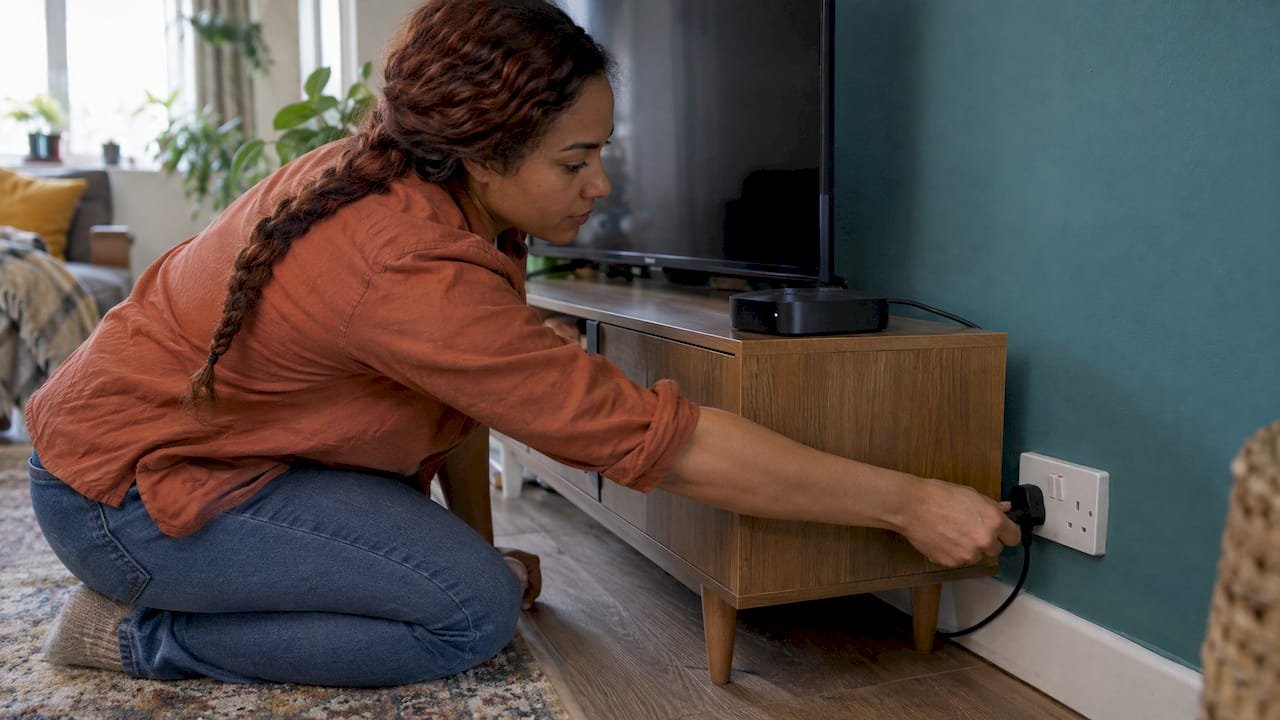
Kepler’s help notes that restarting the device can clear a stuck video decoder. A decoder that has jammed produces a black screen or a frozen frame even though the stream itself is fine. Unplug a streaming stick or box from the mains for 30 seconds, then plug it back in. Closing the app from the task list is not the same thing.
Restart the router and check the cables
The Communications Ombudsman recommends checking router and wall connections and restarting the router when service problems appear. Look for a loose filter or cable, then check your broadband provider’s outage checker on your phone using mobile data. If there is a local fault, no amount of fiddling with the IPTV app will help, and you will save yourself an hour.
Check the login and subscription
A channel list that suddenly shows nothing, or an error that looks like a login failure, can simply mean the subscription period has ended or the details have been mistyped. Check your email for the login details and expiry date. If you copied them across, look for a trailing space at the end of the username, password or link.
Update the app and the device
Old app versions can stop talking properly to a provider’s servers. Update the app, then update the device software. On a Fire TV Stick, the soft reboot using the Select and Play/Pause buttons held together is a quick way to refresh a sluggish stick without a full restart.
When only some channels fail
If one channel shows a playback error or a blank screen while others are fine, you are looking at a stream-level problem. Live streams depend on a source feed. When the feed drops, or a popular event sends a surge of viewers to one channel, that channel can fail while the rest carry on.
What to do:
- Wait five to ten minutes and retry. Short drops often recover on their own.
- Look for a duplicate of the same channel. Many lists carry the same channel in several qualities, such as HD, FHD and 4K. Another version may use a different feed.
- Check the channel is in your list at all. Lists differ by package and region. Our guide to IPTV channel lists explains how to check what a list contains before you assume something is broken.
- Note the channel name and the time. If it stays down, this is the detail your provider’s support team needs to investigate.
If several channels from the same group fail together, say all the sports channels, report it. That pattern points to a problem at the source rather than anything you can fix at home.
Why a channel can fail on match days
Busy live events put the heaviest load on streams. If your picture falters only at big kick-offs or fights, and the rest of the week is fine, congestion is the likely cause: either at the provider’s end, or in your own household if several people are streaming at once. Moving the viewing device to Ethernet, and asking others to pause large downloads, takes your side of the equation out of the picture.
When the channel list will not load
A blank list, an endless loading wheel or a list that stops partway are the most common complaints, and they usually have a simple cause.
Delete and re-add the playlist
The standard fix is to delete the playlist and add it again, pasting the link fresh from your provider’s message rather than from an old note. While you do, check four things:
- a trailing space after the link
- a mismatch between http and https
- an expired subscription
- the wrong type of link pasted into the wrong field, for example a login URL where a playlist link is expected
If your service gives you more than one way to sign in, such as an M3U link or a username and password login, try the other method. Our IPTV Smarters Pro subscription guide explains how the login details fit into that app.
A list that climbs and then stops
If the counts for Live TV, Movies and Shows go up and then freeze, the device has usually run out of memory. InoxTV’s troubleshooting guide explains that very large M3U files with tens of thousands of entries must be read in full before anything works, and a television stick has far less room than a phone.
There are two sensible answers:
- Use an Xtream-style login if your provider offers one, because it loads categories as you browse instead of reading everything at once.
- Ask for a smaller list limited to the categories you actually watch.
This matters for large libraries in particular. With tens of thousands of channels and a huge on-demand catalogue, how the list is loaded matters as much as how fast your broadband is.
DNS and ISP problems: when it works elsewhere but not at home
If your channels load on mobile data but not on home broadband, the connection between your router and the provider’s servers is the suspect. Two things can be going on.
Your router’s DNS
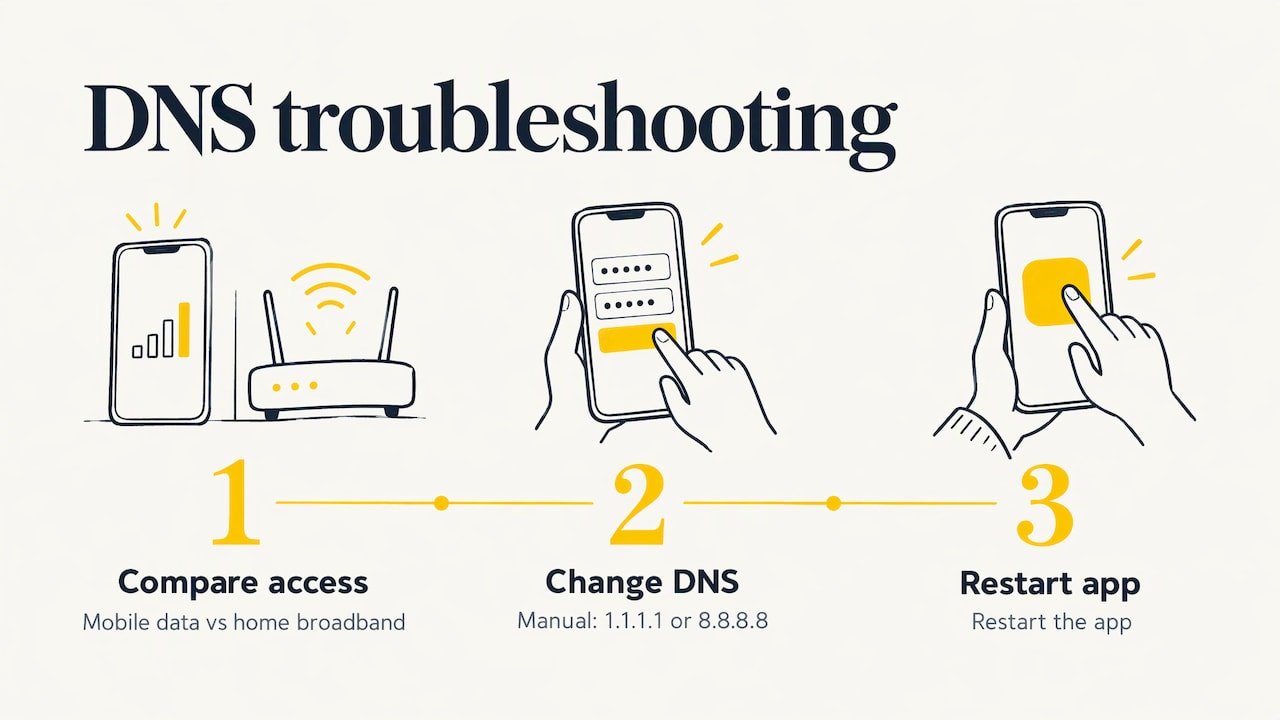
DNS is the address book your connection uses to find the provider’s server. One UK-based guide says that DNS problems at the internet provider became the dominant cause of Smarters Pro faults that look like login failures in 2025 and into 2026. The provider’s DNS may point the portal address at a dead or redirected location, so the app shows a generic login error even though your details are correct.
The suggested remedy is to change the DNS on your device to 1.1.1.1 or 8.8.8.8 and try again. The playlist troubleshooting advice says the same when a list loads on mobile data but not on home Wi-Fi. To do it on most devices, open the network settings for your Wi-Fi connection, switch from automatic to manual DNS and enter the address. Restart the app afterwards.
Blocking by internet providers
UK internet providers also block certain streams under court orders. In November 2024 Sky obtained an extension to its High Court order, with BT, EE, Plusnet, TalkTalk and Virgin Media as respondents, and BT must use Cleanfeed, including DNS blocking for customers on BT’s own DNS servers. The order targets unlicensed streams, so it is another reason to buy from a provider that keeps its feeds stable and maintains its library, and not to rely on unreliable sources.
If you suspect your connection is interfering, the practical test is the mobile-data comparison above, followed by the DNS change. Ask your provider’s support team for guidance on your specific setup if the problem continues.
Freezing, buffering and poor picture quality
Channels that load but stutter are a different problem from channels that do not work. Broadband.co.uk explains that buffering happens when video data arrives more slowly than it is played, commonly because of slow broadband, weak Wi-Fi, congestion or a fault at the streaming service.
What to change, in order
- Use Ethernet if you can. A cable removes Wi-Fi interference from the equation. Where that is not possible, powerline adaptors are a common alternative.
- Move the router. The same page recommends placing it centrally and away from sources of interference. Walls, fish tanks and microwaves all weaken the signal.
- Prioritise streaming traffic. Many routers have a QoS setting that gives video priority over downloads.
- Lower the quality for a test. If an HD channel plays smoothly when you drop the quality setting, your connection is the limit.
- Reboot the device. A stick that has been on for weeks slows down.
How much speed do you need? That depends on the quality you watch. Our guide to internet speed for 4K in the UK sets out the figures, and it is worth running a speed test on the device itself, not on a laptop in another room.
Fire TV Stick tips
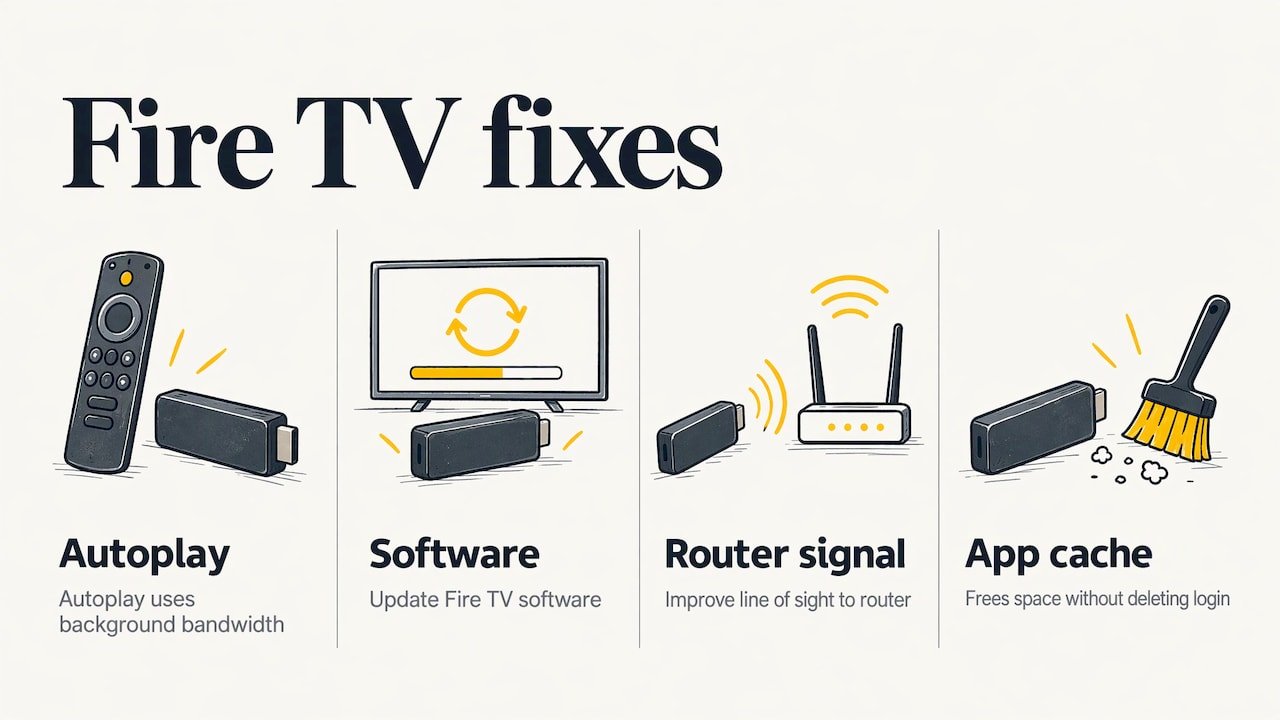
Fire TV owners have a few extra levers. WalesOnline reports that Featured Content autoplay can use bandwidth in the background, and recommends turning off video and audio autoplay under Settings, Preferences and Featured Content. It also suggests updating the software and improving the line of sight to the router, using an HDMI extender if the stick sits behind the TV. Clearing the cache of the IPTV app, as the broadband advice also suggests, frees up space without deleting your login.
If an older stick is struggling with a big channel list however much you tidy it, a newer device is the lasting fix. You can compare streaming media players on offer in the UK to see what current models cost, and our guide to building a stable 4K setup at home covers how the pieces fit together.
Playback errors and app-specific fixes
If the app itself seems to be the problem, work through its settings before you reinstall.
- Switch the player. In apps such as IPTV Smarters Pro, one troubleshooting guide suggests going to the player selection setting and switching between the built-in player and VLC, then toggling between hardware and software decoding.
- Try a second app. If the same login works in a different player, the first app has a fault or a bad setting.
- Clear the cache before you clear data. Clearing the cache removes temporary files only.
- Check the time and date on the device. A wrong clock can break secure connections.
Reset carefully
A full reset should be the last step, not the first. The official SmartOne Player support page warns that resetting all app data deletes accounts, settings, favourites, theme, language and storage, and advises choosing a narrower reset option where one is offered. Before any reset, write down your login details and note your favourites so that you can rebuild quickly. Our iPhone IPTV setup guide shows what a clean setup looks like if you need to start again on an iPhone.
Our perspective
Most IPTV faults we hear about are not dramatic. They are an expired link, a router that needs a restart, a stick that has run out of memory or a DNS setting that needs changing. The trouble is that from the sofa they all look the same: a black screen and a spinning wheel.
That is why we think a service should be judged on how it behaves day to day, and how quickly it helps when something goes wrong. Our service is built for viewers in the UK and USA who want 30,000 plus live channels and more than 140,000 films and series in 4K, HD and FHD. It uses antifreezing technology and reliable server technology designed to keep streams smooth, and the library is updated regularly at no extra cost.
We also think you should never have to work it out alone. Our support team is available 24/7, and we offer free installation assistance, including for people who have never set up a stream before. If you send us the channel name, the time and what you have already tried, we can get to the cause much faster.
A stable picture comes from a good service and a well-set-up home network working together. We aim to take care of the first part, and this guide is there to help with the second.
ANASS
Get a stable service with help on hand
If you have worked through the steps above and want a service built around smooth streaming, our IPTV subscription is designed for exactly that: live channels, a large on-demand library, 4K, HD and FHD quality and compatibility with all your devices. Plans cost £14 a month, £29 a quarter or £55 a year, and installation help is free.

You can see the plans and check out on the IPTV subscription page. If you want to see what is included first, our channel list page shows what is on offer. Our support team is on hand 24/7 if you need help getting set up.
When to contact your provider and when to contact your broadband company
Once your tests have pointed to a layer, the next step is to talk to the right company with the right evidence.
Contact your IPTV provider when
- the fault follows you across devices and networks
- your playlist or login fails after you have re-added it correctly
- a group of channels is down for more than a short time
- your subscription shows as active but nothing loads
Send the channel names, the times, the device and app you use, and what you have already tried. That saves several rounds of questions.
Contact your broadband provider when
- other streaming services also buffer or fail
- the fault happens at the same time of day
- the router shows warning lights or keeps dropping the line
Ofcom advises UK customers to contact their provider promptly, describe when and how often the fault occurs and record the times and durations of interruptions. A simple note on your phone, with dates, times and screenshots, is enough. The Communications Ombudsman likewise suggests keeping evidence such as screenshots when problems persist.
If a broadband fault is still unresolved after eight weeks, Ofcom says you can take it to your provider’s approved dispute resolution scheme, either CISAS or the Communications Ombudsman. Our guide to choosing an IPTV provider explains what to look for in support and service terms before you subscribe.
A ten-minute routine to keep handy
Save this list for the next time a channel fails.
- Try another channel and note whether it plays.
- Restart the device by unplugging it for 30 seconds.
- Try the same channel on another device.
- Try mobile data on a phone.
- Restart the router and check for broadband outages.
- Change DNS to 1.1.1.1 or 8.8.8.8.
- Re-add the playlist with a fresh link, checking for spaces.
- Lower the quality or switch to Ethernet if the picture freezes.
- Write down the channel, time and what you tried, then contact support.
Most problems are solved by step five. If you reach step nine, you will already have the evidence that gets the quickest answer.
FAQ
Why are my IPTV channels not loading?
The usual causes are an expired or mistyped playlist link, a router or DNS problem, an overloaded device or a fault at the provider. Test another channel, another device and mobile data to find which. Then re-add the playlist with a fresh link and try changing your DNS to 1.1.1.1 or 8.8.8.8.
Why does IPTV work on my phone but not on my TV?
That points to the TV device or its app, not to the subscription. A stick or smart TV has less memory than a phone, so very large channel lists can fail to load. Clear the cache, update the app, restart the device and consider an Xtream-style login or a smaller list.
How do I fix IPTV buffering on a Fire Stick?
Use Ethernet if possible, or move the router closer, and clear the app cache. Turn off Featured Content autoplay in the Fire TV preferences and reboot the stick. If it still buffers, drop the quality setting to test whether your connection is the limit.
Should I reset the app when channels stop working?
Only after simpler steps. A full reset can delete your accounts, settings and favourites, so note your login details first. Try restarting the device, clearing the cache and switching player before you wipe anything.
When should I contact my broadband provider?
Contact them when other streaming services also fail or buffer, or when the problem repeats at certain times. Describe when it happens and keep a record of the times. If a fault is unresolved after eight weeks, Ofcom says you can use an approved dispute resolution scheme.
Sources
- Kepler Help: IPTV not working
- Broadband.co.uk: Why does my TV keep buffering?
- WalesOnline: Fire TV setting that slows your stick
- Tuneline: IPTV channels not loading, playlist fix
- InoxTV: playlist will not load
- British Seller: IPTV Smarters Pro not working
- TorrentFreak: Sky’s enhanced High Court blocking order
- SmartOne Player: how to reset SmartOne IPTV
- Ofcom: Broadband and landline faults and problems
- Communications Ombudsman: No broadband or phone signal?