
To watch IPTV on a Samsung Smart TV, you need three things: a TV connected to the internet, a compatible IPTV player app from the Samsung app store, and a subscription that gives you a playlist link (M3U) or an Xtream Codes login. Install the player, enter those details, and your live channels and on-demand library appear in the app. The whole job usually takes ten to fifteen minutes. This guide walks through each step, explains the choices along the way and covers the problems people most often hit.
TL;DR
- A Samsung Smart TV runs IPTV through a player app. The app is only the viewer: your channels come from your subscription.
- Have your M3U playlist URL or Xtream Codes details, a stable connection and an up-to-date TV ready before you start.
- Most setup trouble comes from a typing slip in the playlist URL, a wrong date or region on the TV, or a weak Wi-Fi signal.
- Use Ethernet where you can, restart the app and the TV first, and reinstall the player if a fault persists.
- Our plans cost £14 a month, £29 a quarter or £55 a year, and our team helps with installation for free.
Table of Contents
- What IPTV on a Samsung TV actually involves
- What you need before you start
- How to install an IPTV player on your Samsung TV
- Adding your M3U playlist or Xtream Codes login
- Is there free IPTV for Samsung TVs?
- Checking that a service is above board
- Fixing common problems on a Samsung TV
- Keeping your account safe
- What to look for in a service for your Samsung TV
- Our plans for Samsung TV viewers
- A sensible first evening on your new setup
- FAQ
- Sources
What IPTV on a Samsung TV actually involves
IPTV means television delivered over your internet connection instead of an aerial or satellite dish. On a Samsung Smart TV there are two separate parts, and mixing them up is the cause of most confusion.
The first part is the player. This is an app on the TV that knows how to read a channel list and play streams. It has no channels of its own. The second part is the service: the subscription that supplies the channel list, the on-demand library and the streams themselves. The player is a window, and the service is the view.
That is why a search for “IPTV app” on the TV shows you players, not channels. You install a player, then point it at your service by entering the details your provider gave you. The details come in one of two forms:
- An M3U playlist URL. A web address that holds your channel list. You paste it into the player once.
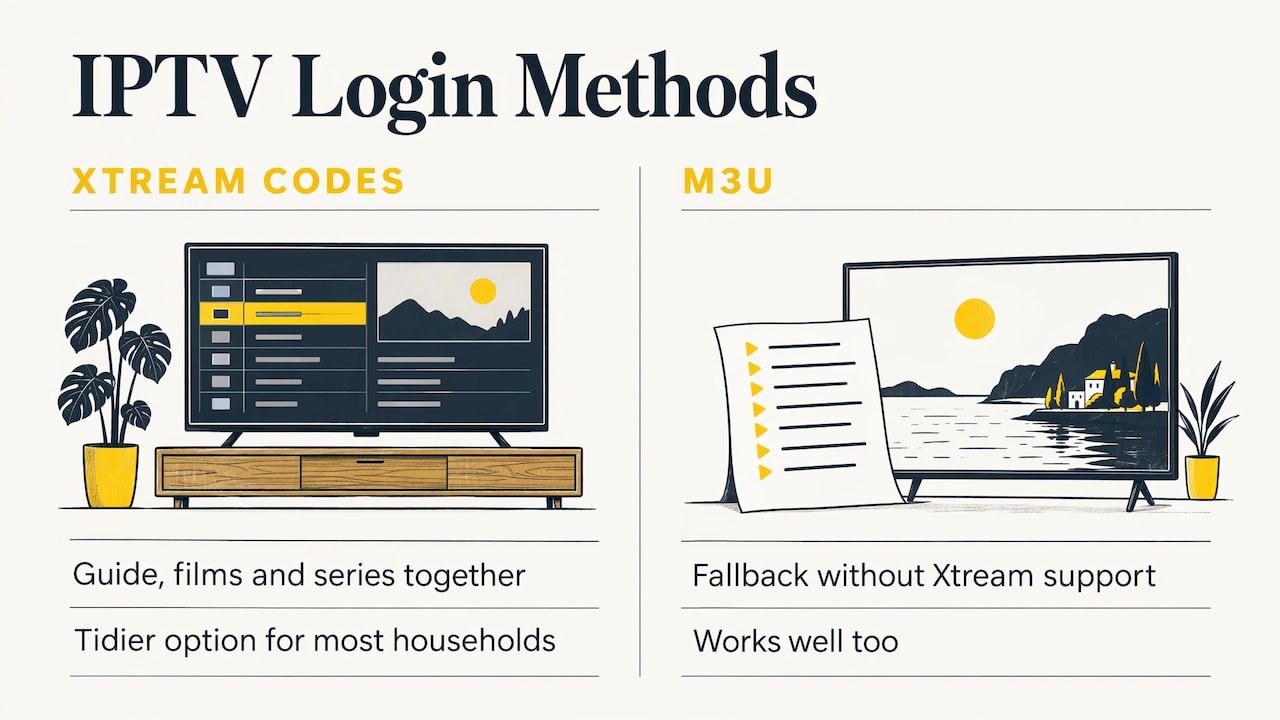
- Xtream Codes login. A server address, a username and a password. Many players prefer this because it also loads the programme guide and the film and series sections neatly.
If you want a deeper look at how players handle these logins, our guide to setting up an IPTV Smarters player on a smart TV covers the app side in detail.
What you need before you start
A setup guide from IPTV Basics lists the same basics we see with new customers: a Samsung Smart TV online through Wi-Fi or Ethernet, a Samsung account if Smart Hub asks for one, your playlist URL or Xtream Codes credentials, the remote, correct date, time and country settings, and updated TV software and apps. Here is how we would put that into a checklist you can tick off.
| Item | Why it matters | What to do |
|---|---|---|
| Internet connection | Streams are delivered live, so a weak signal shows as buffering | Use Ethernet if the router is near, or sit the TV within good Wi-Fi range |
| Samsung account | Smart Hub may ask you to sign in before you can download apps | Sign in with your existing account or create one on the TV |
| TV date, time and region | Wrong settings can stop apps loading or connecting | Set the country to United Kingdom and let the TV set the time automatically |
| Software and app updates | Older software can stop an app installing or running | Check for updates in the TV settings before you begin |
| Playlist URL or Xtream login | The player needs it to load your channels | Copy it from your subscription email and keep it handy |
| A way to type | Long URLs are slow to enter with the remote | Use the on-screen keyboard carefully, or a connected keyboard if you have one |
Two minutes spent on this list saves most of the head-scratching later.
Which Samsung TVs will work?
Player apps are built for Samsung’s smart TV system, which the company calls Tizen. Samsung Smart TVs of recent years run it, and the Samsung app store is where you find compatible players. The exact range of supported players differs by model year and software version, so the simplest test is practical: open the app store on your TV and search for an IPTV player. If one appears and installs, your TV can run it. If the store shows nothing or refuses the download, update the TV software first and try again.
Very old Samsung models may not be able to run current players at all. In that case a small streaming stick or box plugged into the HDMI port is a straightforward way round it, and our service works on those devices too.
How to install an IPTV player on your Samsung TV
The steps below suit most Samsung Smart TVs. Menu names shift slightly between models, but the order is the same.
- Update the TV. Open Settings, then Support, then Software Update, and install anything pending. Do this even if the TV seems fine.
- Check the region and clock. In the general settings, confirm the country is the United Kingdom and the date and time are correct.
- Open the Apps section. Press Home on the remote, then choose Apps from the menu.
- Search for a player. Use the magnifying glass and type the name of the IPTV player you want to use, such as IPTV Smarters Pro.
- Install it. Select the app and choose Install. Wait for the download to finish, then choose Open.
- Add your login. Choose the option to add a user or playlist, then follow the section below.
If you would like us to talk you through any of this, our setup page and our beginner’s guide to IPTV on a smart TV are written for people who have never done it before.
Can you use IPTV Smarters Pro on a Samsung TV?
Yes, if the app is offered in your TV’s app store. IPTV Smarters Pro is a player that many people use on Samsung TVs, and it accepts both Xtream Codes logins and M3U playlists. Availability can change over time, and the store listing on your own TV is the final word. If it is not listed on your model, other compatible player apps accept the same login details, so the subscription itself is not tied to one app. Our article on the IPTV Smarters Pro subscription explains what the player needs from a service.
Adding your M3U playlist or Xtream Codes login
This is the step where people most often stumble, so take it slowly.
Using an Xtream Codes login
Choose the Xtream Codes option (it may be labelled “Login with Xtream Codes API”). The player will ask for:
- A name for the profile, which can be anything, such as “Living room”.
- The username from your subscription details.
- The password from your subscription details.
- The server URL, often written with
http://at the start and a port number at the end.
Enter each field exactly as supplied. Usernames and passwords are case sensitive. Select Add User, and the player loads your channels, films and series.
Using an M3U playlist URL
Choose the option to load a playlist by URL. Type or paste the full address, give the list a name and confirm. A very long M3U link is easy to mistype on a TV remote, and a single wrong character gives a blank or error screen. If you have the link in an email, use a phone to check it character by character against what is on the TV.
Which method is better?
For most households Xtream Codes is the tidier option, because it tends to bring in the channel guide and the film and series sections in one go. M3U works well too and is the fallback if a player does not offer the Xtream option. Either way, you enter the details once and the player remembers them.
Is there free IPTV for Samsung TVs?
The player apps themselves are often free to download. That is a different thing from free television channels. A player has nothing to show until you give it a playlist or login, and that comes from a subscription. Free playlists passed around online are unreliable, tend to drop out without warning and may not be licensed to carry what they show. We built our service for people who want something dependable, and our plans start at £14 a month.
If you are simply after free-to-air British television, your Samsung TV already carries the catch-up apps of the main broadcasters through its app store, with no player needed.
Checking that a service is above board
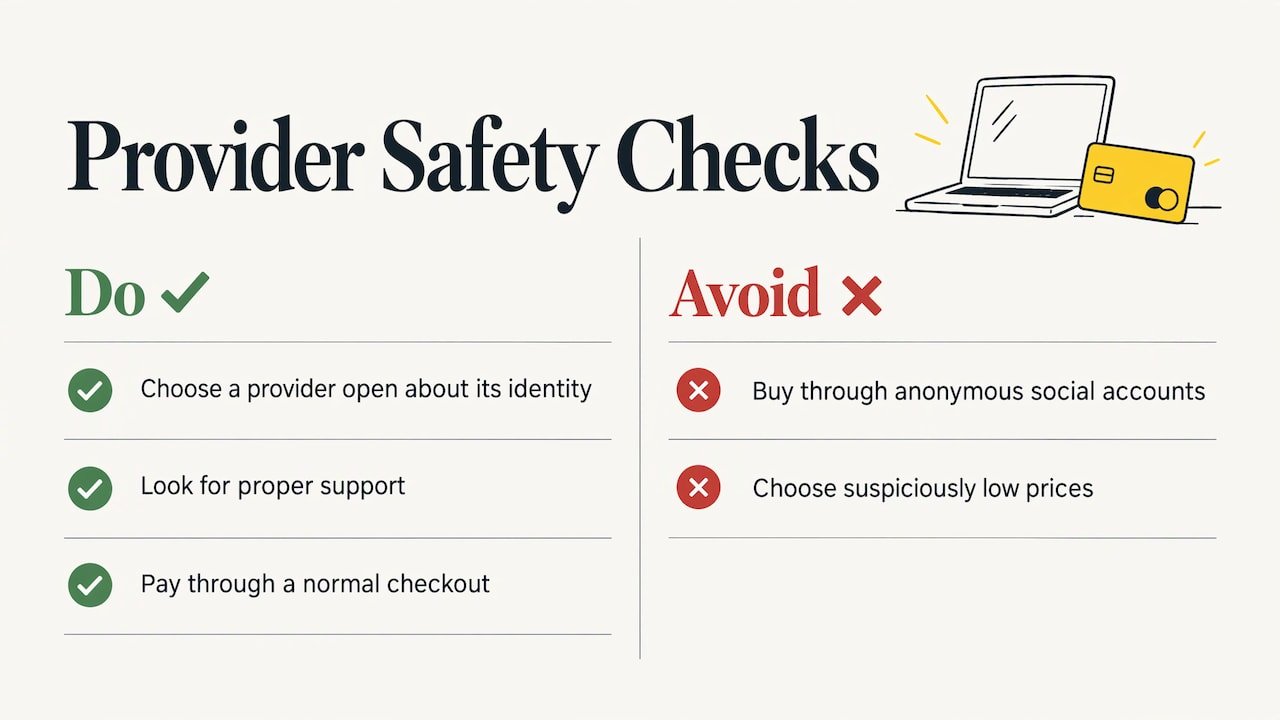
Before paying anyone for IPTV in the UK, think about where the content comes from. Industry bodies such as the Federation Against Copyright Theft and the Police Intellectual Property Crime Unit run investigations into illegal streaming, and a guide to the legal position of IPTV reports a 2023 case in which a man was given a suspended sentence for selling IPTV subscriptions. The sensible approach as a viewer is to deal with a provider that is open about who it is, offers proper support and takes ordinary payment through a normal checkout, and to avoid anything sold through anonymous social media accounts or at suspiciously low prices.
The rules on what is licensed to be shown in the UK are a matter for rights holders and the courts, so if you have a particular question about your own situation, a solicitor who works with copyright law is the right person to ask.
Fixing common problems on a Samsung TV
Most faults have a short list of causes. Work down this table from the top.
| Symptom | Likely cause | What to try |
|---|---|---|
| Blank screen after adding a playlist | Typing error in the URL or login | Re-enter the details slowly and check capital letters |
| Channels load but the picture buffers | Weak Wi-Fi or a busy network | Move to Ethernet, restart the router, pause other downloads |
| Picture freezes at busy moments | Network congestion at peak hours | Try a wired connection and close other streaming devices |
| App will not install | Old TV software or wrong region | Update the TV and confirm the country is set to the UK |
| App opens then closes | Corrupted app data | Restart the TV, then delete and reinstall the player |
| No programme guide | Guide not loaded or login method | Reload the playlist, or switch to the Xtream Codes option |
| Login rejected | Wrong username, password or server address | Copy the details again from your subscription email |
A routine that fixes most issues
- Close the player and reopen it.
- Switch the TV fully off, unplug it for 30 seconds, then switch it on again.
- Restart your router.
- Check the TV for software updates.
- Delete the player and install it again, then re-enter your details.
If you are still stuck after that, contact support with the model of your TV and a note of what the screen shows. A short description gets a faster answer than “it doesn’t work”.
Getting the best picture and sound
4K streams ask more of your connection than standard definition. A wired link is the simplest way to give them room, and a mid-range router in the same room as the TV is the next best thing. In your Samsung TV’s picture settings, choose a mode such as Movie or Standard for films and series, and Sport mode for live matches if your model has one. Check the TV’s own audio settings too, since soundbars and Dolby options can need switching on separately.
Keeping your account safe
Your login is the key to your subscription. Do not post it in public forums, and do not share it with people outside your household. If you think someone else has it, change it as soon as you can. We explain the habits that matter in our guide on how to secure your IPTV Smarters account.
What to look for in a service for your Samsung TV
Once the player is set up, the viewing experience depends on the service behind it. These are the points worth weighing:
- Library size and variety. Live channels, sport and a deep on-demand collection in one place.
- Picture quality. A service that offers 4K, FHD and HD gives you a choice when your connection varies.
- Stability. Reliable servers and a plan for handling freezing.
- Support. Someone to talk to when a setup step does not go to plan, ideally at any hour.
- Clear pricing. A published price per period, with no confusing extras.
- Device range. The same subscription should work on your Samsung TV and on your phone, tablet or a streaming stick.
For more on weighing these points, see what to consider before choosing a provider.
Our perspective
We built our service around a simple observation: most people do not give up on IPTV because of the channels, they give up because of buffering, a confusing setup or nobody to ask. So we put our effort into those three things.
Our library holds over 30,000 live channels and more than 140,000 films and series, in 4K, HD and FHD, and we update it regularly at no extra cost. Our antifreezing technology is designed to keep a picture running smoothly when a match is at its busiest, and our servers are built for reliable streaming.
On a Samsung TV, we think the player should be the easy part. That is why we offer free installation assistance, even if you have never set up anything like this before, and why our support is there around the clock. If a step does not work, you should be able to ask a person and get it sorted.
We also back the service with a satisfaction guarantee, because we want you to feel the choice was sound.
ANASS
Our plans for Samsung TV viewers
Our subscription works on Samsung Smart TVs and on the other devices in your home. Pricing is published as follows:
| Plan | Price |
|---|---|
| Monthly | £14 per month |
| Quarterly | £29 per quarter |
| Yearly | £55 per year |
Each plan gives you the full library of live channels and on-demand titles, with free installation help and 24/7 support. The yearly plan is the lowest cost over time if you already know you will keep watching.

You can see the plans and check out at buyiptvfor4k.com. If you would like to look at what is on offer first, browse our channels list.
A sensible first evening on your new setup
Once everything loads, a few small steps make the experience far more pleasant.
- Make a favourites list. Mark the channels you watch most so you are not scrolling through thousands each time.
- Check the guide. If a channel list shows no guide, reload the profile.
- Test a live match or a 4K title. This shows you how your connection copes with the heaviest content.
- Note your login somewhere safe. You will need it again if you ever reinstall the player or add a second device.
- Set parental controls. Most players let you lock categories with a PIN, which helps in a house with children.
If you want the same subscription on other screens, our overview of IPTV on smart TVs, Firestick, iPhone and more shows how the pieces fit together.
FAQ
Can I watch M3U IPTV on my Samsung TV?
Yes. Install a compatible IPTV player from the Samsung app store, choose the option to add a playlist by URL, and enter your M3U link. If the link is long, check each character, since one mistake gives a blank screen. Many players also accept an Xtream Codes login, which loads the guide and on-demand sections more neatly.
Why does my IPTV buffer on my Samsung TV?
Buffering is usually a connection issue rather than a TV fault. Move the TV to Ethernet or closer to the router, restart the router, and pause other heavy downloads. Updating the TV software and reinstalling the player can help too. If it continues, contact our support with your TV model.
What is the best IPTV player for a Samsung TV?
The best player is one that is available in your TV’s app store, runs smoothly and accepts both M3U and Xtream Codes details. IPTV Smarters Pro is a common choice. Your subscription works with any compatible player, so you can switch if one does not suit you.
Do I need a Samsung account to install IPTV apps?
Smart Hub may ask you to sign in with a Samsung account before downloading apps, depending on your TV. Creating one is free and takes a few minutes on the TV itself. Keep the sign-in details somewhere safe in case you need them again.
Can I use the same subscription on more than one device?
Our service is designed to work on all common devices, including Samsung Smart TVs, phones, tablets and streaming sticks. Ask our support team how many devices your plan suits before you set up a second screen.
Sources
- How to Set Up IPTV on a Samsung Smart TV: Complete Guide, IPTV Basics
- Is IPTV Legal in the US, UK & EU? What to Know in 2026